

Sub Topic Deep Dive
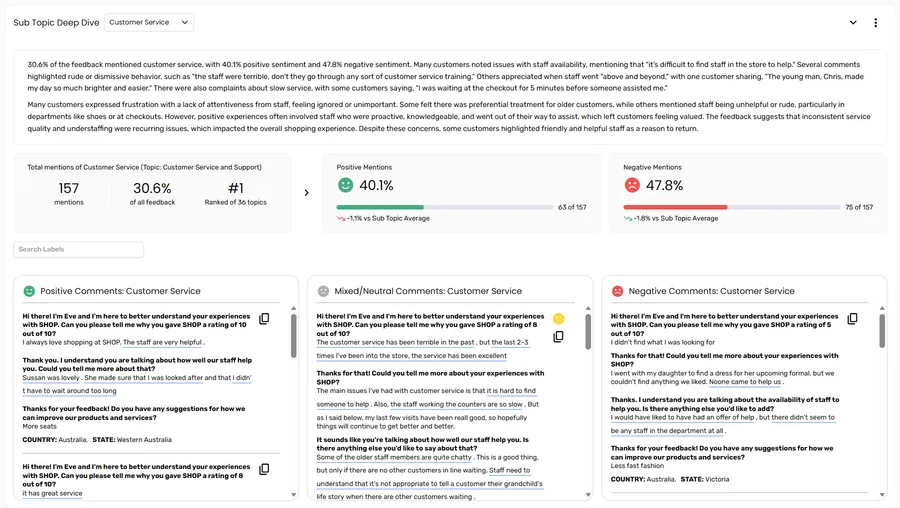
The Sub Topic Deep Dive section of the Text Auto Report lets you examine any individual sub topic in detail — reading the AI-generated summary, reviewing sentiment statistics, and browsing the actual comments that make up that sub topic’s data.
Selecting a sub topic
Section titled “Selecting a sub topic”There are two ways to select a sub topic:
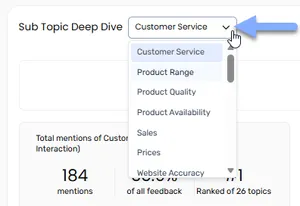
From the section header dropdown — use the sub topic selector at the top of the Deep Dive section to choose any sub topic from the list.
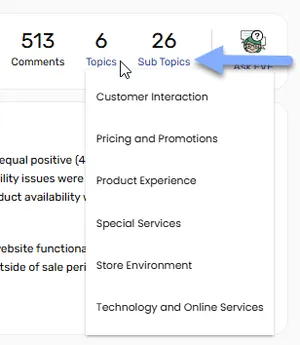
From the report header — click the Sub Topics count in the report header to open a dropdown list and jump directly to any sub topic.
What the section shows
Section titled “What the section shows”Summary
Section titled “Summary”An AI-generated summary describing the key themes, patterns, and sentiment within the selected sub topic. The summary appears as one or more paragraphs once it has finished generating.
Statistics
Section titled “Statistics”A row of figures for the selected sub topic:
| Figure | What it shows |
|---|---|
| Total mentions | How many responses mentioned the sub topic, as a count and a percentage of all feedback, and where it ranks — for example, #3 Ranked of 27 topics |
| Positive Mentions | The percentage of the sub topic’s mentions that are positive, compared with the average for all sub topics (vs Sub Topic Average) |
| Negative Mentions | The percentage of the sub topic’s mentions that are negative, compared with the average for all sub topics |
Comments
Section titled “Comments”Individual responses grouped into Positive, Mixed/Neutral, and Negative. Each comment card shows the response text, with relevant topic phrases underlined to help you see at a glance what the model identified as relevant. Each comment has a copy icon to copy that response to your clipboard.
Comments for a given sentiment group are listed below. If there are no comments in a particular sentiment group, that group is not shown.
Each sentiment group has its own menu (⋮):
| Option | What it does |
|---|---|
| Show All Comments | Shows every comment in the group |
| Show Sentiment | Shows whether each comment is mixed or neutral. Mixed/Neutral group only. |
| Show Prompts | Shows the survey prompt associated with each response |
| Show Initial Prompt | Shows the initial survey prompt |
Filtering comments by label
Section titled “Filtering comments by label”If Comment Labels have been configured for the project, a Search Labels chip filter appears above the comments. Select one or more label chips to filter the visible comments down to only those tagged with those labels — useful for focusing on complaints, compliments, or any other category you have defined.
To remove an individual filter, click the × on the chip. To clear all active filters at once, click the × to the right of the chip bar.
Creating a separate report for a sub topic
Section titled “Creating a separate report for a sub topic”When a sub topic is big enough to deserve its own analysis, you can build a new Text Auto Report from only the responses that mention it. The new report finds its own topics and sub topics within that sub topic, so you can see what’s driving it.
- Choose the sub topic in the selector at the top of the Sub Topic Deep Dive section.
- Click the arrow button next to the selector (Create a separate report for this subtopic).
- The project set-up wizard opens, named after this report and the sub topic — for example, Customer Feedback – Staff Attitude. The data source is already chosen, so the wizard starts at Pick Your Report Type.
- Work through the steps. They’re filled in from this report:
- Select Variables has the same text variable and filter variables, plus a filter that keeps only the responses mentioning the sub topic. Leave that filter in place, or the new report will include every response.
- Configure Report Pages is set to auto-classification, with a context telling it to focus on the sub topic.
- Click Done. The new report opens and starts processing.
Every response that mentions the sub topic is analysed, rather than a sample. If you close the wizard without clicking Done, no report is created.
Once a sub topic has its own report, clicking the button again opens that report instead of creating another. You can also create a separate report from the Topic Deep Dive table on the Time Series tab.
Section controls
Section titled “Section controls”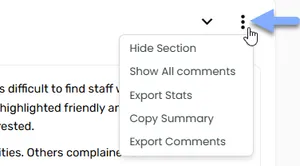
Use the ⋮ menu in the top-right corner of the section card to access these options:
| Option | What it does |
|---|---|
| Hide Section | Removes the section from view. Use Manage Layout in the report settings to restore it. |
| Show All comments | Opens all comments across every sentiment group for the selected sub topic |
| Export Stats | Downloads the sentiment statistics for the selected sub topic |
| Copy Summary | Copies the AI-generated summary text to your clipboard |
| Export Comments | Downloads the comments for the selected sub topic |
Loading states
Section titled “Loading states”| Message | What it means |
|---|---|
| Generating Sub Topic Deep Dive… | The whole section is loading for the first time |
| Generating Summary… | The AI summary for this sub topic is being written |
| Retrieving Comments… | Comment data is being fetched |
| Underlining Quotes… | Topic phrases within comments are being highlighted |
Frequently asked questions
Section titled “Frequently asked questions”Why do some sub topics have fewer comments than others?
Comment counts reflect how often each sub topic was mentioned in the dataset. A sub topic that appears in 5% of responses will naturally have fewer comments than one mentioned in 30% of responses.
Why does the summary say “No data available”?
This can happen if the selected sub topic has too few responses to generate a meaningful summary, or if the data for that sub topic hasn’t fully loaded yet. Try navigating away and back, or check whether the report has fully finished loading.
Can I export comments from a sub topic?
Yes — open the section menu (⋮) in the top-right corner of the Sub Topic Deep Dive card and select Export Comments. Select Export Stats to export the figures for the sub topic.
I can’t see this section in my report — where has it gone?
It may have been hidden. Open the settings menu in the report toolbar and select Manage Layout to see all available sections and toggle them back on.
Do the report filter bar selections affect the comments shown here?
Yes. Any filters applied using the filter bar at the top of the report — such as timeframe, period, or filter variables — flow through to the Sub Topic Deep Dive. The comments and statistics shown will reflect only the filtered subset of responses.
Why are some words underlined in the comments?
Underlined phrases are the specific words and phrases the model identified as relevant to the selected sub topic. They help you quickly see what part of each response contributed to that sub topic being assigned.