

Survey alerts
Alerts can be activated on a survey to notify users if the number of completed surveys suddenly drops. This is useful for tracking surveys, where response rates are regular and predictable. An unexpected drop in completed surveys may indicate a technical issue that needs investigation.
When activated, an alert will be raised when the number of completed surveys is less than half of the number received in the same period in the previous week.
Alert rules
Section titled “Alert rules”When activated, survey alerts will, on an hourly basis:
- Count survey completions in the last 3 hours, and compare that to completes received the same 3 hours in the previous week
- Ignore when the number of completes in the previous week were less than 20
- Ignore when the number of completes in the last 3 hours is greater than 50% of the previous week’s completes
- Send an alert notification if the number of completes in the last 3 hours is less than half the number received during the same 3-hour period last week
Open Manage Alerts
Section titled “Open Manage Alerts”All alert settings are in the Manage Alerts dialog:
- Open Survey Shaper
- In the content table, click the more icon (⋮) on the survey and select Monitor Responses > Manage Alerts
The Alert Status at the top of the dialog shows Good when no alert has been raised. Below it are two tabs: Settings, where you manage who receives alerts, and Notifications, which lists past alerts.
Activate survey alert
Section titled “Activate survey alert”To activate a survey alert, you’ll need to add the contact details of all users you want to notify if the number of completed surveys suddenly drops.
- Open Manage Alerts
- On the Settings tab, enter the Name, Email Address and Mobile Number of the person who will receive the alert notifications. The mobile number is optional.
- Check the Primary Contact box where appropriate. Primary contacts will be listed in the “To” field in the notification emails; non-primary contacts will be cc’d.
- Click ADD RECIPIENT
- Add other recipients if required
- Click CLOSE
Notifications
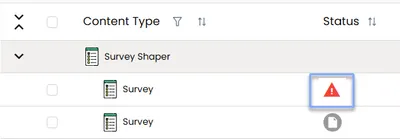
Section titled “Notifications”The specified alert recipients will receive an email notification when a survey has received fewer than expected completions. They’ll also be able to see an alert in the HumanListening Portal: the survey will display a red alert status icon in the content table until the alert is dismissed.
View alert
Section titled “View alert”Alert contacts will receive an email notification explaining the reason for the alert.
Here’s how to view an alert:
- Open Manage Alerts
- Click the Notifications tab. All past alerts are listed here, with the Reason, when the alert was Raised and when recipients were Notified.
- Click CLOSE
Dismiss alert
Section titled “Dismiss alert”The survey will display a red alert status icon when an alert is raised. Once you’ve viewed an alert, you should dismiss it so the survey reverts to its default state.
Here’s how to dismiss an alert:
- Open Manage Alerts
- Next to the Alert Status, click Dismiss Alert
- Click CLOSE
The dialog then shows who dismissed the last alert, and when.
Deactivate alert
Section titled “Deactivate alert”If you no longer want to receive survey alerts, you can deactivate them by removing all recipients.
- Open Manage Alerts
- On the Settings tab, click the delete icon next to each recipient
- Click CLOSE
Delete alert recipient
Section titled “Delete alert recipient”Here’s how to remove a single recipient:
- Open Manage Alerts
- On the Settings tab, click the delete icon next to the recipient you want to remove
- Click CLOSE