

Conversation settings
This page covers the settings that are shared across Guided AI, Model Only, and Discussion conversation types. For conversation-type-specific setup steps, see AI Only, Guided AI, Model Only, or Discussions.
Introduction and outro
Section titled “Introduction and outro”The introduction and outro appear in the Conversation Flow step of configuration.
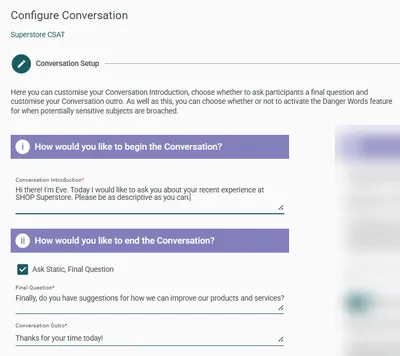
| Field | Description |
|---|---|
| Conversation Introduction | The opening message EVE shows each participant. Set the scene and ask the first question here |
| Ask Static, Final Question | Checkbox (enabled by default). Leave checked to include a closing question, or uncheck to skip it |
| Final Question | The wording of the closing question. Only shown when Ask Static, Final Question is enabled |
| Conversation Outro | The closing message EVE shows when the conversation ends |
Text formatting
Section titled “Text formatting”The introduction, final question, and outro fields support HTML tags for basic formatting:
| Tag | Example | Result |
|---|---|---|
| Bold | <b>bold text</b> | bold text |
| Italic | <i>italicised text</i> | italicised text |
| Underline | <u>underlined text</u> | underlined text |
| Hyperlink | <a href="https://example.com">link text</a> | a clickable link |
Piping survey answers
Section titled “Piping survey answers”You can insert answers from earlier survey questions directly into the introduction using the @ symbol followed by the question variable name.
| Syntax | What it inserts |
|---|---|
@Q1 | The answer code for question Q1 |
@Q1_CurrentLabel | The answer label for question Q1 |
For example, if a respondent selected “Excellent” for a satisfaction question with variable name Q2, writing You rated our service @Q2_CurrentLabel in the introduction would display as You rated our service Excellent.
Advanced settings
Section titled “Advanced settings”Advanced settings appear in the Conversation Flow step, accessible via the Advanced Settings toggle. These are available in AI Only, Guided AI, and Model Only conversations.
Randomness
Section titled “Randomness”Controls how creatively EVE phrases its probes and prompts. The value ranges from 0 to 1:
- Higher values produce more variety in wording between participants
- Lower values produce more consistent, predictable phrasing
Default is 0.7. Leave this at the default unless you have a specific reason to change it.
Concise question wording
Section titled “Concise question wording”When enabled, removes affirmations and paraphrasing from EVE’s probes and prompts. EVE responds with concise, direct single sentences rather than longer, conversational phrasing.
Language rule
Section titled “Language rule”Enables EVE to converse in languages other than English. When enabled, select a rule:
| Rule | Behaviour |
|---|---|
| Native (Respondent Language) | EVE detects the language the participant uses and responds in kind throughout the conversation |
| Fixed | EVE uses the language you select, regardless of what language the participant writes in |
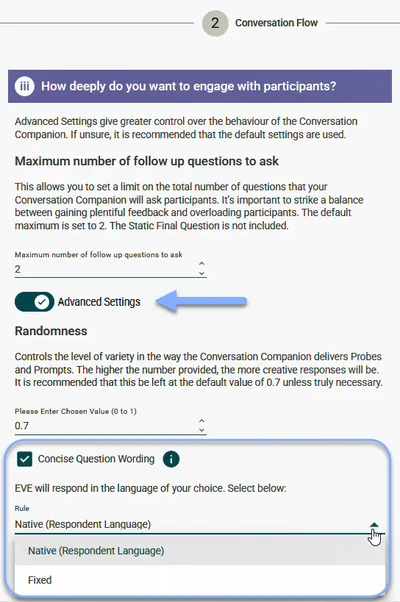
Available languages for Fixed rule: Arabic, Simplified Chinese, English, French, German, Indonesian, Italian, Japanese, Malay, Portuguese, Portuguese (Brazil), Russian, Spanish, Swahili, Vietnamese. A Custom option is also available for manual language entry.
Conversation companion
Section titled “Conversation companion”The companion settings appear in the Preview step of configuration (the final step before publishing).
| Setting | Description |
|---|---|
| Conversation Companion Name | The name displayed to participants during the conversation. Defaults to Eve |
| Conversation Companion Avatar | The image displayed alongside the companion. Drag and drop a file or click Browse to upload. Defaults to the Eve avatar |
Danger words
Section titled “Danger words”Danger Words is available in Guided AI and Model Only conversations only — it requires a model-linked conversation and is not available in AI Only.
When enabled, EVE monitors participant responses for specified words or phrases. When a danger word is detected, the conversation companion responds with a configured message before continuing.
Enabling danger words
Section titled “Enabling danger words”- In the Conversation Flow step, toggle Enable Danger Words Function on.
- Choose your Danger Words source:
- Use default Danger Words list — uses EVE’s built-in library of danger terms
- Build a custom Danger Words Topic in your model — create a Topic and Sub Topic both named Danger in your model and add your specific keywords there. You can use both the default list and a custom list simultaneously
- Configure the three response fields:
- Single Danger Word Response — shown when one danger term is detected in a participant response
- Multiple Danger Words Response — shown when multiple danger terms are detected
- Follow Up Response Wording — shown if the participant responds “yes” to a support offer in the previous response
Frequently asked questions
Section titled “Frequently asked questions”Can I use bold, italic, or other formatting in the introduction?
Yes — the introduction, final question, and outro fields support HTML tags. Use <b> for bold, <i> for italic, and <u> for underline. For example: <b>Welcome</b> displays as Welcome to participants.
Can I add a hyperlink in the introduction?
Yes — use a standard HTML anchor tag: <a href=“https://example.com”>link text</a>. This is useful for linking to privacy policies or other relevant pages participants may need to read before the conversation begins.
Can I pipe in a participant’s earlier survey answers?
Yes. Use @variablename to insert the answer code, or @variablename_CurrentLabel to insert the answer label. For example, @Q1_CurrentLabel inserts the label of whatever the participant selected for Q1. The source question must appear before the EVE question in the survey.
Why isn’t my piped text resolving in the EVE Builder preview?
Piped values display as syntax (e.g. @Q1_CurrentLabel) in the EVE Builder preview because there are no survey answers to draw from at that point. To test piping, publish the conversation, add it to a survey in Survey Shaper, and use the Survey Shaper preview instead.
Does the companion name appear anywhere other than the conversation?
The companion name is displayed to participants during the conversation alongside the avatar. It’s also referenced in any introduction text you write — which is why you need to update the introduction manually if you change the name. It doesn’t appear in EVE Builder itself or in any reporting output.
Can I use a different companion name and avatar for different conversations?
Yes — companion settings are configured per conversation. Each conversation can have its own name and avatar, or use the default Eve.
What image formats are supported for the avatar?
The documentation doesn’t specify supported formats — use a standard web image format (PNG, JPG) and keep the file size reasonable for fast loading during live conversations.
Does the language rule affect how responses are classified in analysis?
The language rule affects the conversation experience only — how EVE probes and prompts. Response classification during analysis is handled separately by the model (in Guided AI and Model Only conversations) regardless of the language used.
Can I test the language rule in the EVE Builder preview?
Yes — the preview runs the full conversation logic including language detection. Type your responses in the target language to test how EVE responds.
What if a participant mentions a danger word in the first response?
EVE responds immediately with the configured Single Danger Word Response (or Multiple Danger Words Response if multiple terms are detected) and then continues with the conversation if the participant indicates no further support is needed.
Do I need to create a “Danger” topic in my model even if I’m only using the default list?
No. The custom model topic is only required if you want to use your own custom list of danger words. Using only the default list requires no model changes.