

Version control
Survey versions let you save multiple iterations of your survey. Once you publish a survey, that version locks: you can’t edit it anymore. Need to make changes? Create a new version.
Your changes won’t go live until you publish the new version. Anyone who hasn’t started the survey yet will see the updated version. Those who already started will continue with the original version they began with.
You can view older versions, and go back to one by saving it as a new version.
Create new version
Section titled “Create new version”From the Survey Shaper content table:
- Open Survey Shaper
- Click the more icon (⋮) on the survey and select Scripting > Save As New Version
- Check the name and click Save
From the editor:
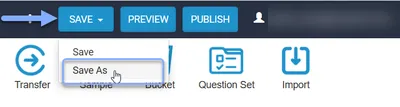
- Open the survey, then select Save As from the SAVE menu
- Select New Version
- Click OK
On a published version, click Create New Version in the header. It copies the published version into a new version you can edit.
Or, on any version:
- Click the arrow next to Save and select Save As
- Select New Version
- Click Next
The new version is ready to edit and publish whenever you’re ready.
View previous survey version
Section titled “View previous survey version”To see all versions of your survey:
- Open Survey Shaper
- In the Survey Shaper section in the content table, click the more icon (⋮) on the survey
- Select Versions & Links > Version History
- Click the version you want to view
Go back to a previous version
Section titled “Go back to a previous version”Need to roll back to an earlier version? Here’s how:
- Open Survey Shaper
- In the Survey Shaper section in the content table, click the more icon (⋮) on the survey
- Select Versions & Links > Version History
- Click the version you want to go back to
- Save As a new version, then edit and publish as needed