

EVE Qual Pro
EVE Qual Pro is where qualitative theory meets AI. Design sophisticated research conversations using trusted qual techniques — laddering, probing, prompting — and deploy them at a scale no human moderation team could match.
Start from one of HumanListening’s expert methodologies or build your own from scratch, then deploy via Survey Shaper or any external survey platform to run research at scale without losing the depth that makes qual worth doing in the first place.
The basic workflow
Section titled “The basic workflow”-
Create a conversation
On the EVE Qual Pro home page, click CREATE NEW and select Conversation. Enter a name when prompted. The conversation builder opens.
-
Define the study
Set your research context, objectives, and the AI Moderator’s tone. Add the topics you want the AI Moderator to explore, and configure probe and prompt settings per topic. See Define the study.
-
Design the conversation
Write the AI Moderator’s opening, configure laddering questions, set your default probes and prompts, and decide how the conversation ends. See Design the conversation.
-
Configure the moderator
Set your Conversation Companion name, avatar, language, and voice settings. See Moderator settings.
-
Preview and publish
Test the conversation in real time in the preview window. When you’re happy, publish to make it available for deployment. See Preview and publish.
-
Distribute your conversation
Once published, your conversation can be delivered to participants by inserting it into a survey via Survey Shaper, or through an external platform of your choice.
Opening EVE Qual Pro
Section titled “Opening EVE Qual Pro”There are two ways to open EVE Qual Pro:
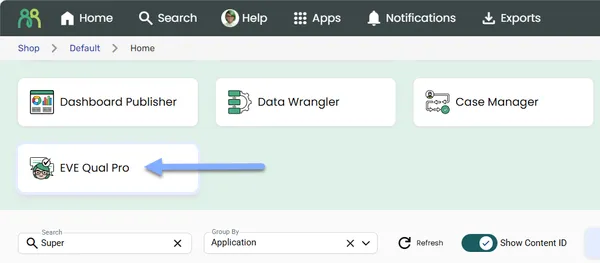
- Application grid — On the portal home page, click the EVE Qual Pro card in the application grid. Depending on your screen size, you may need to scroll down to find the card.
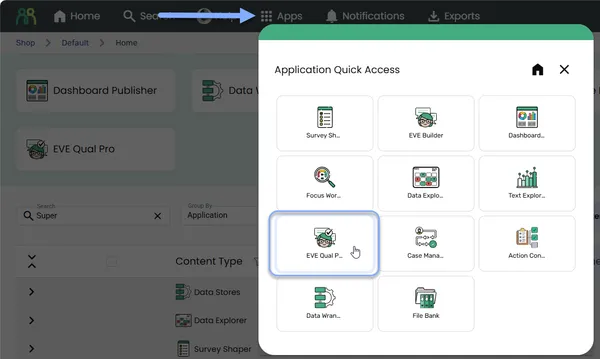
- Application quick access — Click the Apps button in the header bar, then select EVE Qual Pro from the quick access dialog
EVE Qual Pro content table
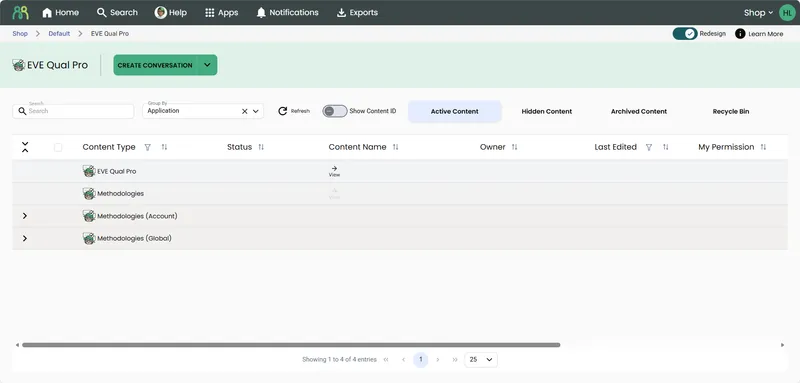
Section titled “EVE Qual Pro content table”When you open EVE Qual Pro, you’ll see the content table listing all your conversations, discussions, and methodologies. Each row shows the project name, type, and a Status column — a green icon for published projects and a grey icon for drafts.
Content types
Section titled “Content types”| Content type | Description |
|---|---|
| EVE Qual Pro | Your conversation projects — the main content you’ll deploy to participants |
| Methodologies | Reusable configuration templates saved within your project |
| Methodologies (Account) | Methodology templates shared across your entire account, available to all projects |
HumanListening’s global methodology templates aren’t listed in the content table. You’ll find them on the Global tab of the methodology browser when you set up a conversation.
Creating a new project
Section titled “Creating a new project”- Open EVE Qual Pro using one of the methods above.
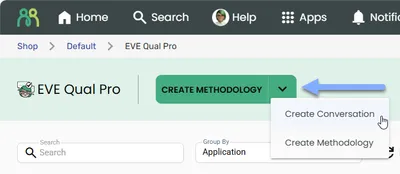
- Click the create button — Click Create Conversation to start a conversation, or click the dropdown arrow and choose Create Methodology.
- Enter a name when prompted, then confirm. The builder opens.
Frequently asked questions
Section titled “Frequently asked questions”Why can’t I see the EVE Qual Pro application card?
EVE Qual Pro is a premium feature that must be enabled on your account. If the card isn’t visible, there are two things to check: first, scroll down on the portal home page — depending on your screen size, the card may not be in the initial view. If it’s still not there, EVE Qual Pro hasn’t been enabled for your account or your user role doesn’t have access. Reach out to your Account Manager to find out more.
What’s the difference between a conversation and a methodology?
A conversation is a single AI-moderated interview you deploy to participants — it needs to be published before anyone can access it. A methodology is a reusable configuration template that captures a proven setup. You apply a methodology when creating a new conversation to skip the setup work. Methodologies don’t need to be published; they’re available as soon as you save them.