

AI only
An AI Only conversation is entirely driven by the context you provide. You describe the topic, EVE generates the conversational boundaries, and the AI engages participants on the fly — probing what they raise, prompting on what they haven’t mentioned, keeping everything on topic without you scripting a single question.
Advantages:
- Speed — a fully functional conversation in minutes
- Adaptability — EVE dynamically adjusts to whatever participants raise, including unexpected directions
- Multilingual — enable the language rule and EVE will respond in the participant’s own language
Setting up an AI Only conversation
Section titled “Setting up an AI Only conversation”-
Create or open a conversation — Create a new conversation or open an existing one.
-
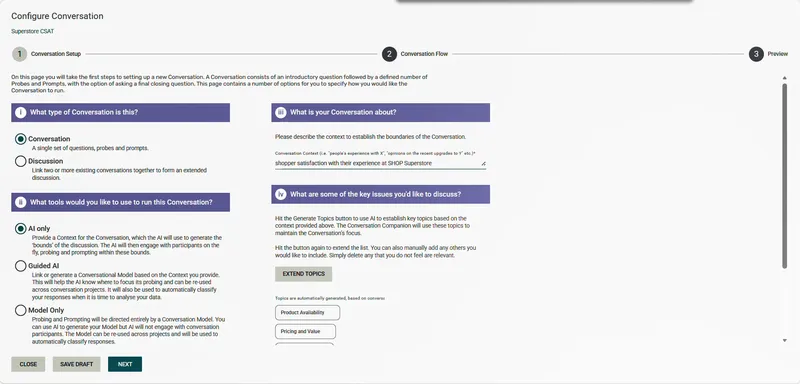
Select Conversation, then AI Only
-
Enter a context statement — describe what the conversation is about. EVE uses this to generate the conversation topics. Keep it focused — there is a maximum word limit on this field.
-
Click Generate Topics — EVE generates topics from your context. These define the scope of the conversation: EVE probes on topics participants mention and prompts on topics they haven’t.
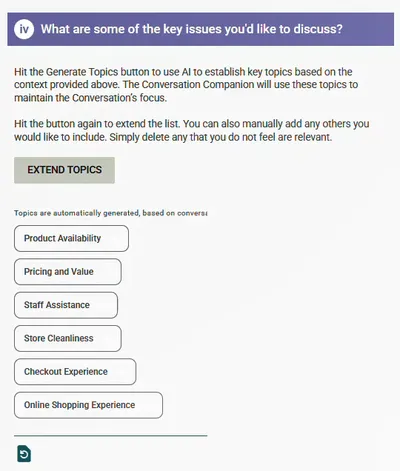
Once topics have been generated, the button changes to Extend Topics — click it again to add more AI-generated topics to the list.
-
Review and refine the topics:
- Type directly into the field to add your own topics
- Click the remove icon (×) on a topic chip to delete it
- Click the restore icon (Clear selection) to remove all topics and start again
-
Click Next to move to the Conversation Flow step.
-
Enter the Conversation Introduction — the opening message EVE shows each participant. This is where you set the scene and ask the first question. See Conversation settings for guidance.
-
Configure the final question:
- The Ask Static, Final Question checkbox is enabled by default. Leave it checked to include a closing question, or uncheck it to skip
- If enabled, enter the final question wording
-
Enter the Conversation Outro — the closing message EVE shows when the conversation ends.
-
Set the maximum number of follow-up questions to ask — the total number of probes and prompts EVE will ask each participant. Default is 2.
-
(Optional) Enable Advanced Settings using the toggle — see Conversation settings for details on Randomness, Concise Question Wording, and Language Rule options.
-
Click Next to move to the Preview step.
-
(Optional) Set a Conversation Companion Name and Avatar — see Conversation settings.
-
Click Preview Conversation to interact with EVE as a participant would. Click Back to return and adjust settings.
-
Click Publish to finalise, or Save Draft to save without publishing.
Frequently asked questions
Section titled “Frequently asked questions”How does EVE decide what to probe and prompt on?
EVE uses the conversation topics you generated (or wrote) as its guide. When a participant mentions something that relates to a topic, EVE probes — asking a follow-up to go deeper. When the participant hasn’t touched on a topic, EVE prompts — nudging them to share their thoughts on it. The AI generates the actual wording of probes and prompts on the fly within those boundaries.
How many topics should I generate?
There’s no strict rule, but a focused set of 4–8 topics tends to work well. Too few and EVE has limited scope; too many and the conversation can feel scattered. Always review the generated topics for relevance to your specific research context — add your own or remove any that don’t fit.
What’s the right number of follow-up questions?
The default of 2 works well for most general feedback research. Increasing to 3 or 4 gives richer data but makes conversations longer and potentially more demanding for participants. Always test in preview to check how the conversation feels at your chosen limit.
Can I add my own topics instead of using AI generation?
Yes — you can type topics directly into the field without clicking Generate Topics, or mix manually written topics with AI-generated ones. The Extend Topics button adds to whatever topics are already there.
Can I use AI Only for multilingual research?
Yes — AI Only is well suited to multilingual studies. Enable the Language Rule in Advanced Settings and select Native (Respondent Language). EVE will detect the language the participant uses and respond in kind throughout the conversation. See Conversation settings for the full list of supported languages.
Can I add Danger Words to an AI Only conversation?
No. The Danger Words feature requires a conversation linked to a model. If you need Danger Words, use Guided AI or Model Only instead.
What happens after I publish?
The conversation is ready to be inserted into a Survey Shaper survey. See Publish and deploy for the full deployment steps.