

Sharing content and managing access
Effective collaboration in the HumanListening portal depends on properly sharing content and managing access permissions. Whether you’re distributing survey results, sharing dashboard insights, or collaborating on analysis projects, understanding the sharing system ensures your work reaches the right people with appropriate access levels.
Key benefits:
- Control exactly who can see and modify your work
- Collaborate effectively while maintaining security
- Track who has access to sensitive information
- Manage large-scale sharing across teams and organizations
How content sharing works
Section titled “How content sharing works”Content sharing is fundamental to HumanListening. Any content created within a sub account can be shared with individuals, user groups, or domains - but only within that same sub account for security reasons.
You can share content if you are its owner or have edit access to it. Every item in the content table has a Share icon, but it’s greyed out if you don’t have permission to share that item. Check the My Permission column in the content table to see your access level, and contact the content owner or your account administrator if you need more access.
Account administrators can also share any content in a sub account from the Manage Content tab on the Manage account page.
Basic sharing process
Section titled “Basic sharing process”- In the content table, hover over the content you want to share
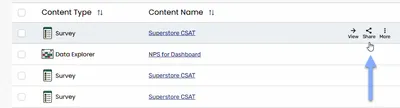
- Click the share icon in the content table
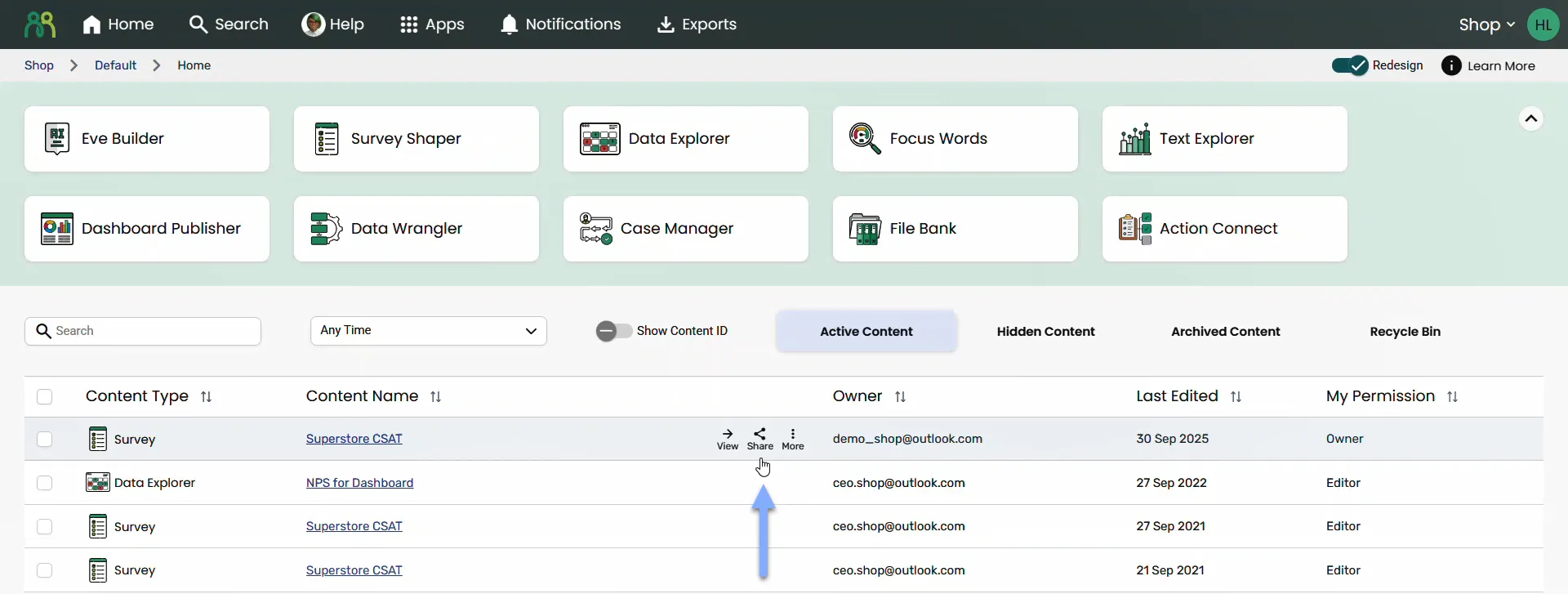
- Enter recipients in the box labelled Enter Email or @Group or @domainname.com:
- Individual users: Start typing a name or email address, then select the user from the list. To add an email address that isn’t in the list, type it in full and press Enter or a comma
- User groups: Type @ and select from available groups
- Domains: Type @ and select a domain, or type the full domain (for example @example.com) and press Enter
- Set the access level using the role drop-down to the right of the recipient box
- The role you choose applies to everyone you’re adding in this share. If different people need different access levels, share with each group of people separately
- Choose notification settings - once you’ve added at least one person or group, check Notify people to send email invitations. Domain shares never send email notifications
- Enter a message (Optional) in the Message box to give recipients more context in the email
- Click OK to share. The dialog shows “Saved” and closes on its own
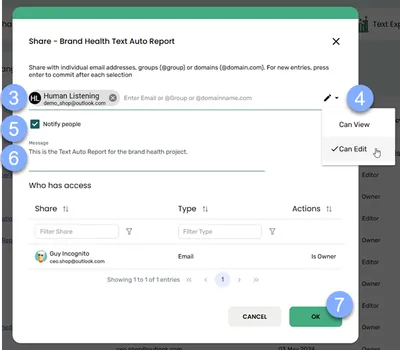
Advanced sharing options
Section titled “Advanced sharing options”Domain sharing: Share with everyone who has an email address at a domain. Type @ in the recipient box to see the domains set up for your sub account.
Group sharing: Share with pre-defined user groups by typing @ and selecting from available groups. This is efficient for recurring team collaborations. Click a group in the recipient box to open Group Members and see who’s in it.
Trusted domains: Your administrator can limit sharing to approved email domains or addresses using the Trusted Domains tab on the Manage account page. If trusted domains are set up, you can only share with individual email addresses that match them. If none are set up, you can share with any valid email address.
Bulk Sharing
Section titled “Bulk Sharing”Share multiple content items at once using Portal’s bulk sharing feature.
- Select content - Check the boxes next to two or more items you want to share together
- Click Share - Select Share from the floating bulk actions menu
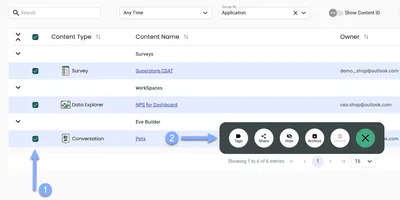
- Add recipients - In the box labelled Enter email or @group or @domain.com, select users, groups or domains from the list, or type an email address, @group or @domain.com and press Enter or a comma
- Typed email addresses must match your sub account’s trusted domains (if any are set up)
- Domains must already be set up for your sub account, and groups must already exist
- Set permissions - Choose Can View or Can Edit from the drop-down (the default is Can View)
- The same access level applies to all recipients and all selected items. If different users need different access levels, share with each group of people separately
- Configure notifications - Check or uncheck Notify Recipients to control email notifications, then add an optional Notification Message with context about the shared content
- Confirm sharing - Review the content list and click OK to share all items
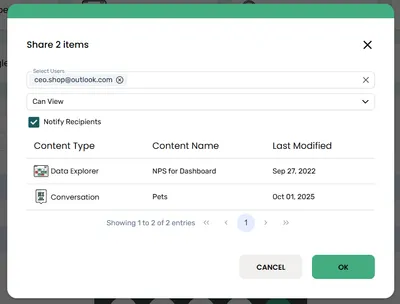
Bulk sharing only adds access. It doesn’t change or remove anyone’s existing access to the selected items.
Bulk Sharing Compatibility:
- Most content types - Surveys, Data Explorer, Case Manager, File Bank, etc. can be bulk shared together
- Dashboards - Cannot be bulk shared and must be shared individually
Permission levels explained
Section titled “Permission levels explained”Understanding permission levels helps you give the right access to the right people.
Standard permission types
Section titled “Standard permission types”The exact role names you see in the share dialog depend on the type of content. Most content types have an owner role, an edit role and a view role (for example Is Owner, Can Edit and Can Read or Can View), and some have extra roles for specific tasks.
View access (read-only):
- View content but cannot edit or modify
- Cannot share the content with others
- Perfect for stakeholders who need to see results
Edit access:
- View and modify the content
- Share the content with other users, and change or remove other people’s access
- Ideal for team members actively working on projects
Is Owner:
- Full control over the content
- Can delete the content and transfer ownership
- Ultimate responsibility for the content
- Usually the original creator or designated project lead
Survey-specific permissions
Section titled “Survey-specific permissions”Surveys have more detailed roles than most content types, so you can control access to the survey itself, its response data and its sample separately:
- Owner - full control, including deleting the survey and transferring ownership
- Edit (Full Access) - complete access to survey management, including survey content, distribution and settings
- Read (Stats Monitor) - view survey statistics without changing the survey
- Edit data (Data Editor) - view and edit the survey’s response data, including View Data and Export Data in the content table
- Read data (Data Reader) - view the survey’s response data using View Data
- Manage sample (Sample Manager) - manage the survey’s sample
Managing existing shares
Section titled “Managing existing shares”Viewing current access
Section titled “Viewing current access”To see who has access to your content:
- In the content table, hover over the content you want to share
- Click the share icon in the content table’s Actions column
- Review the “Who has access” list showing all users, groups, and domains. The Type column shows whether each share is an Email, Group or Domain share
- Check the Actions column to see the content owner (shown at the top) and the access level of everyone else
- Click the group icon on a group row to see individual group members
Subscribe column: Tick Subscribe next to a person to subscribe them to notifications about this item. This change saves straight away - you don’t need to click OK.
Changing permission levels
Section titled “Changing permission levels”- In the content table, hover over the content you want to share
- Click the share icon in the content table’s Actions column
- Find the user in the “Who has access” list
- Click the role icon in the Actions column next to their name
- Select the new access level from the menu
- Click OK to apply changes
Removing access
Section titled “Removing access”- In the content table, hover over the content you want to share
- Click the share icon in the content table’s Actions column
- Locate the user in the “Who has access” list
- Click the role icon in the Actions column next to their name
- Select Remove from the menu
- Click OK to confirm removal
When someone loses all access to an item, they’re automatically unsubscribed from its notifications.
Advanced sharing scenarios
Section titled “Advanced sharing scenarios”Transferring ownership
Section titled “Transferring ownership”Only the content owner can hand off ownership from the share dialog. Ownership can only be given to an individual person, not a group or domain:
- Share the content with the new owner as an individual email share
- Click the share icon again
- Click the role icon next to the new owner and select Is Owner
- Your own access automatically changes to the default role (usually edit access)
- Adjust other permissions as needed for the transition
- Click OK to complete the ownership transfer
Account administrators can also change the owner of one or many items at once from the Manage Content tab. See Manage account.
Cross-application sharing
Section titled “Cross-application sharing”Some content exists in multiple places within HumanListening:
Example:
A Survey Shaper project share grants access to the survey stats, survey script, and sample management in Survey Shaper, but also grants access to the survey data store in Data Wrangler, which is accessible to other HumanListening applications. If you share a survey data store from the content table, you’re sharing the survey itself.
Troubleshooting sharing issues
Section titled “Troubleshooting sharing issues”“The share icon is greyed out”
- Check your permission level in the My Permission column - you might only have view access
- Verify you’re the content owner or have edit access
- Contact the content owner or account administrator for permission adjustments
“I get an error when adding a recipient”
- ”… is not a trusted email” - The email address doesn’t match your sub account’s trusted domains. Ask your administrator to add the domain or address on the Trusted Domains tab
- ”… is not a trusted group” or ”… does not match an existing user group” - Check the group name, or ask your administrator to create the group
- ”… is not a configured trusted domain for this sub account” (bulk sharing) - Only domains set up for your sub account can be used in bulk sharing
- “Chips marked in red already exist with this role type. Please remove.” - Those recipients already have this access. Remove the red chips, or choose a different role
“Users can’t access shared content”
- Confirm users are in the same sub account as the content
- Check they have appropriate application licenses for edit access
- Verify email addresses were entered correctly
- Ensure they received notification emails (check spam folders). Domain shares don’t send notification emails
“Permission changes aren’t working”
- Wait a few minutes for changes to take effect - in some cases this can take up to 15 minutes
- Have users refresh their browser or re-access the content
- Verify the permission change was saved by checking the share dialog
Frequently asked questions
Section titled “Frequently asked questions”Can I share content with users in different sub accounts?
No - content can only be shared within the same sub account where it was created. This ensures data security and separation.
What happens if I remove someone’s access to content they’re currently using?
They’ll lose access, usually straight away (occasionally it can take up to 15 minutes), and won’t be able to view or edit the content. They’re also unsubscribed from notifications about it. Any work in progress may be lost, so communicate changes in advance.
Can I see who has accessed shared content?
The sharing interface shows who has permission to access content, but not individual usage or viewing history.
Do shared users need application licenses?
Users may need an application license to edit or create content in some applications. Contact your account administrator if a user can’t open shared content.
Can I set expiration dates for shared access?
Currently, HumanListening doesn’t support automatic access expiration. You’ll need to manually remove access when it’s no longer needed.
What’s the difference between hiding content and removing share access?
Hiding content removes it from your view only. Removing share access prevents specific users from accessing the content entirely.
Why can’t I bulk share my selected items?
Bulk sharing needs at least two items selected, and every item must be one you can share. Dashboards cannot be bulk shared and must be shared individually due to their specialized sharing structure.
Can I set different permissions for each item in a bulk share?
No, bulk sharing applies the same permission level to all selected items. Share items individually if you need different permission levels.
What permissions can I give for surveys?
Surveys have separate roles for the survey itself, its response data and its sample. See Survey-specific permissions.
Can I change someone’s permission level after I’ve already shared content with them?
Yes, you can modify permissions by accessing the content’s sharing settings and updating the user’s permission level, then clicking OK.
What happens to shared content if the owner’s account is removed?
When an administrator removes a user, they’re asked to choose a new owner for that user’s content. Administrators can also change content owners at any time from the Manage Content tab. See Manage account.