

Survey templates
Survey templates are pre-made question sets designed to meet specific project goals. When you create a new survey, you can start from scratch or use an existing template. Either way, you’re in control—surveys created from templates are fully customizable, so you can edit, add, and remove questions however you like.
The template library has three levels:
- Sub Account Templates — Templates visible only within the sub account where they were created. Any user can create a template here, and it’s only visible to those who have it shared with them.
- Account Templates — Templates promoted from the sub account library to the account library. Only Account Owners or Administrators can promote templates. Once promoted and published, Account Templates are visible to all users in the account. Unpublished templates are only visible to Account Owners, Administrators, and shared users.
- Global Templates — Pre-made surveys written by survey experts, available to everyone platform-wide. We add new Global templates over time. These templates are read-only.
Besides survey templates, Question Sets can also be promoted to the Account Library.
Create survey from template
Section titled “Create survey from template”Here’s how to create a new survey from a template:
- Open Survey Shaper.
- Click the CREATE SURVEY button.
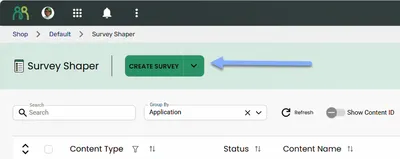
- Select Create From Template and click Next
- Click on the tabs to browse available Sub Account, Account, and Global templates
- Want to see what’s in a template? Click the ellipsis icon and select Document View
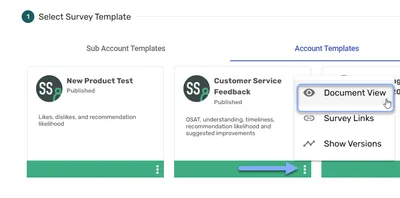
- Click the template to select it, then click Next
- Enter a name for your new survey
- Click Save
Your new survey will automatically open, ready for you to edit. It opens in Survey Editor (Beta) if you have it turned on, or in Survey Editor (Legacy) otherwise.
Create new template
Section titled “Create new template”You have two ways to create a new sub account template:
- Create from an existing survey — the template will include any files uploaded to the Resources folder, but won’t contain any data, sample, or EDM/SMS templates.
- Create from scratch — build a new template just like you would a regular survey.
Create template from existing survey
Section titled “Create template from existing survey”- Open Survey Shaper.
- Start the Save As. There are two ways to do this, depending on where you are:
- From the content table: click the more icon (⋮) on the survey and select Scripting > Save As New Template
- From the editor: in Survey Editor (Legacy), select Save As from the SAVE menu. In Survey Editor (Beta), click the arrow next to Save and select Save As. Then select New Template and click Next.
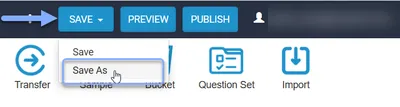
- Enter a name for the new template and a brief description to help other users understand the contents
- Click Save
- Publish the template and share with other users as required
Your original survey stays put in the Surveys section, while the template appears in the Sub Account Templates section. The template will include any files uploaded to the Resources folder in the original survey, but won’t contain any data, sample, or EDM/SMS templates.
Create template from scratch
Section titled “Create template from scratch”- Open Survey Shaper using one of the methods above.
- Add new survey — Click the CREATE SURVEY button, then select Create Template.
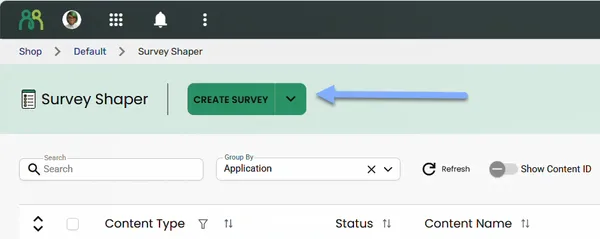
- Enter a name for the new template and a brief description to help other users understand the contents
- Click Save
- Build the template in the same way as a regular survey
- Publish the template and share with other users as required
This opens the new template in the editor, where you can build it in the survey flowchart.
Edit template
Section titled “Edit template”Your ability to edit a template depends on your level of access:
- Sub Account Templates can be edited by the template owner and any users the template has been shared with (with survey edit rights).
- Account Templates can be edited by any Account Administrator and any users the template has been shared with (with survey edit rights).
- Global Templates cannot be edited.
Edit a template the same way you’d edit a regular survey — just keep in mind that templates can only be opened from within Survey Shaper, not from Portal home.
Add template to Account Library
Section titled “Add template to Account Library”Only Account Owners and Account Administrators can add a template to the Account Library. Account Templates are visible to all users in all sub accounts within the account.
- Open Survey Shaper
- In the Survey Templates section in the content table, click on the more icon (⋮)
- Select Scripting > Promote
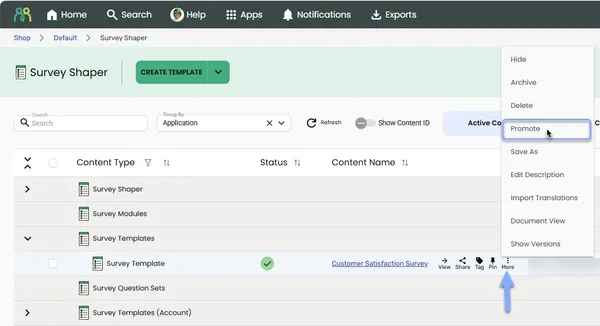
- Click Confirm — the template will be moved from the Survey Templates section to the Survey Templates (Account) section
Remove template from Account Library
Section titled “Remove template from Account Library”Only Account Owners and Account Administrators can remove a template from the Account Library.
- Open Survey Shaper
- In the Survey Templates (Account) section in the content table, click on the more icon (⋮)
- Select Scripting > Demote
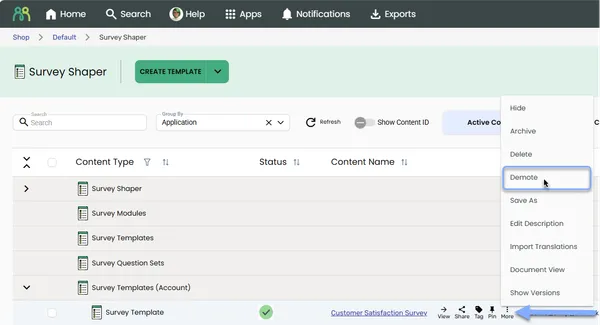
- Click Confirm — the template will be moved from the Survey Templates (Account) section to the Survey Templates section
Edit template name and description
Section titled “Edit template name and description”If you have edit rights to a survey template, you can edit the template’s name and description at any time by selecting Scripting > Edit Description from the template’s more icon (⋮).
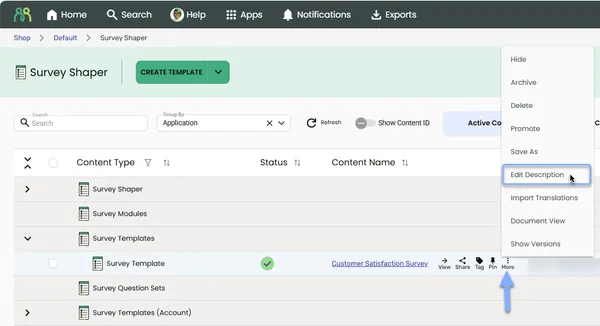
If the template is currently published, there’s no need to republish after editing the name or description.