

Preview and publish
Always test before you publish. The preview in Panel 3 runs a live AI Moderator session against your current draft — you can work through the conversation as a participant would and catch anything that needs adjusting before anyone else sees it.
Preview
Section titled “Preview”The Conversation Preview card is in the Preview & Test panel (Panel 3), alongside the Companion settings.
Starting a preview session
Section titled “Starting a preview session”Click START CONVERSATION to initialise an AI Moderator session using the current draft configuration. You’ll see a Starting the AI Moderator Session… message while it initialises.
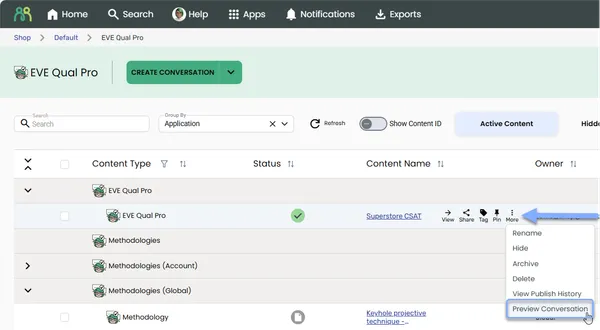
You can also preview directly from the EVE Qual Pro content table without opening the builder. Use the more menu (⋮) on a conversation row and select Preview Conversation. You’ll be asked whether to preview the draft or published configuration, then the conversation opens in a full-screen preview dialog.
Interacting with the preview
Section titled “Interacting with the preview”Type messages in the chat interface and the AI Moderator will respond in real time. This lets you experience the conversation exactly as a participant would, using your current draft settings.
The chat input shows different placeholder text depending on the current state:
| State | Input placeholder |
|---|---|
| Session not started | Start conversation to begin |
| Waiting for response | Waiting for response… |
| Active session | Type your response |
| Conversation ended | Conversation has ended |
Previewing with voice
Section titled “Previewing with voice”If voice is enabled in Moderator settings, two additional controls appear in the preview header:
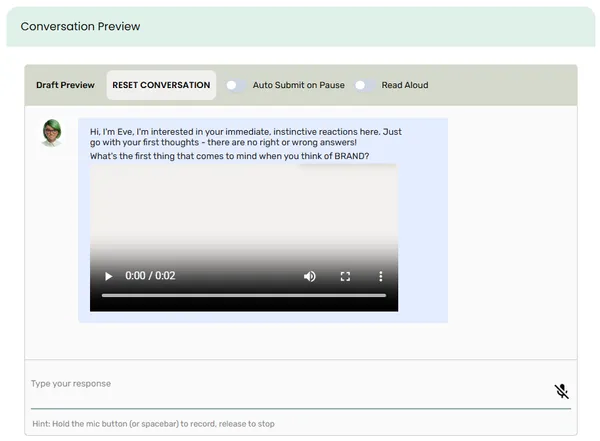
- Auto Submit on Pause — when on, the AI Moderator automatically submits your voice input when you stop speaking, without needing to click send.
- Read Aloud — when on, each AI Moderator response is automatically synthesised and played back using the voice selected in Moderator settings.
A microphone button also appears in the chat input area. The input works in push-to-talk mode — hold the mic button (or hold the spacebar) to record, then release to stop. A hint below the input confirms the current mode. While recording, the placeholder changes to Listening… and a live transcript appears as you speak.
A Replay button appears on each AI Moderator response message (when a voice has been selected), letting you replay any response on demand.
Errors and reset
Section titled “Errors and reset”If a session error occurs, you’ll see an error message below the chat with a RETRY button to retry the last action.
Click RESET CONVERSATION at any time to end the current session and start a fresh one from the beginning.
Click SAVE to save your current settings as a draft. The conversation stays in Draft status and isn’t accessible to participants yet.
Saving often is good practice — the preview always uses the last saved state, so saving keeps your test sessions in sync with your latest changes.
Publish
Section titled “Publish”Click PUBLISH to make your conversation available for deployment.
If you have unsaved changes when you click PUBLISH, a confirmation dialog appears with two options:
- SAVE & PUBLISH — saves your current changes and publishes.
- CANCEL — returns you to the builder with your changes preserved.
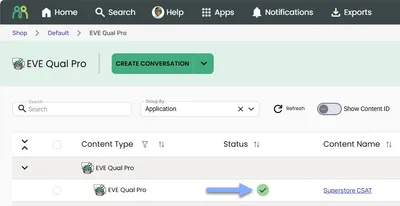
Once published, the project shows a green status icon in the EVE Qual Pro content table.
Save as methodology
Section titled “Save as methodology”Click SAVE AS METHODOLOGY to save the current conversation configuration as a reusable methodology template. You’ll be prompted for a name (maximum 100 characters), a description (maximum 500 characters), and at least one category. All three are required; the category is set to Other to start with.
See About methodologies for more on creating, applying, and managing methodology templates.
Cancel
Section titled “Cancel”Click CANCEL to close the builder.
If you have unsaved changes, a dialog appears with two options:
- SAVE AND CLOSE — saves your changes and closes the builder.
- CANCEL — closes the builder without saving your changes.
Version history
Section titled “Version history”Every time you publish, a new version is recorded. To view the publish history, use the more menu (⋮) on a row in the EVE Qual Pro content table and select View Publish History.
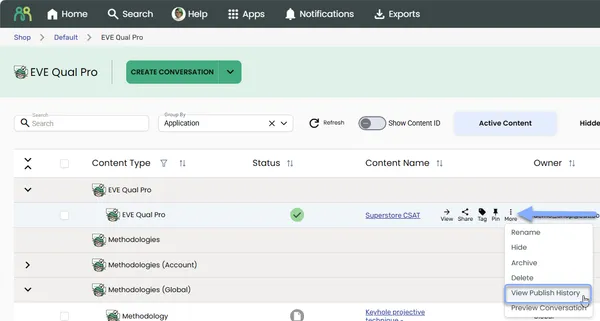
The version history dialog shows:
- Version number
- Publish date and time
- Email address of the user who published it
Version history is read-only — it’s a full audit trail and can’t be edited or deleted.
Frequently asked questions
Section titled “Frequently asked questions”What’s the difference between SAVE and PUBLISH?
SAVE stores your work as a draft — participants can’t access it yet, and the published version (if any) isn’t affected. PUBLISH makes your conversation live. Saving is always safe; publishing is when things go live.
Does the preview use the published version or my draft?
Always the draft — the preview reflects whatever configuration was last saved, including any changes you haven’t published yet. This is intentional: it lets you test changes before pushing them live.
Will my preview responses show up in analytics or reporting?
Preview sessions are for testing only. Check with your analytics setup to confirm, but preview activity is not intended to be mixed in with live participant data.
Can I share a preview with a colleague to test?
The preview runs within the EVE Qual Pro builder and requires access to that conversation. To share a preview, your colleague would need access to the same project in EVE Qual Pro.
Why does the preview show different questions each time?
If Paraphrase is enabled on your probes, prompts, or laddering questions, the AI Moderator varies the wording across sessions. Randomise toggles can also shuffle question order. This is expected behaviour — run multiple preview sessions to see the full range.
Can I unpublish a conversation?
There’s no explicit unpublish button — once a conversation is published, it remains accessible until the deployment it’s running in is managed separately. If you need to take a conversation offline, check with whoever manages your survey or deployment setup.
What happens to participants in a live session when I publish an update?
New sessions after publishing will use the updated version. Sessions already in progress at the time of publishing will complete under the previous configuration. Version history records every publish so you can track what changed when.
Does SAVE AS METHODOLOGY overwrite an existing methodology?
No — it always creates a new methodology. You’ll be prompted to enter a name, so you can name it the same as an existing one if you want, but they’ll be separate entries. To update an existing methodology, open it directly from the EVE Qual Pro home page.
Can I recover a previously published version if the current one has issues?
Version history shows every published version, but it’s read-only — you can’t directly roll back from the dialog. To effectively revert, you’d need to reconfigure the conversation to match an older version and publish again.
Who can publish a conversation?
Publishing follows the access permissions set for your account. If you can open the builder and see the PUBLISH button, you have permission to publish.
Common issues and solutions
Section titled “Common issues and solutions””The preview shows a placeholder message instead of a chat interface”
Section titled “”The preview shows a placeholder message instead of a chat interface””The preview requires Context, Research objectives, Conversation tone, Conversation introduction, and at least one topic to be filled in before it becomes active. Fill in those fields, then click START CONVERSATION — it will save automatically if needed.
”Session error — the AI Moderator isn’t responding”
Section titled “”Session error — the AI Moderator isn’t responding””If you see an error message in the preview, use the RETRY button to retry the last action. If the error persists, click RESET CONVERSATION to start a fresh session. Session errors can occur if the API takes too long to respond — retrying usually resolves it.
”The preview doesn’t seem to be following my topics”
Section titled “”The preview doesn’t seem to be following my topics””The preview uses the last saved state of the conversation. If you’ve made changes since your last save, click SAVE first, then start a new session. Click RESET CONVERSATION to pick up the latest saved configuration.
”PUBLISH prompted me to save first — will that affect my draft?”
Section titled “”PUBLISH prompted me to save first — will that affect my draft?””Yes — the SAVE & PUBLISH option saves your current unsaved changes and then publishes them. If you realise you’re not ready to save everything, click CANCEL in the dialog to return to the builder without saving or publishing.
”I can’t see my latest changes after publishing”
Section titled “”I can’t see my latest changes after publishing””Make sure you saved before publishing. If you only clicked SAVE, the conversation is in draft and hasn’t been published yet. Check the status icon in the EVE Qual Pro content table (green = published, grey = draft). Click PUBLISH to go live.