

Survey Data Stores: Your Survey Responses in Data Wrangler
Every Survey Shaper survey gets its own data store in Data Wrangler, created and filled automatically as responses come in. You don’t need to set anything up. It’s where you go to see your responses as raw data, tidy them up, and export them.
A survey data store works like any other data store, with a few guard rails. The survey script owns its variables, so you can’t change them in Data Wrangler. That keeps your data in step with the survey that collected it.
Open a survey’s data store
Section titled “Open a survey’s data store”- Open Data Wrangler - See Getting started.
- Find the survey - Survey data stores are in the Survey Data Stores group, named after their survey.
- Click View - The data store page opens on Data View.
On Portal home or the Survey Shaper home, you can also hover over a survey and choose More → View Data.
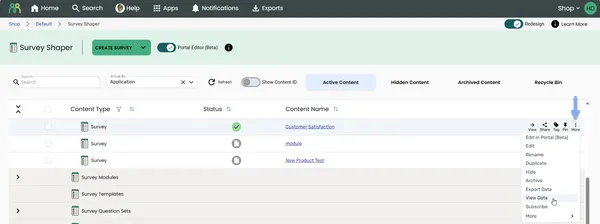
Who can open it depends on how the survey is shared with you. A survey share covers both the survey and its data store. See Share content and Who can do what.
Share a survey data store
Section titled “Share a survey data store”You can share a survey data store from Data Wrangler as well as from Survey Shaper. You need to be the survey’s Owner or have Can Edit access.
- Find the data store - On the Data Wrangler home, open the Survey Data Stores group.
- Click Share - On the data store’s row, click Share. The share dialog opens for the survey, with the survey’s roles.
- Add people and choose a role - See Share content.
What you can and can’t change
Section titled “What you can and can’t change”On Variable View, you’ll see: “This is a survey data store. It contains variables owned by the survey script which are not editable.”
| You can’t | You can |
|---|---|
| Edit, retype or delete variables that came from the survey | Add your own variables, and edit or delete them |
| Change the primary key. It’s fixed to the survey response. | Add codeframes to your own numeric variables |
| Rename the data store | Handle personal information on any variable |
| Edit values in the grid (Enable Editing isn’t available) | Switch responses between Live and Test (below) |
| Use Update Existing Data | Export the data |
Survey data stores are published automatically, so other apps can use them straight away.
Switch responses between Live and Test
Section titled “Switch responses between Live and Test”Got test responses mixed in with real ones? Mark them as Test. You can switch them back to Live the same way. You need to be the survey’s Owner or an editor.
- Find the responses - On Data View, use search or filters to narrow things down. See Browse & filter records.
- Tick them - Tick the rows you want. You can also select all records, or all the records that match your filters.
- Click Live or Test - Both appear in the action panel at the bottom of the page. You’ll see “Conversion Started”, and the change runs in the background.
- Check progress - Click Requests to open Case Requests and see how it’s going.
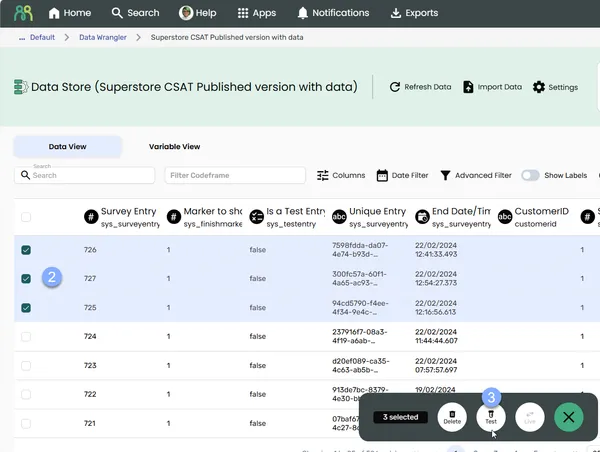
For more ways to clear test data, including resetting statistics and quotas, see Reset test data in Survey Shaper.
Export survey responses
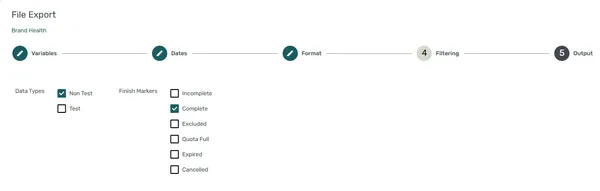
Section titled “Export survey responses”Survey data stores get an extra Filtering step when you export. Use it to include or leave out test responses (Data Types) and choose which Finish Markers to include. See Export data.
Frequently Asked Questions
Section titled “Frequently Asked Questions”Why can’t I edit some variables?
They came from the survey script, so they can only change in Survey Shaper. Variables you add yourself in Data Wrangler stay editable.
Why don’t I see Rename or Enable Editing?
Neither is available for survey data stores. The data store keeps its link to the survey, and responses can only change through the survey or the tools on this page.
Why is the Live or Test button greyed out?
At least one of the responses you’ve ticked is already in that state. Hover over the button to check, then untick those responses.
Is there a limit on how many responses I can switch to live or test at once?
No. Large selections are split into batches and processed in the background. Track them under Requests.
Common Issues and Solutions
Section titled “Common Issues and Solutions””There are selected cases that are already Live.” or “There are selected cases that are already Test.”
Section titled “”There are selected cases that are already Live.” or “There are selected cases that are already Test.””Some of the responses you ticked are already in the state you chose.
- Narrow your selection - Untick the responses that are already Live or Test, or filter them out first.
”Failed to convert cases.”
Section titled “”Failed to convert cases.””The switch between Live and Test couldn’t start.
- Try again - Click Refresh Data, select the responses again and retry.
- Check Requests - Open Requests to see whether a conversion failed partway. A failed request can be retried from there.
- Contact support - If it keeps failing, contact support through Help in the header bar. Include the data store’s name and GUID (copy it from Settings).
”Codeframes can only be changed for USER-owned numeric variables.”
Section titled “”Codeframes can only be changed for USER-owned numeric variables.””You tried to change a codeframe on a variable that came from the survey, or on a variable that isn’t numeric.
- Use your own variable - Add a numeric variable of your own and give it a codeframe. See Keys, codeframes & multi-response.