

Sharing a dashboard
All dashboards created within a HumanListening sub account may be shared within your trusted domain, or with individuals or user groups.
How you share a dashboard depends on what you want to achieve:
- Edit rights — share the Dashboard Project from Dashboard Publisher so another user can edit the dashboard.
- View access — share the published Dashboard from the HumanListening Portal content table so another user can view the live dashboard.
Who you can share with
Section titled “Who you can share with”In the Share dialog, you can enter any of the following in the Enter Email or @Group or @domainname.com box:
- Individual email addresses — for example,
name@yourcompany.com - User groups — type
@followed by the group name, for example@Marketing - Domains — type
@followed by your domain, for example@yourcompany.com, to share with everyone in that trusted domain
Sharing dashboard edit rights
Section titled “Sharing dashboard edit rights”To share dashboard edit rights:
- Open Dashboard Publisher.
- Hover over the dashboard in the content table and click the Share icon.
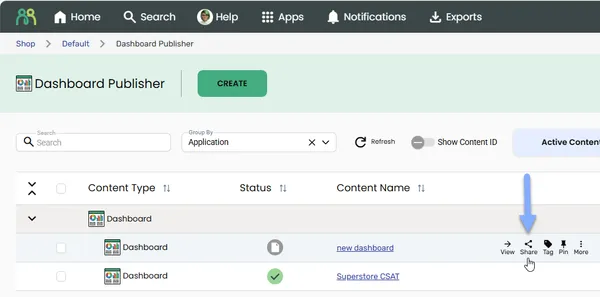
- In the Share dialog, enter the email addresses, groups or domains you want to share with.
- Check the role in the picker beside the email box. New shares are given Can Edit. Dashboard Project shares are either Can Edit or Is Owner; there’s no view-only role.
- To send an email notification, check the Notify people box and, if you like, add a note in the Message box. (This option appears once you’ve added a recipient.)
- Click OK.
Users with shared edit rights can open the dashboard in Dashboard Publisher.
Sharing viewer access to a published dashboard
Section titled “Sharing viewer access to a published dashboard”The dashboard must be published before you can share it for viewing.
To share published dashboard view access:
- In the HumanListening Portal content table, find the published dashboard (content type Dashboard), hover over it and click the Share icon.
- In the Share dialog, enter the email addresses, groups or domains you want to share with.
- Select a Role. Every dashboard has a built-in Full Access role, which is selected unless you choose another. If roles have been set up for the dashboard, they’re also listed here. See Dashboard roles.
- If the role you selected has bound filters, a value picker appears for each one. Choose the value that these viewers should see. Their dashboard is locked to the values you choose.
- To send an email notification, check the Notify people box and, if you like, add a note in the Message box.
- Click OK.
Users must log into their HumanListening account to view shared dashboards. New users must register first.
Managing who has access
Section titled “Managing who has access”The Who has access list in the Share dialog shows everyone the item is shared with. Use the Subscribe checkbox beside a share to subscribe that share to notifications about the content.
Removing share access
Section titled “Removing share access”To remove someone’s edit access to a Dashboard Project:
- In Dashboard Publisher, hover over the dashboard in the content table and click the Share icon.
- In the Who has access list, click the arrow next to the individual you want to remove.
- Select Remove.
- Click OK.
To remove someone’s view access to a published Dashboard:
- In the HumanListening Portal content table, hover over the dashboard and click the Share icon.
- In the Who has access list, click the bin icon next to the person you want to remove.
- Click OK.
Frequently asked questions
Section titled “Frequently asked questions”Does someone need a HumanListening account to view a dashboard?
Yes. A published dashboard can only be viewed by users who have a HumanListening account and have been given access via the share dialog. The user will need to log in to view the dashboard. If they have never logged in before, they will need to register via the login screen.
You do not need to share the underlying project itself — sharing the dashboard is sufficient.
Can I share a dashboard so someone can view it but not edit it?
Yes, but not from Dashboard Publisher. Dashboard Project shares always give edit access. Instead, publish the dashboard, then share the published Dashboard from the HumanListening Portal content table and choose a Role such as Full Access.
What should I do if a user can’t access a shared dashboard?
If a user reports they can’t access a dashboard you’ve shared with them:
- Check the dashboard is published — viewers can’t open a dashboard that has never been published or has been unpublished.
- Check they have registered — the user must have a HumanListening account. If they’ve never logged in, they’ll need to register via the login screen first.
- Check the email address — make sure you shared the dashboard with the exact email address they registered with. Look for typos or extra spaces.
- Reshare if needed — open the share dialog and confirm the user appears in the list of shared users.