

Models
Models are the frameworks that tell EVE what to listen for and how to respond. A model defines a hierarchy of Topics, Sub Topics, and Keywords — when a participant mentions a keyword, EVE probes on the corresponding sub-topic. Models also carry the probe and prompt wording EVE uses when those keywords are triggered.
Models are used in Guided AI and Model Only conversations.
Models in EVE Builder
Section titled “Models in EVE Builder”The Models section on the EVE Builder home lists all the models you have access to, organised across three areas:
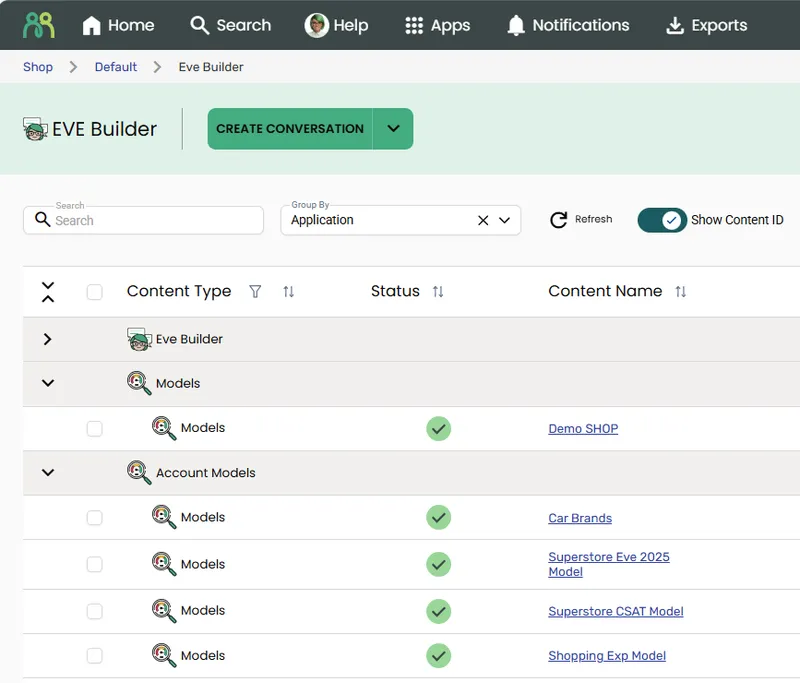
| Section | Description |
|---|---|
| Models | Your personal models — created by you or shared with you |
| Account Library Models | Models that have been promoted to the account library, available to all users in the account |
| Global Models | HumanListening’s shared model library, available to all accounts |
Creating a model
Section titled “Creating a model”You can create a model directly from the Models section, or a new model can be generated as part of setting up a Guided AI or Model Only conversation.
Create a model from the Models section
Section titled “Create a model from the Models section”- Click the CREATE button at the top of the app home screen. The button label reflects the last project type you created — click the dropdown arrow and select Create Model.
- Enter a Model Name and click OK.
- The model editor opens — build out your topics, sub-topics, keywords, and probe/prompt wording.
Generate a model during conversation setup
Section titled “Generate a model during conversation setup”When configuring a Guided AI or Model Only conversation, you can choose to:
- Generate full Model — AI generates a complete model from your context statement
- Use Generated Topics to start building a new Model — AI generates topics only; you complete the rest
In both cases you’ll be prompted to enter a Model Name. The model is then available in the model editor during setup, and saved to your Models section when the conversation is published or saved as a draft.
The model editor
Section titled “The model editor”The model editor is where you build and refine your model’s structure and the wording EVE uses during conversations.
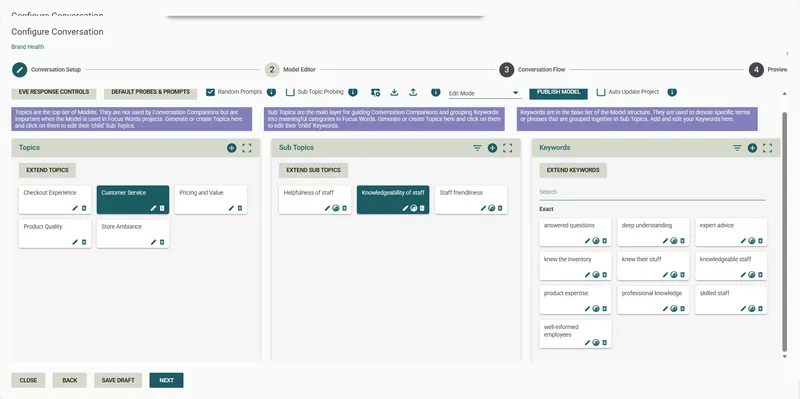
Model structure
Section titled “Model structure”| Level | Description |
|---|---|
| Topic | The broad category (e.g. “Customer Service”) |
| Sub Topic | A specific aspect within the topic (e.g. “Wait Times”) |
| Keyword | Words or phrases that, when mentioned by a participant, trigger a probe on the parent sub-topic (e.g. “queue”, “wait”, “hold”) |
Generating content in the model editor
Section titled “Generating content in the model editor”The model editor includes AI generation tools for building out the model:
- Generate Sub Topics — generates sub-topics for a selected topic based on the topic name and conversation context. Once generated, the button changes to Extend to add more
- Generate Keywords — generates keywords for a selected sub-topic. Once generated, the button changes to Extend to add more
You can also type topics, sub-topics, and keywords manually at any point.
Probe and prompt wording
Section titled “Probe and prompt wording”Each sub-topic has its own probe and prompt wording — what EVE says when a participant triggers that sub-topic, or when EVE prompts on an unmentioned sub-topic:
| Field | When used |
|---|---|
| Probe wording | When a participant mentions a keyword associated with this sub-topic |
| Prompt wording | When EVE prompts the participant to share their thoughts on this sub-topic (because they haven’t mentioned it yet) |
Write probe and prompt wording in a natural, conversational style — these are the actual words participants will read during the conversation.
Adding and editing keywords
Section titled “Adding and editing keywords”To add a keyword to a sub-topic, click the Add Keyword button on that sub-topic row. To edit an existing keyword, click the keyword in the model editor. Both actions open the keyword dialog.
The keyword dialog
Section titled “The keyword dialog”The keyword dialog has three parts:
i. Type your keyword or phrase
- Enter the word or phrase in the Keyword field
- Check Include Plurals to automatically match the plural form of the keyword alongside the singular
ii. Choose the tagging rule Select how EVE should match the keyword against participant responses. See Tagging rules below.
iii. Fine-tune your tagging rule Specify associated words that should influence whether a match is made. These fields are available for all tagging rules except All of these words, in any order:
| Field | What it does |
|---|---|
| Include with associated words | Also match when these words appear on either side of your keyword |
| Exclude with associated words | Do not match when these words appear on either side of your keyword |
| Include with in-sentence words | Also match when these words appear in the same sentence as your keyword |
| Exclude with in-sentence words | Do not match when these words appear in the same sentence as your keyword |
Tagging rules
Section titled “Tagging rules”The tagging rule controls how EVE matches a keyword against participant responses. Choose the rule that best fits how the word or phrase is likely to appear in text.
| Tagging rule | What it matches |
|---|---|
| Exact word or phrase | Comments that contain this exact word or phrase |
| Starting with | Comments that contain words starting with these letters (e.g. “deci” matches “decide”, “decision”, “decisive”) |
| Ending with | Comments that contain words ending with these letters (e.g. “fair” matches “fair” and “unfair”) |
| Containing | Comments that include words containing these letters anywhere within them (e.g. “confirm” matches “confirmed”, “confirms”, “unconfirmed”) |
| Any of these words | Comments that contain any one of the words entered |
| All of these words, in any order | Comments that contain all of the words entered, regardless of order |
| All of these words, in this order, in a sentence | Comments that contain all of the words entered, in that exact order, within a single sentence |
| Do not contain | Comments that do not contain this exact word or phrase |
| Custom (regular expression) | Comments that match a custom regular expression pattern |
Managing models
Section titled “Managing models”Edit a model
Section titled “Edit a model”- Click the model name in the content table to open it, or hover over the row and click the view icon.
- Make your changes in the model editor.
- Save your changes.
Duplicate a model
Section titled “Duplicate a model”- Hover over the model row and click the more icon (⋮), then select Duplicate.
- Enter a name for the new model and click OK.
Rename a model
Section titled “Rename a model”- Hover over the model row and click the more icon (⋮), then select Rename.
- Enter the new name and click OK.
Delete a model
Section titled “Delete a model”- Hover over the model row and click the more icon (⋮), then select Delete.
- Click YES to confirm.
Share a model
Section titled “Share a model”- Hover over the model row and click the Share icon.
- In the Share dialog, enter the email address(es) of the people you want to share with.
- Click the Edit icon and select the required Role from the permissions drop-down.
- (Optional) Check Notify people and add a personalised message.
- Click Save.
View model usage
Section titled “View model usage”To see which conversations are using a model, hover over the model row and click the more icon (⋮), then select Model Usage.
Account library models
Section titled “Account library models”The Account Library is a shared space where models can be made available to all users in the account — useful for standard frameworks that multiple teams use.
Promote a model to the account library
Section titled “Promote a model to the account library”- Hover over the model row and click the more icon (⋮), then select Promote.
The model moves to the Account Library Models section and becomes available to all account users.
Demote a model from the account library
Section titled “Demote a model from the account library”- Hover over the model row and click the more icon (⋮), then select Demote.
The model moves back to the personal Models section.
Frequently asked questions
Section titled “Frequently asked questions”What’s the difference between Topics, Sub Topics, and Keywords?
Think of them as a hierarchy. A Topic is a broad area of interest (e.g. “Price”). A Sub Topic is a specific aspect within that topic (e.g. “Value for Money”). Keywords are the words or phrases that trigger probing on that sub-topic — if a participant says “expensive”, “cheap”, or “worth it”, EVE probes on Value for Money. Topics and Sub Topics organise your model; Keywords are what EVE actually listens for.
Can I use the same model in multiple conversations?
Yes — a model can be linked to any number of conversations you have access to. Changes to the model don’t automatically update linked conversations; you’ll need to republish each conversation after making model changes.
Can I use a model from a different sub-account?
Only if it has been shared with you or promoted to the Account Library. You can only link models you own or that have been shared with you.
What’s the difference between an Account Library Model and a personal model?
Personal models are only visible to you and people you’ve explicitly shared them with. Account Library Models are available to all users in the account without needing individual sharing. Promoting a model to the library is useful for standard organisational frameworks that multiple teams rely on.
What does “Model Usage” show?
Model Usage shows you which conversation projects are currently linked to the model. Useful before editing or deleting a model, to understand what impact your changes might have.
If I edit a model, do I need to update every linked conversation?
Yes. Editing a model doesn’t automatically update published conversations that use it. You’ll need to republish each linked conversation for the changes to take effect in live surveys. The survey itself will then automatically pick up the latest published version of the conversation.