

EVE Builder
EVE Builder is where AI-powered conversations come to life. Instead of confronting participants with banks of survey questions, EVE engages them in a natural, flowing dialogue — following up on what they say, exploring what they don’t, and surfacing the insights that static surveys miss.
Whether you want the AI to run the whole show or you prefer to stay firmly in the director’s chair, EVE Builder gives you the controls. Set up a conversation in minutes with AI Only mode, or pair AI with a structured model for maximum precision and reusable analysis.
The basic workflow
Section titled “The basic workflow”-
Create a conversation
Open EVE Builder and create a new conversation project. Give it a name that makes sense to you — participants will never see it.
-
Configure the conversation
Choose your conversation type and work through the setup steps. See AI Only, Guided AI, Model Only, or Discussions.
-
Preview and publish
Test the conversation as a live participant would, then publish to make it available for deployment. See Publish and deploy.
-
Deploy via Survey Shaper
Add the published conversation to a survey in Survey Shaper and collect your data. See Publish and deploy.
Opening EVE Builder
Section titled “Opening EVE Builder”There are three ways to open EVE Builder:
-
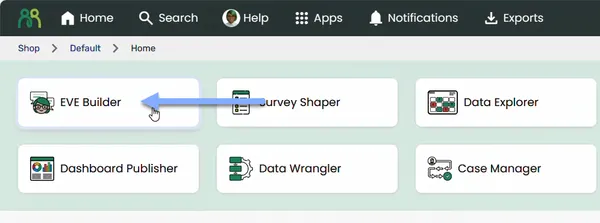
Application grid — On the portal home page, click the EVE Builder card in the application grid. Depending on your screen size, you may need to scroll down to find it.
-
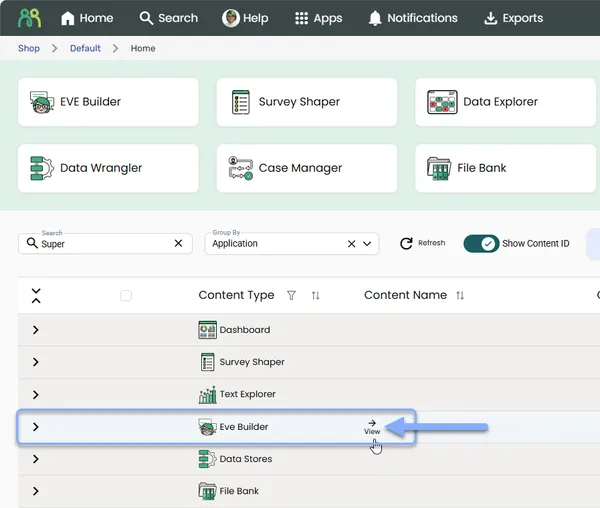
Content table — Hover over the EVE Builder row in the portal home content table and click the View icon.
-
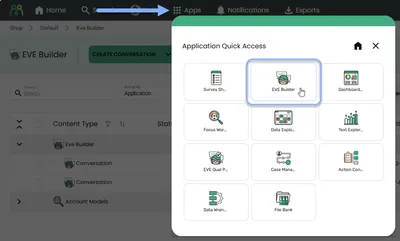
Application quick access — Click the Apps button in the header bar, then select EVE Builder from the quick access dialog.
EVE Builder home
Section titled “EVE Builder home”When you open EVE Builder, you’ll see your content listed in the home table — split into two sections.
Conversations
Section titled “Conversations”The Conversations section lists all your conversation and discussion projects.
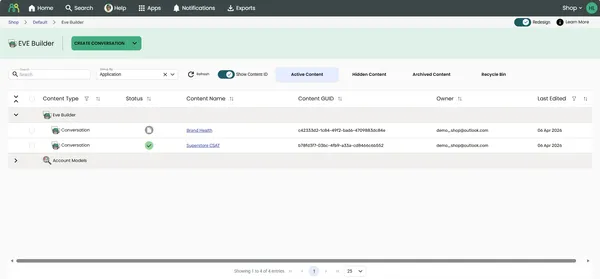
Each row shows the conversation name and its current publish status. Click a conversation name to open and edit it.
Models
Section titled “Models”The Models section lists all your conversational models — the reusable topic, sub-topic, and keyword frameworks used to structure Guided AI and Model Only conversations.
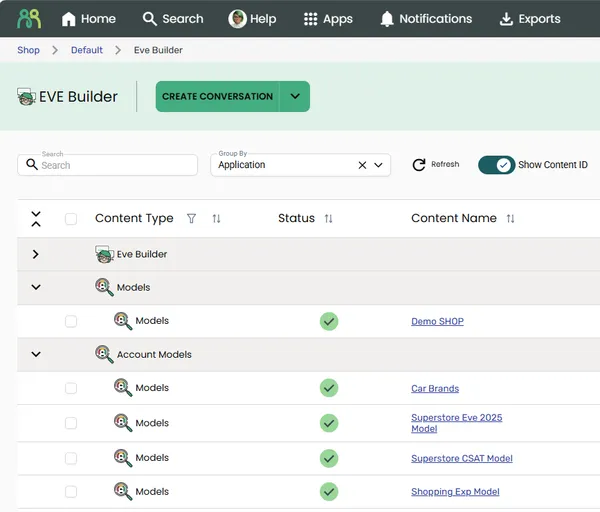
See Models for full details on creating and managing models.
Creating a new conversation
Section titled “Creating a new conversation”- Open EVE Builder using one of the methods above.
- Click the CREATE button at the top of the app home screen. The button label reflects the last project type you created — click the dropdown arrow to choose between Create Conversation and Create Model.
- Select Create Conversation.
- Enter a name — choose something that helps you identify the project. Participants will never see this name.
- Click OK — your new conversation opens ready to configure.
Managing conversations
Section titled “Managing conversations”Edit a conversation
Section titled “Edit a conversation”- Click the conversation name in the content table to open it, or hover over the row and click the view icon.
- Make your changes, clicking Next to move through each configuration step.
- Preview and republish when you’re done.
To exit without saving, click Close at any point during configuration.
Duplicate a conversation
Section titled “Duplicate a conversation”Duplicating is the quickest way to spin up a new conversation based on an existing setup. The duplicate is created with the original name followed by (copy) — you can rename it straight away.
- Hover over the conversation row and click the more icon (⋮), then select Duplicate.
- Enter a name for the new conversation and click OK.
Rename a conversation
Section titled “Rename a conversation”- Hover over the conversation row and click the more icon (⋮), then select Rename.
- Enter the new name and click OK.
Delete a conversation
Section titled “Delete a conversation”- Hover over the conversation row and click the more icon (⋮), then select Delete.
- Click YES to confirm.
Share a conversation
Section titled “Share a conversation”Conversations can be shared with individuals, user groups, or trusted domains — handy when another team member needs to pick up the project or build the survey where the conversation will be deployed.
- Hover over the conversation row and click the Share icon.
- In the Share dialog, enter the email address(es) of the people you want to share with.
- Click the Edit icon and select the required Role from the permissions drop-down.
- (Optional) Check Notify people to send an email notification. Add a personalised message or leave it blank for the default.
- Click Save.
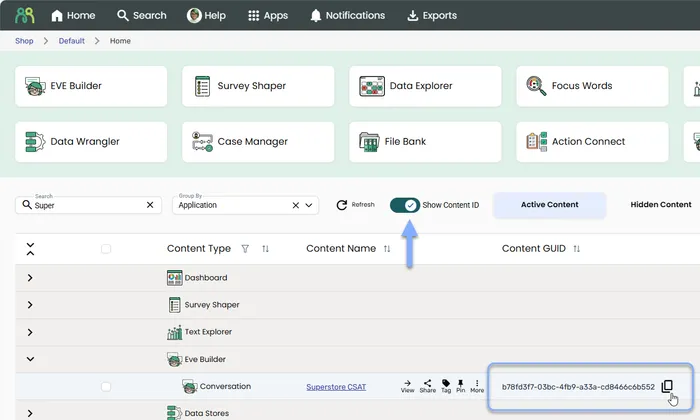
Quick share via Project ID — If another user just needs to build the survey (and doesn’t need to edit the conversation itself), you can send them the EVE Builder Project ID directly — no project sharing required.
To find the Project ID in the content table, enable Show Content ID using the toggle at the top of the content table. The Project ID (GUID) appears alongside each conversation row and can be copied directly.
Frequently asked questions
Section titled “Frequently asked questions”Why can’t I see the EVE Builder application card?
First, scroll down on the portal home page — the card may be below the fold depending on your screen size. If it’s still not there, EVE Builder hasn’t been enabled for your account or your user role doesn’t have access. Reach out to your Account Manager to find out more.
What’s the difference between a Conversation and a Discussion?
A Conversation is a single AI-moderated interview — choose from AI Only, Guided AI, or Model Only modes. A Discussion links two or more existing published conversations together to form an extended, multi-part session. See Discussions for more.
What’s the difference between Conversations and Models?
Conversations are the projects you deploy to participants. Models are reusable frameworks of topics, sub-topics, and keywords that structure how EVE probes during Guided AI and Model Only conversations, and how responses are automatically classified during analysis. See Models for more.
What happens to a live survey if I delete the linked conversation?
Deleting a conversation that’s already deployed in a live survey will break that survey question. Always check whether a conversation is in active use before deleting it. If in doubt, rename it with a prefix like “ARCHIVED –” rather than deleting.
Can I use the same conversation in multiple surveys?
Yes. A published conversation can be inserted into as many surveys as you like. All deployed surveys will always reference the most recently published version.
Do I need to reshare a conversation every time I make changes?
No. Once shared, the conversation stays shared. The recipient will automatically see the latest published version. You only need to reshare if you want to change or revoke their permission level.
Can participants see the conversation name?
No. The conversation name is internal — only visible to users in EVE Builder. Participants only see what’s in the introduction, conversation text, and companion settings you configure.
The person building my survey needs access to the conversation — do I need to share it with them?
Not necessarily. If they only need to link the conversation in Survey Shaper (not edit it), you can just send them the EVE Builder Project ID. They can paste it directly into the Eve Source field. See Publish and deploy for details.