

Customer Feedback tab
The Customer Feedback tab is your main workspace. It lists every piece of feedback with the AI’s suggestions, and it’s where you approve or correct those suggestions so the responses you send back to customers actually help.
Filtering and searching
Section titled “Filtering and searching”The filter bar sits above every tab in the project, and your filters stay in place as you switch tabs.
| Filter | What it does |
|---|---|
| Search… | Finds feedback containing your keywords. |
| Period | Groups dates by Weekly, Monthly, Quarterly, Yearly or Financial Year. A second dropdown then lets you choose a specific period, such as FY 2025/26. It starts on the project’s reporting period. The Financial Year option shows the project’s financial year, for example Financial Year (1 Jul - 30 Jun), which is set when the project is created. |
| Topic | Shows feedback in one category. |
| Subtopic | Appears once you’ve chosen a topic, and narrows to one sub category. |
| Owner ID | Shows feedback for one owner. |
| Initiative | Shows feedback linked to one initiative. |
| Other filters … | The Project Filter Variables chosen during setup, such as region or account tier. Pick values to narrow the feedback. Only shown if the project has filter variables. |
Filters combine, so you can, for example, look at one owner’s feedback about one topic. To clear a filter, set its dropdown back to its default or remove its chip.
On the right of the filter bar:
- Export downloads the current tab as a CSV file, with your filters applied. On this tab, that’s the feedback table.
- Create Access Filter (owners only) saves your current filters as an access filter. It only appears once you’ve set at least one filter other than search or period. See Sharing and access filters.
Understanding the table
Section titled “Understanding the table”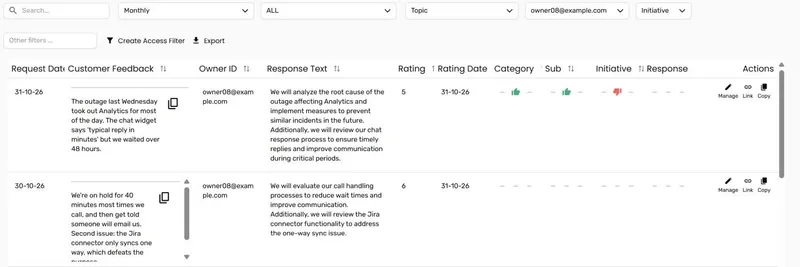
Each row is one piece of customer feedback, with the newest first.
| Column | What it shows |
|---|---|
| Request Date | When the customer gave the feedback. |
| Customer Feedback | The original feedback text. |
| Owner ID | Who’s responsible for this feedback. |
| Response Text | The AI’s suggested reply: what the owner might say back to the customer. “Pending” means the AI hasn’t finished with this record yet. |
| Rating | The customer’s rating. Only shown if the project has ratings. |
| Rating Date | When the rating was given, or “Pending” if it hasn’t come in yet. Only shown if the project has ratings. |
| Category, Sub, Initiative, Response | Review progress for each part of the AI’s suggestion. |
Review progress columns
Section titled “Review progress columns”A piece of feedback can have up to three classifications (see Multiple classifications). The last four columns show one icon per classification, so you can see at a glance what’s been reviewed:
- Thumbs up: approved
- Thumbs down: changed
- Dash: not reviewed yet
Hover over an icon to see which classification it belongs to. In the CSV export, these columns read “Approved”, “Declined” or ”-”.
Row actions
Section titled “Row actions”Hover over a row to see three actions:
Manage opens the Action Details dialog, where you review and correct the AI’s suggestions.
Link copies a direct link to this piece of feedback. Opening the link takes you straight to the project with its Action Details dialog open. Paste it into your CRM or a ticket so your team can jump right to it.
Copy copies the record’s details as plain text: Owner ID, Account ID, Customer Feedback, Request Date, Response Status, Response Rating (if the project has ratings), Action Category, Action Sub-Category and Response. Paste it into your CRM, a support ticket or a message.
Reviewing feedback
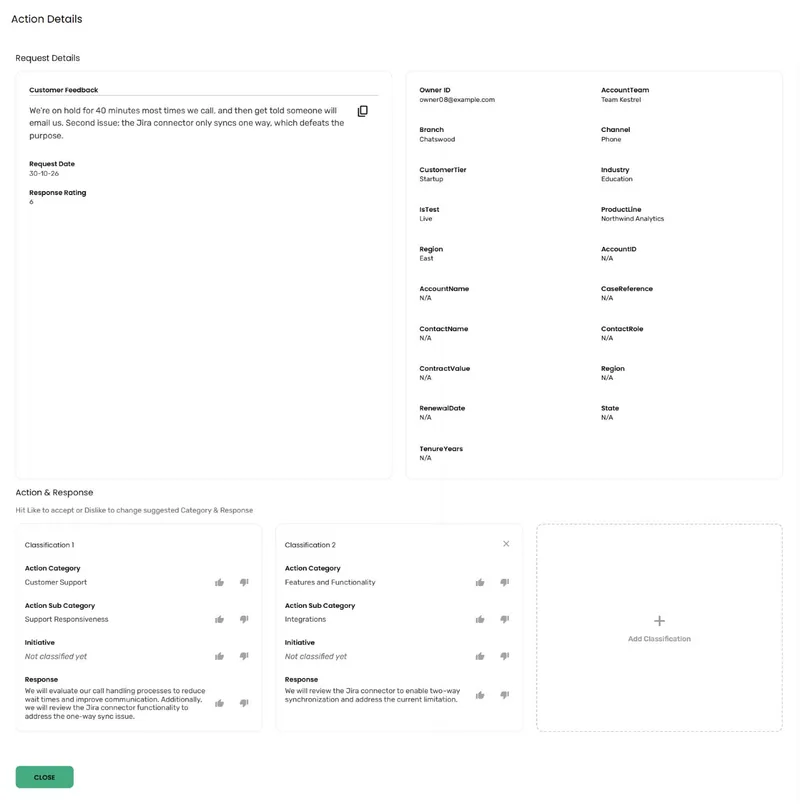
Section titled “Reviewing feedback”Click Manage on any row to open the Action Details dialog.
Request Details
Section titled “Request Details”The left side shows:
- Customer Feedback: the original text
- Request Date: when it was given
- Response Rating: the customer’s rating, “Pending” if it hasn’t arrived yet, or “Not Applicable” if the project doesn’t track ratings
If the feedback is linked to an initiative, you’ll also see its Initiative Description, Initiative Owner Email, Initiative Status and Initiative Due Date, where they’ve been filled in.
The right side shows the project’s label variables, such as account name or customer tier, for context.
Action & Response
Section titled “Action & Response”This is where you review the AI’s suggestions. The instruction reads “Hit Like to accept or Dislike to change suggested Category & Response.”
Each classification has its own column, with four parts:
| Field | What it means |
|---|---|
| Action Category | The broad category, such as “Service Quality and Support”. |
| Action Sub Category | The more specific theme, such as “Hardware Support”. |
| Initiative | The initiative addressing this kind of feedback. |
| Response | The AI’s suggested reply to the customer. |
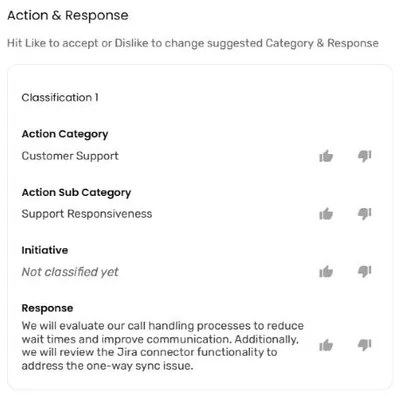
To approve a suggestion, click the thumbs up next to it. It saves straight away.
To change a suggestion, click the thumbs down. A form opens under that field:
- Action Category and Action Sub Category: choose from the list, or choose Add New Category / Add New Sub-Category and type a name. Click SAVE CATEGORIES. Decide the category before its sub category.
- Initiative: choose an initiative, or Add New Initiative. Click SAVE.
- Response: type the reply you’d rather send, up to 5,000 characters. Click SAVE.
- Click CANCEL to leave the field as it was.
Multiple classifications
Section titled “Multiple classifications”Some feedback covers more than one issue. Click Add Classification to add another column for the same piece of feedback, up to three in total. Click the x at the top of the second or third classification to remove it. It’s removed straight away, with no confirmation.
Who can review
Section titled “Who can review”| Role | What they can do in Action Details |
|---|---|
| Owner, Editor | Everything, including adding new categories, sub categories and initiatives. |
| Project Lead | Approve, change, add and remove classifications, choosing from existing categories and initiatives. |
| Viewer | View only. |
Frequently asked questions
Section titled “Frequently asked questions”What if the AI completely misunderstands a piece of feedback?
Click the thumbs down on the fields that are wrong and choose the right values. If nothing fits, an owner or editor can add a new category, sub category or initiative from the same form.
Do I have to review every single piece of feedback?
No. Focus on the feedback that matters most, such as important customers, recent feedback or your biggest categories. Use the filters to find it, and the review progress columns to see what’s left.
What does “Pending” mean in the Response Text column?
The AI is still working on that record. It updates automatically once it’s done. After Save Categories & Retag, you’ll see a lot of “Pending” for a few minutes while the AI reclassifies.
How do I handle feedback that doesn’t fit any existing category?
Click the thumbs down on Action Category and choose Add New Category. You can add sub categories and initiatives the same way. To reshape your categories more broadly, use Settings > Feedback Categories in the project header, then Save Categories & Retag. See Feedback Categories tab.
Can I assign an owner or due date to a single piece of feedback?
Not directly. Each record has one Owner ID, which comes from your data. Owners, statuses and due dates belong to initiatives, so link the feedback to an initiative instead.
If I change the categories and retag, will it overwrite feedback I’ve already reviewed?
No. Anything you’ve approved or changed is kept.
Why can’t I see some feedback that my colleagues can see?
The project owner may have given you an access filter, which limits the feedback you see. Ask the owner if you need to see more.
Common issues and solutions
Section titled “Common issues and solutions””The AI’s suggestions don’t match my business”
Section titled “”The AI’s suggestions don’t match my business””The AI works from the context you gave during setup and from your corrections over time.
- Check your categories - In Settings > Feedback Categories, set up categories that reflect your business, then Save Categories & Retag.
- Correct consistently - Use the same categories for similar issues so the AI picks up the pattern.
- Check the project context - The Configuration tab in Settings shows the context the AI was given. If it’s too vague, consider a new project with a more specific one.
”Too much feedback to review”
Section titled “”Too much feedback to review””Work through it strategically rather than in date order.
- Filter by period - Focus on current feedback rather than the backlog.
- Review by topic - Use the Topic and Subtopic filters to review similar feedback in batches.
- Find the big issues first - The Feedback Categories tab shows the biggest categories, and the Opportunity Score tab shows where improvement matters most.
- Share the load - Use the Owner ID filter so each owner reviews their own feedback.