

Survey Editor (Beta)
Survey Shaper has two editors for building surveys:
- Survey Editor (Beta): the new editor. It opens inside Portal, in the same tab.
- Survey Editor (Legacy): the original editor. It opens in a new browser tab, outside Portal.
Survey Editor (Beta) is part of a design update to Survey Shaper. It uses the same layout, controls and styling as the rest of the platform, so building a survey feels like working anywhere else in Portal.
Both editors work on the same surveys, so you can open a survey in one editor and carry on in the other. Most of what you can do is the same in both. Where the steps differ, the help shows them in two tabs: Survey Editor (Legacy) and Survey Editor (Beta). Pick the tab for the editor you use, and the help remembers your choice on other pages.
Survey Editor (Beta) is available to everyone who can use Survey Shaper.
Turn Survey Editor (Beta) on or off
Section titled “Turn Survey Editor (Beta) on or off”The Survey Editor (Beta) toggle is at the top of the Survey Shaper page. It’s switched on by default, and you can switch it off at any time.
- Open Survey Shaper
- At the top of the page, switch the Survey Editor (Beta) toggle on or off. Hover over the info icon next to it for a reminder of what it does.
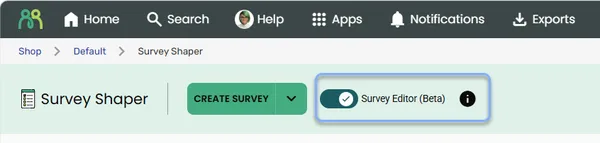
Your choice is saved in your browser, so it applies on this computer until you change it.
When the toggle is on, these all open the survey in Survey Editor (Beta):
- Creating a new survey
- Clicking a survey’s name in Survey Shaper
- Edit in Survey Editor (Beta) in the survey’s more menu (⋮), in Survey Shaper or on Portal home
- Choosing a version from Versions & Links > Version History
- Edit Script on the Survey Statistics page
When the toggle is off, they open Survey Editor (Legacy), and the Edit in Survey Editor (Beta) menu option isn’t shown.
Edit in the survey’s more menu always opens Survey Editor (Legacy) in a new tab, whether the toggle is on or off.
If you can view a survey but not edit it, Edit in Survey Editor (Beta) opens it read-only.
Find your way around
Section titled “Find your way around”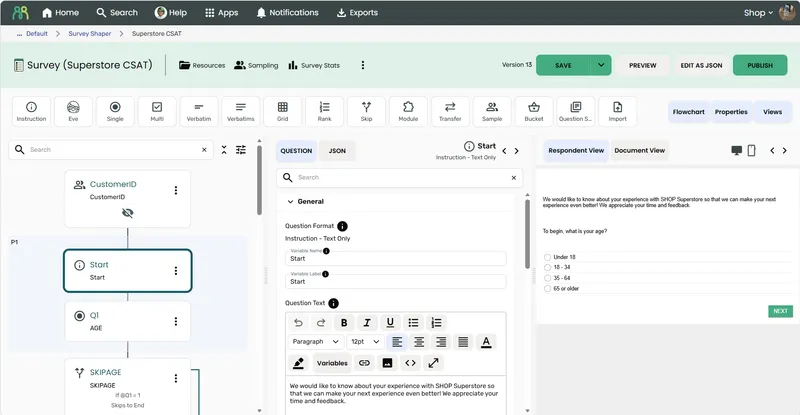
Header
Section titled “Header”The header shows the survey’s name, its Version number and a Published badge if this version is published. The buttons are:
| Button | What it does |
|---|---|
| Save | Saves your changes. Click the arrow next to it for Save As, to save a new version, a duplicate or a template. |
| Create New Version | Shown on a published version. Copies it into a new version you can edit. |
| Preview | Opens the survey preview in a new tab. |
| Edit as JSON | Opens the whole survey as JSON, for advanced editing. See Edit as JSON. |
| Publish | Saves your changes and publishes this version. |
The header also has icons that open other parts of Survey Shaper:
- Resources: the survey’s images, stylesheets and other files
- Sampling: the sample page
- Survey Stats: the Survey Statistics page
More editor actions menu
Section titled “More editor actions menu”Click the More editor actions icon (⋮) in the header for:
| Option | What it does |
|---|---|
| Find | Find text in the survey, and replace it. See Find and replace. |
| Media | Browse the files in your File Bank and copy their links. See File Bank media. |
| Preferences | Change how the editor behaves (see Preferences) |
| Stop editing | End your editing session so someone else can edit (see One editor at a time) |
| Properties | Open the survey’s project properties |
| Manage quotas / Manage interlocked quotas | Shown on a published version. Change quota counts and limits (see Manage quotas) |
| Codesets | Create and manage reusable lists of answer codes and text. See Code sets. |
| Audit Log | See the survey’s change history (see Audit log) |
| Export definition | Download the survey’s design as a .json file. This doesn’t include any responses. See Export definition. |
Add to survey toolbar
Section titled “Add to survey toolbar”Below the header is the Add to survey toolbar, with a card for each question type plus Question Set and Import. Drag a card into the flowchart to add a question at that position, or click it to add the question at the end of the survey. See Survey flowchart.
The editor has three panes. Use the Flowchart, Properties and Views buttons at the right of the toolbar to show or hide them, and drag the bar between panes to resize them. On a narrow screen, the panes stack on top of each other.
- Flowchart: the survey’s questions in order. Each question is a card. Click a card to select it, double-click it to open Quick Update, or click its more icon (⋮) for actions such as moving, duplicating or deleting it.
- Properties: the selected question’s settings, on the Question, Answers (or Columns), Rows and JSON tabs. Use the search box to find a setting, and hover over the info icon on any setting for a description.
- Views: Respondent View previews the selected question as respondents will see it, on Desktop or Mobile. Document View shows the whole survey as a document you can copy, print, or open as PDF or Word.
One editor at a time
Section titled “One editor at a time”Only one person can edit a survey at a time. When you open a survey, you start an editing session, and anyone else who opens it sees it read-only until you finish.
- To let someone else edit, click More editor actions (⋮) > Stop editing. Closing the tab or leaving the editor also ends your session.
- If you have the survey open in another tab, the second tab opens read-only. Click Edit here to move your editing session to that tab.
- If your session ends unexpectedly while you’re working, the editor tells you it’s now read-only. Your unsaved changes are kept in that tab, even if you refresh it. Click Resume Editing to carry on.
Preferences
Section titled “Preferences”Click More editor actions (⋮) > Preferences to open User Preferences:
- Display System Properties: show system properties in the Properties pane
- Auto Open Quick Update: open Quick Update when you add a new question (on by default)
- Auto Collapse Panels: opening a panel in the Properties pane closes any other open panel
To choose what the flowchart shows, such as filters, page groups and skip lines, click the Display options icon at the top of the Flowchart pane. See Flowchart display options.
Preferences are saved in your browser.
Audit log
Section titled “Audit log”To see who changed the survey and when, click More editor actions (⋮) > Audit Log. The Survey Audit Log lists each save, newest first, with:
- Date: when the changes were saved
- Version: the survey version
- User: who saved them
- Changes: what that save changed, such as the codes of the questions you edited (with
_Answersor_Rowsif you changed their answers or rows), Project Properties, page groups and quotas. Anything you deleted is listed under Deletions.
The log covers the version you have open.
What’s different from Survey Editor (Legacy)
Section titled “What’s different from Survey Editor (Legacy)”If you’re used to Survey Editor (Legacy), these are the main changes:
| In Survey Editor (Legacy) | In Survey Editor (Beta) |
|---|---|
| Opens in a new tab | Opens inside Portal |
| Right-click a question for the Quick Menu | Click the more icon (⋮) on the question’s card |
| Drag or double-click an object in the Toolbox | Drag a card from the Add to survey toolbar, or click it to add at the end |
| Preferences sets what the flowchart shows | Display options on the Flowchart pane |
| Properties in the main menu | More editor actions (⋮) > Properties |
| Sample Management and Survey Stats in the main menu | Sampling and Survey Stats icons in the header |
| Save As > New Version to edit a published survey | Create New Version button |
| Controls edited as JSON in a dialog | A Controls section in the Properties pane, with a field for each control |
| Filters built by dragging in the Filter Builder | Open rule builder next to the filter, with a field for each part of the rule |
| A confirmation when you turn on Randomize | Randomize applies straight away |
| A red exclamation mark for not-compulsory questions; a yellow scroll for action commands | An asterisk for not-compulsory questions; a lightning bolt for action commands |
| Several people can edit at once | One editor at a time |
Where you still need the Survey Shaper page
Section titled “Where you still need the Survey Shaper page”Survey links, test entries, alerts and data exports aren’t in the editor. Use the survey’s more menu (⋮) in Survey Shaper.
Switch back to Survey Editor (Legacy)
Section titled “Switch back to Survey Editor (Legacy)”Turn off the Survey Editor (Beta) toggle at the top of the Survey Shaper page. Your surveys aren’t affected: anything you saved in Survey Editor (Beta) opens in Survey Editor (Legacy).
To open just one survey in Survey Editor (Legacy) without turning the toggle off, choose Edit from the survey’s more menu (⋮).