

Appendix
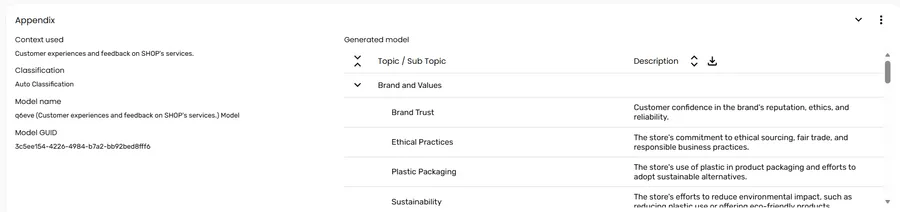
The Appendix section of the Text Auto Report provides a reference view of the model configuration and the full topic and sub topic structure used in the analysis.
What the Appendix contains
Section titled “What the Appendix contains”Model metadata
Section titled “Model metadata”The left side of the Appendix displays key information about the analysis configuration:
| Field | What it shows |
|---|---|
| Context used | The context description used by the AI to interpret the text data |
| Classification | The classification method used — for example, Auto Classification |
| Model name | The name of the classification model applied to this analysis |
| Model GUID | The unique identifier for the model |
Generated model
Section titled “Generated model”The right side displays the full topic and sub topic tree produced by the model. Each topic can be expanded to show its sub topics, and each sub topic has a description explaining what responses in that category typically express.
Use the expand all and collapse all icons in the column header to open or close every topic at once.
Exporting the model
Section titled “Exporting the model”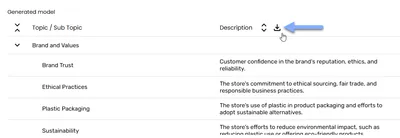
Click the download icon in the Generated model column header to export the full topic and sub topic structure.
Frequently asked questions
Section titled “Frequently asked questions”Can I edit the topic and sub topic structure from the Appendix?
No. The Appendix is read-only. The model structure is determined during preprocessing and cannot be manually edited. To add new analyses or variables, use Edit Report from the report toolbar — see Editing report settings.
Why are some topics or sub topics not appearing in the other report sections?
Topics and sub topics only appear in the report sections if they have sufficient data to generate results. A sub topic present in the Appendix tree but absent from the charts may have been mentioned too infrequently to meet the threshold for display.
I can’t see this section in my report — where has it gone?
It may have been hidden. Open the settings menu in the report toolbar and select Manage Layout to see all available sections and toggle them back on.