

Initiatives
Spotting a problem is only half the job. Initiatives are how you track what your organization is doing about it: a project, fix or change, with an owner, a status and a due date, linked to the kinds of feedback it addresses.
The AI suggests an initiative for each piece of feedback, and your team can approve or change it on the Customer Feedback tab. Anyone reviewing that feedback then sees what’s being done about it, which makes closing the loop with the customer much easier.
Setting up initiatives
Section titled “Setting up initiatives”Click Settings in the project header, then the Initiatives tab. Only owners and editors can make changes. Everyone else sees View Settings, a View Initiatives tab and a read-only list.
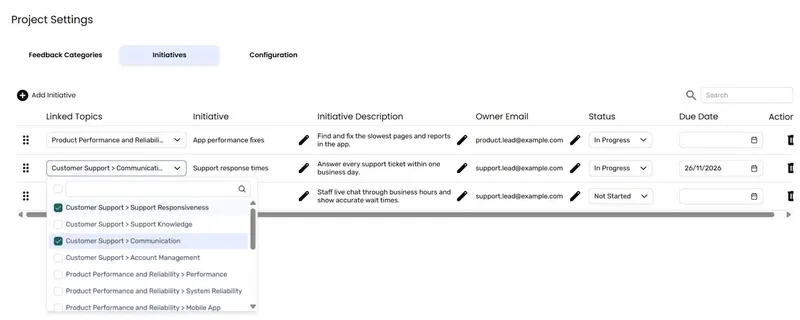
- Add an initiative - Click Add Initiative. A new row appears.
- Link it to topics - In Linked Topics, choose the Topic > Sub Topic combinations this initiative addresses. You can choose as many as you need.
- Name and describe it - Fill in Initiative (the name) and Initiative Description.
- Assign it - Add the Owner Email of the person responsible, a Status and a Due Date.
- Save - Click Save Initiatives. The dialog closes once they’re saved.
Only the name is required. The other fields are optional, but they give your team useful context when reviewing feedback.
| Field | What it’s for |
|---|---|
| Linked Topics | The sub categories this initiative addresses. |
| Initiative | The initiative’s name. Must be unique in the project, up to 255 characters. |
| Initiative Description | What the initiative involves. |
| Owner Email | Who’s responsible for delivering it. |
| Status | Not Started, In Progress, Open or Closed. |
| Due Date | When it should be done. |
Other things you can do on the tab:
- Search to find an initiative in a long list.
- Drag rows to reorder them. You can’t reorder while searching.
- Delete an initiative with the delete action on its row.
If you switch to another tab in Project Settings before saving, you’ll be asked whether to discard your changes. Click Stay on this tab to go back and save them.
Owners and editors can also add a new initiative straight from the Action Details dialog while reviewing feedback, by choosing Add New Initiative.
The Initiatives tab
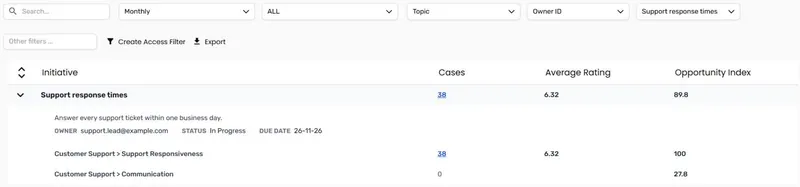
Section titled “The Initiatives tab”The Initiatives tab summarizes every initiative you’ve set up, with the highest Opportunity Index at the top.
| Column | What it shows |
|---|---|
| Initiative | The initiative’s name. Expand it to see its details and its linked topics. |
| Cases | How many customers’ feedback is linked to this initiative. |
| Average Rating | The average rating of that feedback, on your project’s own rating scale. Shows ”—” when there are no ratings. |
| Opportunity Index | How much there is to gain from this initiative, from 0 to 100. Higher means more opportunity. |
When you expand an initiative, you’ll see:
- a panel with its description, Owner, Status and Due Date, where they’ve been filled in;
- a row for each linked Topic > Sub Category, with its own cases, average rating and Opportunity Index.
Initiatives with no feedback linked to them yet still appear, with zero cases, so you can see everything you’ve planned.
The Opportunity Index
Section titled “The Opportunity Index”The Opportunity Index connects your initiatives to the Opportunity Score. Hover over a number to see what it means:
- On a linked topic row, it’s that sub category’s Opportunity Score, the same number you’ll see on the Opportunity Score tab.
- On an initiative row, it combines the scores of all its linked topics, giving more weight to the topics that more customers mention.
A high Opportunity Index means the initiative tackles issues that come up often, rate poorly and matter to customers, so it’s a good one to prioritize.
Seeing the feedback behind an initiative
Section titled “Seeing the feedback behind an initiative”Click the Cases number on an initiative to see all its feedback, or on a linked topic row to see just the feedback for that topic. A read-only list opens with the feedback, initiative and response text.
The Initiative filter in the filter bar narrows this tab to one initiative. It also works on the other tabs, so you can, for example, review all the feedback for one initiative on the Customer Feedback tab.
Export downloads the tab as a CSV file.
Frequently asked questions
Section titled “Frequently asked questions”Can one initiative cover several issues?
Yes. Link it to as many Topic > Sub Topic combinations as it addresses. Its Opportunity Index combines them all.
Can a piece of feedback have more than one initiative?
Yes, if it has more than one classification. Each classification has its own initiative. See Multiple classifications.
Why does an initiative have zero cases?
No feedback has been linked to it yet. Check the Initiative on feedback in its linked sub categories on the Customer Feedback tab, and change it where needed.
Why can’t I edit initiatives?
Only owners and editors can. Project Leads and Viewers see View Settings in the project header, and the View Initiatives tab is read-only.