

Variable View: Manage Variables
Variable View is the blueprint of your data store. Every variable is listed with its name, label, type and codeframe, and if you can edit the data store, this is where you shape it.
Getting the structure right here pays off everywhere else, especially before you publish, which locks variable types and the primary key.
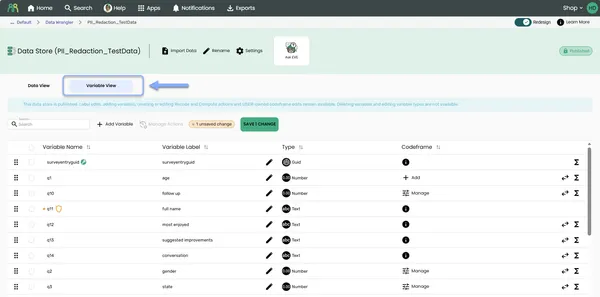
Understanding Variable View
Section titled “Understanding Variable View”The grid has four columns:
| Column | What it shows |
|---|---|
| Variable Name | The fixed, lowercase name the system uses. A key icon marks the primary key, and a shield icon marks personal information. |
| Variable Label | The friendly text people see. You can edit it. |
| Type | What kind of values the variable holds. You can change it, with some limits. |
| Codeframe | Add, Manage or View a variable’s codeframe. See Keys, codeframes & multi-response. |
Multi-response variables show as a group you can expand to see their child variables. Use Search to find a variable by name, label or type.
Variables you can recode have a Recode Variable icon on their row, and variables you can compute from have a Compute Variable icon. A variable created by a Recode or a Compute may show RUNNING while it runs, or STALE if its source has changed since. A variable created by a Compute also has a COMPUTED marker next to its name. See Recode variables and Compute variables.
Staged changes
Section titled “Staged changes”Some changes wait for you to click SAVE, so you can review them together. Others happen straight away.
| Waits for SAVE | Happens straight away |
|---|---|
| Editing a label | Deleting a variable (after you confirm) |
| Changing a type | Reordering variables |
| Personal-information changes made here | Adding a multi-response variable |
| Adding a variable to a published data store | Adding a variable to a draft data store |
A dot next to a variable means it has unsaved changes; hover over it to see what. A chip next to SAVE says how many changes are waiting, for example “2 unsaved changes”, and the button itself reads, for example, SAVE 2 CHANGES.
Add a variable
Section titled “Add a variable”- Click Add Variable - The Add Variable dialog asks you to “Choose how you’d like to create your new variable”.
- Choose Blank Variable - Click Blank Variable, “Create a blank variable and choose its name, label, type, and settings.”, then click SELECT. (To create a variable from existing ones, choose Recode or Compute instead. See Recode variables and Compute variables.)
- Enter a Variable Label - It’s the second box on the form. This is the friendly name, and Data Wrangler suggests a Variable Name from it as you type.
- Check the Variable Name - It’s the first box. Change the suggestion if you like. See Naming rules.
- Choose a Variable Type - Text (the default), Long Text, Integer, Number, Boolean, Date, DateTime, Time, Guid or Multi-Response.
- Add extras if you need them:
- For Integer or Number, open Specify codeframe to add codes and labels now.
- Tick Set as primary key if this variable should identify each record. It’s only offered when the data store has no primary key yet and isn’t published.
- Click ADD VARIABLE - On a draft data store, you’ll see “Variable added successfully.” On a published data store, the variable is staged: click SAVE to add it.
Naming rules
Section titled “Naming rules”A Variable Name must:
- start with a letter
- use only letters, digits and underscores
- be no more than 100 characters
- be different from every other variable name in the data store
Names are always lowercase; Data Wrangler converts them as you type. Once a variable is created, its name can’t be changed, so check it before you click ADD VARIABLE. You can change the label at any time.
Add a multi-response variable
Section titled “Add a multi-response variable”Use this for a “choose all that apply” question.
- Choose Multi-Response - In Add Variable, set Variable Type to Multi-Response.
- Add the Response Options - Click Add Entry and fill in a Code and a Label for each option. You need at least two. To type them all at once, click Bulk Edit and enter one option per line, code first, then the label. Use Remove to take an option out again.
- Click ADD VARIABLE - Data Wrangler creates the group plus one Yes/No child variable per option, named after the group and the option’s code (for example
q5_1,q5_2) and labeled with the group’s label and the option’s label (for example “Brands used - ACME”). You’ll see “Multi-response variable added successfully.”
Multi-response variables are added straight away, even on a published data store. To group variables you already have, see Keys, codeframes & multi-response.
Edit a label
Section titled “Edit a label”Click a variable’s Variable Label, type the new label and press Enter. The change is staged until you click SAVE.
Change a variable’s type
Section titled “Change a variable’s type”Click a variable’s Type and choose a new one. The change is staged until you click SAVE.
You can’t change the type of:
- variables in a published data store (except new ones you haven’t saved yet)
- the primary key
- multi-response variables and their child variables
- variables that came from a survey
Changing text to a date
Section titled “Changing text to a date”When you change a Text or Long Text variable to Date or Date Time, the Date format dialog asks how the existing values are written: “Existing values are written”. It opens once you’ve chosen the new type and moved away from the type list. Choose one of these, then click OK:
| Option | Reads values like |
|---|---|
| Detect automatically | 2024-12-25 |
| Day, month, year | 25/12/2024 |
| Month, day, year | 12/25/2024 |
| Year, month, day | 2024-12-25 |
| Day, month name, year | 25 Dec 2024 |
| Month name, day, year | Dec 25 2024 |
| Other | Your own Date format (see below) |
In Apply Changes, the type change shows the format you chose, for example “Reading values as Day, month, year”.
For your own format, use d for the day, M for the month and y for the year, for example dd/MM/yyyy. Watch the capitals: “Use a capital M for the month. A lowercase m means minutes.”
If any value can’t be converted, nothing changes. You’ll see which values are the problem, and the change stays staged so you can fix the data or choose a different format.
Save your changes
Section titled “Save your changes”- Click SAVE - The Apply Changes dialog lists every staged change, with the Variable, the Change, and the From and To values.
- Review the list - “The following changes will be applied to the data store. Please review before confirming.”
- Click APPLY - The changes are written to the data store. If any of them fail, you’ll see why, and those changes stay staged so you can try again.
There’s no Discard button. If you switch to Data View with unsaved changes, you’ll be asked “Discard Variable View changes?” Click DISCARD to drop them, or CANCEL to stay.
Reorder variables
Section titled “Reorder variables”Drag a variable up or down the grid. The new order is saved straight away. Child variables move with their multi-response group.
Delete variables
Section titled “Delete variables”- Choose what to delete - Click Delete Variable on a variable’s row, or tick several variables and click Delete Variables.
- Confirm - Read the message and click YES. The variables are deleted straight away.
You can’t delete variables from a published data store, or variables that came from a survey. To remove a multi-response group but keep its child variables, use Ungroup Multi-Response. See Keys, codeframes & multi-response.
Frequently Asked Questions
Section titled “Frequently Asked Questions”How do I create a calculated variable?
Click Add Variable, then choose:
- Compute to calculate a value from one or more variables, such as a total, an average, an age or cleaned-up text. See Compute variables.
- Recode to turn one variable’s values into codes, scores or text, such as NPS groups or age bands. See Recode variables.
Both run once on the current data. If you need the result recalculated every time new data arrives, use a wrangle’s Recode step instead.
What’s Manage Actions?
It lists every Recode and Compute in the data store, with its status and run history, so you can run one again or reopen it. See Manage Actions.
Can I rename a variable?
You can change its Variable Label at any time. The Variable Name is fixed once the variable is created.
Why can’t I change a variable’s type?
The data store is published, the variable is the primary key, it’s part of a multi-response group, or it came from a survey. To change types on a published data store, the owner can use Edit Schema.
Why can’t I delete a variable?
Variables can’t be deleted from a published data store, and variables that came from a survey can’t be deleted at all.
Why hasn’t my label change been saved?
Label changes wait for SAVE. Check for a dot next to the variable or a number on the SAVE button, then click SAVE and APPLY.
Why don’t I see Add Variable, Manage Actions or the checkboxes?
You can only view this data store. Ask the owner for Can Edit access.
Common Issues and Solutions
Section titled “Common Issues and Solutions””Variable name already exists.”
Section titled “”Variable name already exists.””Another variable in the data store already has that name. Names aren’t case sensitive, so Age and age count as the same.
- Choose a different name - Add something to make it unique, such as
age_group.
”Must only contain letters, digits and underscores, starting with a letter, max 100 chars.”
Section titled “”Must only contain letters, digits and underscores, starting with a letter, max 100 chars.””The name breaks one of the naming rules.
- Fix the name - Start with a letter, and use only letters, digits and underscores.
”At least two response options are required to create a multi-response variable.”
Section titled “”At least two response options are required to create a multi-response variable.””A multi-response variable needs at least two options.
- Add another option - Give each option a code and a label.
”’…’ cannot be changed to …: … value(s) are not valid.”
Section titled “”’…’ cannot be changed to …: … value(s) are not valid.””Some values can’t be converted to the new type. The message shows examples. Nothing has changed, and your change is still staged.
- Check the examples - Look at the values listed in the message.
- Choose a different format - For dates, pick the format that matches how the values are written.
- Or fix the data - Correct the values, then try again.
”This data store is published. Deleting variables is not available after publishing.”
Section titled “”This data store is published. Deleting variables is not available after publishing.””Published data stores lock their variables.
- Unlock it - The owner can use Edit Schema to return the data store to Draft.