

Data View: Browse and Filter Records
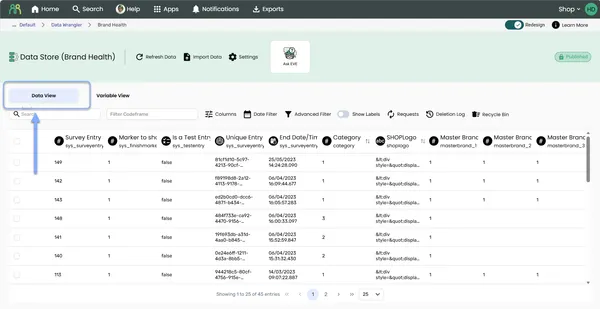
Data View is the first tab you see when you open a data store. It shows your records in a table, one row per record and one column per variable, and gives you the tools to find exactly the rows you’re after.
Understanding the table
Section titled “Understanding the table”The table shows 25 rows at a time by default. Use the page-size menu at the bottom to show 50 or 100 instead. The footer tells you where you are, for example “Showing 1 to 25 of 500 entries”.
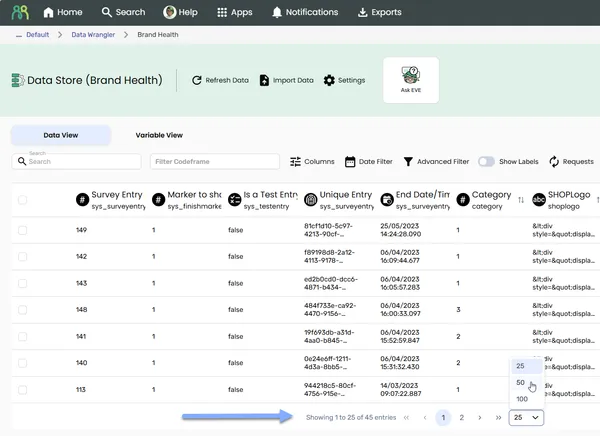
Each column header shows:
- an icon for the variable’s type
- the variable’s label, with its name underneath
- a key icon if the variable is the primary key
- a shield icon if the variable holds personal information. See Personal information.
Masked values show as ••••••••, and wiped values show as ”—”.
Sort records
Section titled “Sort records”Click a column header to sort by that variable. Click it again to reverse the order.
- You can sort by one column at a time. Sorting by a new column replaces the previous sort.
- Sorting takes you back to the first page.
- Columns that are masked or wiped can’t be sorted.
Choose which columns to show
Section titled “Choose which columns to show”Data stores can have hundreds of variables. Pick the ones you want to see.
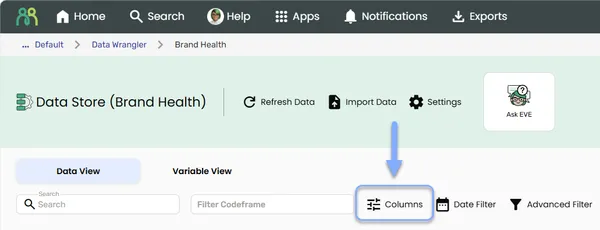
- Click Columns - The Select Columns dialog opens with two panels: Available Variables and Selected Variables.
- Drag variables across - Drag the variables you want into Selected Variables, in the order you want them. Use the search and filter in Available Variables to find them quickly.
- Click SAVE - The table updates to show your selection.
You can show up to 100 variables at once. Your choice stays in place while you switch tabs, but it’s forgotten when you reload the page or come back in a new session.
Search the records
Section titled “Search the records”Type at least 3 characters into Search. Data View shows the records where any of the displayed columns contains your text.
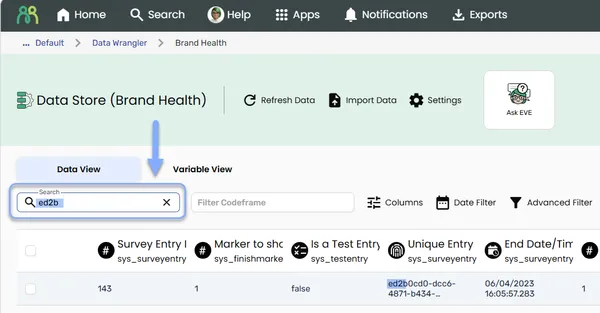
- Search looks only in the columns you can see. To search another variable, add it with Columns first.
- Columns that are masked or wiped aren’t searched.
Filter the records
Section titled “Filter the records”Data View has three kinds of filter. You can use them together: a record has to match all of them to appear.
Filter Codeframe
Section titled “Filter Codeframe”Filter Codeframe appears when your data store has variables with codeframes. Click it and choose one or more codes from the list, which is grouped by variable. Each code you choose appears as a chip in the box.
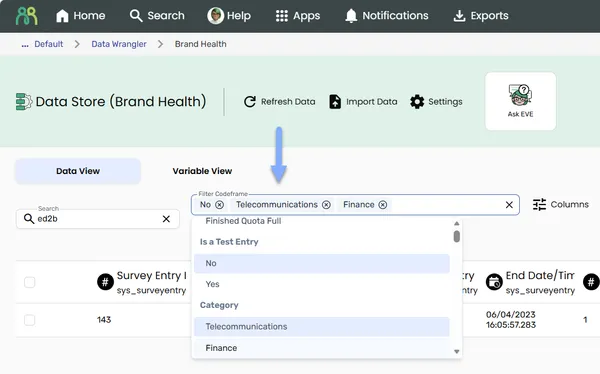
- If you pick several codes from the same variable, records matching any of them are shown.
- If you pick codes from different variables, records have to match all of those variables.
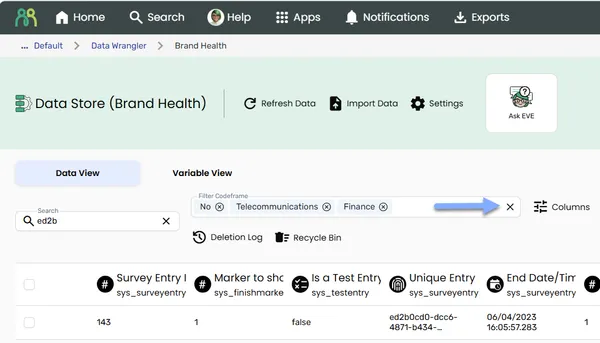
To remove one code, click the x on its chip. To remove them all at once, click the X at the right-hand end of the Filter Codeframe box.
Date Filter
Section titled “Date Filter”Date Filter appears when your data store has a Date, Date Time or Time variable.
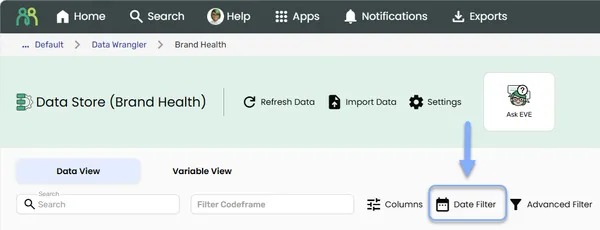
- Click Date Filter - The Configure Date Filter dialog opens.
- Choose a variable - Pick one under Select Date Variable.
- Choose the kind of filter:
- Custom Date Range: set the From and To dates.
- Timeframe Period: tick the periods you want, such as Weekly, Monthly, Quarterly, Yearly or Financial Year. If you tick Weekly, choose a Weekly Type, such as Week ending Sunday. If you tick Financial Year, choose a Financial Year Type, such as Financial Year: 1 July - 30 June.
- Click APPLY - A custom range shows as a chip in the toolbar, with the variable and the dates. For a timeframe, Timeframe and Period dropdowns appear in the toolbar. The filter applies once you choose a Period.
To change a custom date range, click its chip to reopen Configure Date Filter. To remove it, click the x at the end of the chip.
A timeframe filter doesn’t have an x of its own. To remove it, click Clear Filters. This also clears your other filters. See Clear Filters.
Advanced Filter
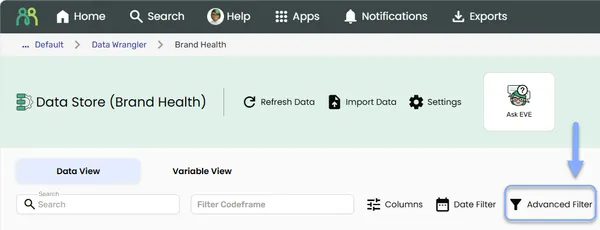
Section titled “Advanced Filter”Need something more specific, like “NPS below 7 and region is North”? Advanced Filter lets you combine up to 20 conditions.
Build a filter with Builder
Section titled “Build a filter with Builder”- Click Advanced Filter - The Advanced Filter dialog opens on the Builder tab: “Show only rows that match the conditions below.”
- Set your first condition - Choose a Variable, an Operator and a Value.
- Add more conditions - Click Add condition. For each new condition, choose a Connector: AND or OR.
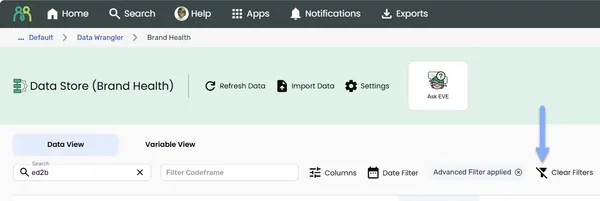
- Click APPLY - The table updates, and the toolbar shows Advanced Filter applied. Click that chip to change the filter, or its x to remove it.
To remove the filter from inside the dialog, click CLEAR. The dialog closes and the Advanced Filter is removed. Any other filters you’ve set stay in place.
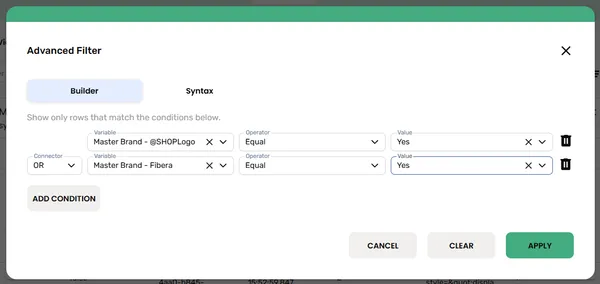
The operators you can choose depend on the variable’s type. A variable with a codeframe always gets the codeframe operators, whatever its type, so a Boolean variable with a codeframe offers In and Not In too:
| Variable type | Operators |
|---|---|
| Variables with a codeframe | Equal, Not Equal, In, Not In, Is Null, Is Not Null |
| Text and Long Text | Equal, Not Equal, Contains, Does Not Contain, Starts With, Ends With, Is Null, Is Not Null |
| Number and Integer | Equal, Not Equal, Greater Than, Greater Than or Equal, Less Than, Less Than or Equal, Between, Is Null, Is Not Null |
| Date, Date Time and Time | Equal, Not Equal, Later Than, Later Than or On, Earlier Than, Earlier Than or On, Between, Is Null, Is Not Null |
| Boolean, Guid and others, without a codeframe | Equal, Not Equal, Is Null, Is Not Null |
You can’t filter on multi-response variables, or on variables that are masked or wiped.
Write a filter with Syntax
Section titled “Write a filter with Syntax”Comfortable with SQL? The Syntax tab lets you “Write the filter as SQL.” As you type, autocomplete suggests variable names and codeframe values. You’ll see “Filter query is valid” when it’s ready to apply.
If you write a filter in Syntax that Builder can’t show, it stays in Syntax. If you switch to Builder anyway, you’ll be asked whether to discard your Syntax changes.
Clear Filters
Section titled “Clear Filters”Clear Filters appears once any filter is active. It clears the Date Filter and Advanced Filter in one go.
Show labels instead of codes
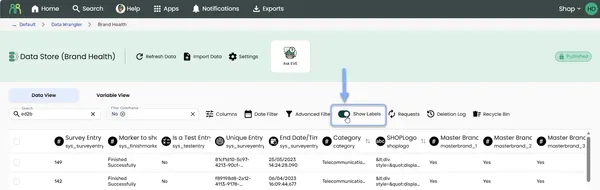
Section titled “Show labels instead of codes”Variables with a codeframe store numbers, like 1, that stand for labels, like “Very satisfied”. Turn on Show Labels to see the labels. Turn it off to see the codes again.
Show Labels appears when at least one of the columns you can see has a codeframe.
Refresh the data
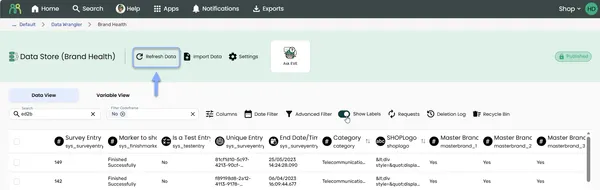
Section titled “Refresh the data”Click Refresh Data in the header to load the latest records. It’s handy after an import or when someone else is editing the data store.
If you can edit the data store, you’ll also see Enable Editing, Requests, Deletion Log and Recycle Bin in the toolbar, plus a checkbox on each row. For what they do, see Edit & delete records. To reveal masked values, see Personal information.
Frequently Asked Questions
Section titled “Frequently Asked Questions”How can I see how many records are in the data store?
Look at the footer below the table. The last number is the total, so “Showing 1 to 25 of 500 entries” means the data store has 500 records. If you’ve searched or filtered, the total counts only the records that match. Click Clear Filters to see the full count. See Understanding the table.
How many columns can I show at once?
Up to 100 variables. Your data store can hold more; this limit only affects what’s on screen.
Why does my search find nothing?
Check three things. Search needs at least 3 characters. It looks only in the columns you can see, so add the variable you’re searching with Columns. And it skips columns that are masked or wiped.
Why don’t I see Date Filter?
It only appears when your data store has a Date, Date Time or Time variable that isn’t masked or wiped.
Why don’t I see Filter Codeframe or Show Labels?
Filter Codeframe only appears when your data store has variables with codeframes. Show Labels only appears when one of the columns on screen has a codeframe.
Why did my filters disappear?
Filters only last while you’re on Data View. Switching to Variable View, reloading the page or leaving the data store clears them.
Why can’t I sort by a column?
Columns that are masked or wiped can’t be sorted, so the values stay protected.
How many conditions can an Advanced Filter have?
Up to 20. When you reach the limit, you’ll see “Maximum 20 conditions” and Add condition is turned off.
Common Issues and Solutions
Section titled “Common Issues and Solutions””You can select up to 100 variables.”
Section titled “”You can select up to 100 variables.””You’ve tried to show more than 100 columns. Your data is all still there.
- Trim your selection - Remove variables you don’t need right now from Selected Variables, then add the ones you do.
”Maximum 20 conditions”
Section titled “”Maximum 20 conditions””Your Advanced Filter has reached its limit.
- Combine conditions - Use In or Not In to cover several codes in one condition, or Between for a range.
- Use Syntax - On the Syntax tab you can write the filter more compactly.
”The Advanced Filter was cleared because variable ’…’ was deleted.” or “…changed type.”
Section titled “”The Advanced Filter was cleared because variable ’…’ was deleted.” or “…changed type.””A variable your filter used was deleted or changed type, so the filter could no longer work.
- Rebuild the filter - Open Advanced Filter and set it up again with the current variables.
”Failed to load timeframe periods.”
Section titled “”Failed to load timeframe periods.””The date filter couldn’t be applied.
- Try again - Click Refresh Data, then apply the date filter again.
- Try another variable - Choose a different date variable in Select Date Variable.
- Contact support - If it keeps happening, contact support through Help in the header bar. Include the data store’s name and GUID (copy it from Settings).
”Failed to load data store items.”
Section titled “”Failed to load data store items.””The records couldn’t be loaded.
- Refresh - Click Refresh Data.
- Check your access - Make sure the data store is still shared with you.
- Contact support - If it persists, contact support with the data store’s name and GUID (copy it from Settings).