

Design the conversation
A conversation in EVE Qual Pro follows a fixed sequence of phases. Understanding that sequence helps you design each part with its purpose in mind:
Introduction → Laddering → Probing → Prompting → Ending
- Introduction — The AI Moderator delivers your opening message and, if configured, presents the opening stimulus.
- Laddering — The AI Moderator asks your laddering questions to capture unguided participant thinking before the research agenda is visible.
- Probing — The AI Moderator follows up on topics the participant has already mentioned.
- Prompting — The AI Moderator introduces topics the participant hasn’t raised yet.
- Ending — The AI Moderator asks the closing question (if configured) and delivers the outro.
These settings are spread across two cards in Conversation Setup (Panel 1): Break the Ice covers the introduction and laddering; Probing Strategy & Sign Off covers probes, prompts, and the ending.
Conversation introduction
Section titled “Conversation introduction”Write the greeting the AI Moderator delivers at the start of the conversation (maximum 1000 characters).
You can use the {{companionName}} placeholder in this field and it will be replaced with the companion’s name at runtime. For example:
Hi, I’m
{{companionName}}! I’d like to understand a bit more about…
Opening stimulus (optional)
Section titled “Opening stimulus (optional)”The Add Media section is collapsible — click the label to expand it.
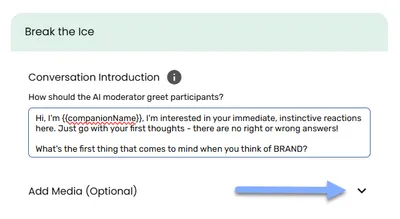
Upload an optional image, video, or audio file that participants will see or hear when the conversation opens — before the AI Moderator begins. Use this to provide context or prompt a reaction before any questions are asked.
Accepted formats: JPEG and PNG images, MP4 video, and MP3 audio. Maximum file size: 50 MB. You can add one media file per conversation.
Drag a file onto the upload area or click to browse. Once uploaded, you’ll see a preview along with additional display settings. To replace or delete the file, click Remove Stimulus.
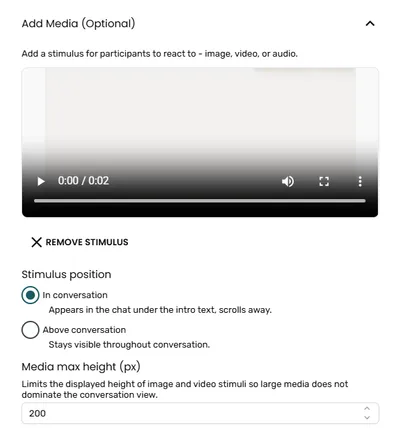
Stimulus position
Section titled “Stimulus position”Controls where the media appears in the participant-facing conversation:
- In conversation — the stimulus appears in the chat stream, beneath the introduction text. It scrolls away as the participant moves through the conversation.
- Above conversation — the stimulus appears above the message list and stays visible throughout the conversation while the chat scrolls beneath it.
Video and audio playback
Section titled “Video and audio playback”These toggles appear only when the media is a video or audio file:
- Show playback controls — lets participants play, pause, and replay the media. On by default.
- Autoplay — the media starts playing automatically when the conversation opens. Off by default.
Media max height (px)
Section titled “Media max height (px)”Sets a maximum height (in pixels) for image and video stimuli. The default is 200px. This prevents large media from dominating the conversation view — the media scales proportionally up to the height you set, but never exceeds it.
This setting applies to images and video only. Audio is not affected.
The value must be greater than zero. If you enter an invalid value, it reverts to the default of 200px.
Laddering questions (optional)
Section titled “Laddering questions (optional)”Laddering is a qualitative technique used at the opening of a conversation to capture unguided participant thinking before any specific topics are introduced. By asking open-ended questions first, you get responses that reflect what comes naturally to participants, before the moderator’s agenda shapes their thinking.
The goal isn’t just to warm up the conversation — it’s to surface associations, feelings, and context that participants wouldn’t reach if they knew what the research was actually about. Once a research agenda is visible, responses shift to meet it. Laddering happens first specifically to avoid that.
Think about what you’re laddering toward. Good laddering questions have a direction: from an initial behaviour or reaction, through to the outcomes it leads to, through to the underlying emotion or value that explains it. That’s a different purpose from simply asking broad open questions — and it’s why the questions you write here deserve as much thought as your probes.
You can add up to 5 questions. Each is a free-text field (maximum 500 characters), and you can reorder them by dragging.
When one or more questions are added, two additional options appear:
- Randomise question order across participants — shuffles the question sequence for each participant.
- Paraphrase questions across participants — the AI Moderator will vary the wording of questions to sound more natural, while preserving the intent.
When two or more questions are added, a third option appears:
- Skip remaining questions on non-response — when enabled, the AI Moderator will skip any remaining laddering questions if the participant gives a non-response such as “I don’t know” or “Nothing else to add.” This prevents the conversation from stalling when a participant has nothing more to offer at the laddering stage. Disabled by default.
Default probe
Section titled “Default probe”Probes and prompts are qualitative tools with different purposes, not just variations of the same thing. A probe expands on something the participant already raised — they’re engaged with it, so the question can be specific and direct. A prompt introduces something they haven’t raised, so it needs to land without feeling like an interrogation. That distinction should inform how you write each.
The wording also matters more than it might seem. In a face-to-face interview, tone and body language fill in the gaps. In a text conversation, the question does all the work. “Can you tell me more about that?” might feel like a yes/no question in writing — phrasing like “Tell me more about…” or “What comes to mind when you think about…” tends to work better and more reliably elicit open responses.
Write the default instruction the AI Moderator will use when a participant mentions a topic (maximum 1000 characters).
You can use the {{topic}} placeholder and it will be replaced with the topic name at runtime. For example:
Tell me more about
{{topic}}?
Paraphrase toggle — when enabled, the AI Moderator will vary the wording of the probe to sound more natural across participants.
Default prompt
Section titled “Default prompt”Write the default instruction the AI Moderator will use when introducing a topic the participant hasn’t mentioned yet (maximum 1000 characters).
You can use the {{topic}} placeholder here too. For example:
What about
{{topic}}, can you tell me more about that?
Paraphrase toggle — when enabled, the AI Moderator will vary the wording of the prompt to sound more natural.
Probe and prompt limits
Section titled “Probe and prompt limits”Probes and prompts have separate conversation-level limits, giving you independent control over how much follow-up the AI Moderator can do in each direction.
Probe Limit per Conversation — the maximum number of probes the AI Moderator can ask in total across the whole conversation. Minimum: 0. Default: 2.
Prompt Limit per Conversation — the maximum number of prompts the AI Moderator can ask in total across the whole conversation. Minimum: 0. Default: 2.
Use the number spinners to adjust each value. Setting either limit to 0 means the AI Moderator will not ask any probes or prompts of that type. Set each high enough to cover your topics, keeping in mind that longer conversations can affect completion rates.
Conversation ending
Section titled “Conversation ending”These settings are at the bottom of the Probing Strategy & Sign Off card.
Ask a final question
Section titled “Ask a final question”Toggle Ask a final question before wrapping up to have the AI Moderator ask one closing question after all topics have been explored.
When this toggle is on, a Closing Question text field appears (maximum 500 characters).
Conversation outro
Section titled “Conversation outro”Two options control how the AI Moderator ends the conversation:
Let the AI wrap up naturally based on the conversation flow (default: on) — when this toggle is on, the AI Moderator generates a contextual closing based on the conversation. No outro text is needed.
When it’s switched off, a Conversation Outro text field appears — enter the fixed closing message you want the AI Moderator to deliver (maximum 500 characters). It defaults to: Please press ‘next’ to continue.
Placeholders and piping
Section titled “Placeholders and piping”The following are supported in the conversation introduction, default probe, default prompt, and laddering question fields:
| Syntax | Replaced with |
|---|---|
{{topic}} | The name of the topic being probed or prompted |
{{companionName}} | The companion’s name as set in Moderator settings |
@VariableName | The answer code for the named survey question |
@VariableName_CurrentLabel | The answer label for the named survey question |
Curly-brace placeholders and @ survey-variable piping are two separate mechanisms. Curly braces work only with {{topic}} and {{companionName}} — these are the only two values you can wrap in {{ }}. Every other value, including any survey answer, must be piped with the @VariableName syntax instead.
For example, if your survey has a brand satisfaction question with variable name Q2 and a brand name question with variable name Brand, you could write:
You rated @Brand_CurrentLabel as @Q2 earlier. Tell me more about
{{topic}}.
Frequently asked questions
Section titled “Frequently asked questions”Does the Conversation Introduction come before or after the laddering questions?
Before. The introduction is the AI Moderator’s opening greeting — it’s the very first thing participants see. Laddering questions come after the introduction, during the Laddering phase.
Do I have to use laddering questions?
No — the Laddering Questions section is entirely optional. If you leave it empty, the AI Moderator moves straight from the introduction into the probing phase. Laddering is most useful when you want participants to share their unguided thinking before the research agenda shapes their responses.
What’s the difference between randomise and paraphrase for laddering questions?
Randomise changes the order questions are asked — so different participants get them in different sequences. Paraphrase changes the wording of each question slightly across participants, while keeping the same intent. You can use both at the same time.
What do the Probe Limit and Prompt Limit actually control?
Each sets the maximum number of questions of that type the AI Moderator can ask across the whole conversation — not per topic. Once the AI Moderator hits the probe limit it won’t ask any more probes, even if topics remain; the same applies to the prompt limit independently. Setting a limit to 0 disables that type of follow-up entirely.
If I set both limits to 2, does that mean 2 probes AND 2 prompts?
Yes — the limits are independent. A Probe Limit of 2 and a Prompt Limit of 2 means the AI Moderator can ask up to 2 probes and up to 2 prompts separately, for a potential total of 4 follow-up questions. Adjust each limit to match the level of follow-up you want for each type.
Can I set a different probe count per topic?
Yes. The Probes column in the topic table lets you set a per-topic probe count (minimum 1, default 2). The Probe Limit per Conversation here is the overall ceiling across all topics combined — per-topic counts can’t exceed the conversation-level limit. See Define the study.
What makes a good Default Probe?
Something open-ended that works across any topic — for example, Tell me more about {{topic}}? or What comes to mind when you think about {{topic}}? Keep it broad enough to make sense for every topic in your list, then use topic-level overrides to write more specific probes where you need them.
What does Paraphrase actually do?
When paraphrase is enabled, the AI Moderator varies the exact wording of questions across different participants — so not everyone hears identical phrasing. The intent and meaning stay the same; only the surface language changes. Useful for making conversations feel more natural and less scripted.
Do the topic and companionName placeholders work in topic-level overrides?
Yes. Both {"{{topic}}"} and {"{{companionName}}"} work in the Probes Override and Prompts Override fields in the topic table. {"{{topic}}"} will be replaced with the name of that specific topic at runtime.
What’s the difference between the closing question and the conversation outro?
The Closing Question is an actual question the AI Moderator asks the participant — they’ll respond before the conversation ends. The Conversation Outro (or dynamic ending) is the AI Moderator’s final wrap-up message — it closes the conversation rather than prompting a response.
What does the dynamic ending actually say?
The dynamic ending is generated by the AI based on the flow of the individual conversation — it’ll vary between participants. If you need a consistent, predictable closing message (for example, to ensure a specific survey handoff instruction), turn dynamic ending off and write your own outro text.
Can I use the outro text to send participants to another URL?
The outro is plain text — it doesn’t support HTML or links. If you need to direct participants somewhere after the conversation, coordinate with whoever configured the survey this conversation is embedded in.
Can I use the companionName placeholder if I haven’t set a companion name?
The placeholder is replaced with whatever name is currently in the Conversation Companion field — which defaults to Eve if you haven’t changed it. Set your companion name in Panel 3 before testing. See Moderator settings.
Can I pipe in a participant’s earlier survey answers?
Yes. Use @VariableName to insert the answer code, or @VariableName_CurrentLabel to insert the answer label for a given survey question. For example, @Q1_CurrentLabel inserts the label of whatever the participant selected for Q1. The source question must appear before the EVE Qual Pro question in the survey.
Can I use curly braces to pipe a survey variable, like {{Q2}}?
No. Curly braces are reserved for the two built-in placeholders, {"{{topic}}"} and {"{{companionName}}"} — these are the only two values you can wrap in {"{{ }}"}. To pipe a survey answer, use the @ syntax instead: @VariableName for the answer code or @VariableName_CurrentLabel for the label. Wrapping a survey variable in curly braces (for example {"{{Q2}}"}) is not supported and will cause an error. See Placeholders and piping.
Why isn’t my piped text resolving in the EVE Qual Pro preview?
Piped values display as syntax (e.g. @Q1_CurrentLabel) in the EVE Qual Pro preview because there are no survey answers to draw from at that point. To test piping, publish the conversation, add it to a survey in Survey Shaper, and use the Survey Shaper preview instead.
Common issues and solutions
Section titled “Common issues and solutions””Participants seem to be getting the same follow-up questions every time”
Section titled “”Participants seem to be getting the same follow-up questions every time””The Paraphrase toggle varies the wording across participants — if it’s off, everyone sees identical phrasing. Enable paraphrase on the Default Probe, Default Prompt, and laddering questions to introduce natural variation.
”Topic-level overrides don’t seem to be doing anything”
Section titled “”Topic-level overrides don’t seem to be doing anything””Check the Probes Override column in the topic table — if the field is empty, the Default Probe is used. If it’s filled in, that text should be used exclusively for that topic. Save the conversation and run a fresh preview session to verify.
”My image won’t upload”
Section titled “”My image won’t upload””Check the file format and size. Supported formats are JPG, JPEG, PNG, GIF, and WEBP, with a maximum file size of 10 MB. Files above 10 MB or in unsupported formats (like TIFF or SVG) will be rejected.
”The Conversation Outro text field isn’t visible”
Section titled “”The Conversation Outro text field isn’t visible””The outro text field only appears when the Let the AI wrap up naturally toggle is switched off. By default this toggle is on — turn it off to reveal the fixed outro field.