

Distribute a conversation
Once a conversation is published, you can deploy it to participants by inserting it into a Survey Shaper survey. The conversation runs as a question within the survey flow — participants complete it as part of the wider survey experience.
Inserting a conversation into a Survey Shaper survey
Section titled “Inserting a conversation into a Survey Shaper survey”These steps show Survey Editor (Legacy). In Survey Editor (Beta), you add the Eve card, change the Question Format to Single Response - EVE - Qual Pro, then choose the conversation with Browse projects in the Controls section. See EVE question type for both editors.
-
Open the survey in Survey Shaper
Open an existing survey or create a new one. See Survey Shaper — Getting started.
-
Add an EVE object to the survey flowchart
Drag an EVE question object from the Toolbox into the survey flowchart at the point where you want the conversation to appear. See EVE question type.
-
Set the question format
In the Quick Update dialog that appears, open the Question Format dropdown and select Single Response - EVE - Qual Pro.
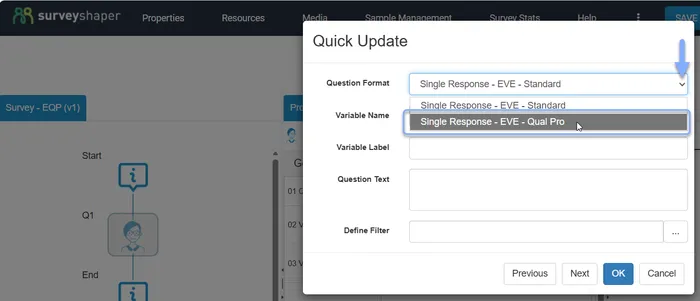
Set the Variable Name, Variable Label, and Question Text as required, then click OK.
-
Open the Controls properties
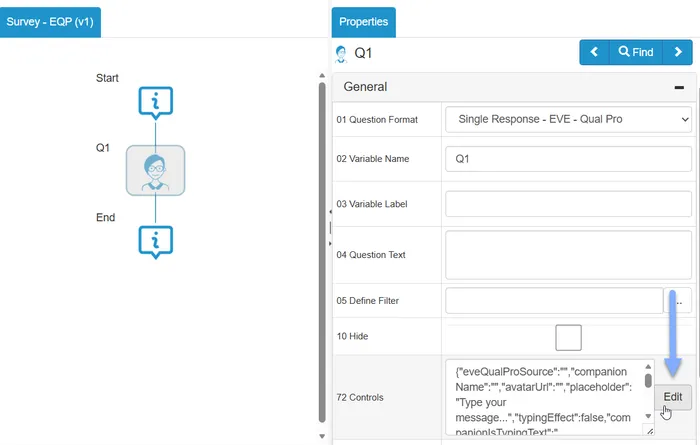
With the EVE question selected, find the Controls property in the Properties panel. Click the Edit button to open the Controls dialog. See Question properties — Controls.
-
Select your conversation
In the Eve Qual Pro Project field, select your published conversation from the dropdown. Only published conversations will appear here.
-
Configure the remaining settings (see Controls reference below).
-
Save, preview, and publish the survey
Save your changes in Survey Shaper. Preview to verify the conversation loads correctly, then publish the survey when ready. See Publish survey.
Controls reference
Section titled “Controls reference”These settings are available in the Controls dialog for an EVE Qual Pro question.
Conversation
Section titled “Conversation”| Setting | Description |
|---|---|
| Eve Qual Pro Project | Select the published EVE Qual Pro conversation to embed. Only published conversations appear in the dropdown. |
| Companion Name | Overrides the companion name set in EVE Qual Pro. Leave blank to use the name configured in the conversation. |
| Companion Icon Url | Overrides the companion avatar. Enter a URL to an image file, or leave blank to use the avatar configured in the conversation. |
Participant interface
Section titled “Participant interface”| Setting | Description |
|---|---|
| Placeholder | The placeholder text shown in the participant’s chat input field. Defaults to Type your message… |
| Typing Effect | When checked, the AI Moderator’s responses appear character by character rather than all at once. |
| Companion Is Typing Text | The text shown to participants while the AI Moderator is composing a response. Defaults to {{companionName}} is typing. |
| Typing Pause Effect | When checked, adds a brief pause before the AI Moderator’s response appears, reinforcing a natural conversational feel. |
| Typing Pause Time | The duration of the typing pause in seconds. Default: 1. Only applies when Typing Pause Effect is on. |
| Detail Bar | When checked, displays a summary bar showing a preview of the participant’s last response. |
| Response Detail Word Count | The number of words shown in the detail bar summary. Default: 15. Only applies when Detail Bar is on. |
| Setting | Description |
|---|---|
| Voice Enabled | When checked, activates voice for the conversation. The AI Moderator will speak its responses and participants can respond by voice. |
| Selected Voice | The Azure voice to use for AI Moderator speech output. Enter the voice name as configured in EVE Qual Pro, or specify a different voice here. |
| Use Microphone | When checked, participants can use their microphone to respond by voice rather than typing. |
| Auto Submit On Pause | When checked, the participant’s voice input is automatically submitted when they stop speaking, without needing to click send. Only applies when Use Microphone is on. |
Keeping conversations up to date
Section titled “Keeping conversations up to date”When you update and republish a conversation in EVE Qual Pro, the changes are automatically reflected in any surveys that reference it — you don’t need to update or republish the survey. The survey always loads the latest published version of the conversation at runtime.
If you need to update the Controls settings (such as voice options or display settings), you’ll need to edit and republish the survey in Survey Shaper. See Publish survey.
Other survey platforms
Section titled “Other survey platforms”EVE Qual Pro conversations can also be deployed via external survey platforms. To do this, you’ll need the conversation’s project ID, which is available from the more menu (⋮) on the conversation row in the EVE Qual Pro content table. Contact your HumanListening account team for guidance on embedding conversations in third-party platforms.
Language and survey translation
Section titled “Language and survey translation”The Conversation Language setting (configured in the Frame the Study card in EVE Qual Pro) defines the language the conversation is scripted in — the introduction text, topic names, and any scripted system content. Set it to match the language you’ve written the conversation in.
When a participant takes a survey, the system compares two things:
- The Conversation Language — what the EVE Qual Pro conversation is written in
- The Survey Language — what language the Survey Shaper survey is set to run in
What happens depends on whether those two match:
| Scenario | Result |
|---|---|
| Conversation language matches survey language | No translation applied — scripted content is shown exactly as written |
| Conversation language does not match survey language | The system automatically translates the scripted content (introduction, system text) into the survey language |
For example, if the conversation is written in English but the survey is running in Spanish, the introduction and scripted content will be automatically translated to Spanish for participants. No manual intervention is needed — the system handles the translation because it detects the mismatch.
Rule of thumb
Section titled “Rule of thumb”Set the Conversation Language to the language the conversation is scripted in. If all fields in EVE Qual Pro are written in English, set it to English. If written in Spanish, set it to Spanish. This gives the system the correct reference point for deciding whether translation is needed.
Multi-language surveys
Section titled “Multi-language surveys”Because translation is handled automatically based on the language mismatch, a single conversation can be reused across surveys running in different languages. You don’t need a separate conversation for each language — the same conversation will adapt based on the survey language setting.
Frequently asked questions
Section titled “Frequently asked questions”Why doesn’t my conversation appear in the Eve Qual Pro Project dropdown?
Only published conversations appear in the dropdown. If your conversation is in draft status, publish it in EVE Qual Pro first, then return to Survey Shaper. If it’s already published and still not appearing, try refreshing the survey in Survey Shaper.
Do I need to republish the survey if I update the conversation?
No — changes to the conversation (republished in EVE Qual Pro) are picked up automatically at runtime. You only need to republish the survey if you change the Controls settings, question properties, or survey structure in Survey Shaper.
Can I use the same conversation in multiple surveys?
Yes. You can reference the same published conversation in as many surveys as you need. Each instance is independent — participants in different surveys won’t affect each other’s sessions.
What’s the difference between Companion Name in Controls and the companion name set in EVE Qual Pro?
The companion name in EVE Qual Pro is the default. The Companion Name field in Controls lets you override it at the survey level — useful if you want the same conversation to use a different persona in different survey contexts. Leave it blank to use the EVE Qual Pro setting.
Can participants use both voice and text in the same conversation?
Yes, when Use Microphone is enabled, participants can switch between typing and speaking — the input field accepts both. Voice input is transcribed and submitted as text to the AI Moderator.
Do I need a separate conversation for each language?
No. A single conversation can serve multiple survey languages. The system automatically translates the scripted content when the conversation language and survey language don’t match. Set the Conversation Language to the language you wrote the conversation in, and the system handles the rest based on each survey’s language setting.
What happens if I set the wrong Conversation Language?
The system uses the Conversation Language as its reference point for deciding whether to translate. If you set it incorrectly — for example, marking an English conversation as Spanish — the system will either skip translation when it shouldn’t, or apply unnecessary translation when it should leave the content as written. Always set it to the language the conversation is actually scripted in.
What if my survey doesn’t have a language set?
If the survey has no explicit language defined, the system defaults to English. This means a non-English conversation won’t trigger translation even if it should. If you’re running a survey in a language other than English, make sure the survey language is explicitly configured in Survey Shaper.