

EVE
An EVE question object embeds an AI-moderated conversation into a survey. When a participant reaches the EVE question, they complete a conversation with an AI Moderator before the survey continues.
There are two question formats available:
- Single Response - EVE - Standard — embeds a conversation created in EVE Builder.
- Single Response - EVE - Qual Pro — embeds a conversation created in EVE Qual Pro.
Adding an EVE question to a survey
Section titled “Adding an EVE question to a survey”-
Click the EVE object in the Toolbox and drag it into the survey flowchart, or double-click it to insert it at the current position.
-
In the Quick Update dialog, open the Question Format dropdown and select the appropriate format.
-
Set the Variable Name, Variable Label, and Question Text as required, then click OK.
-
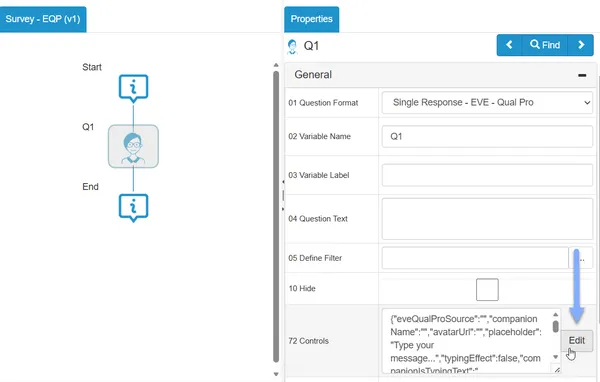
In the Properties panel, click the Edit button next to the Controls property.
-
Configure the controls for your chosen format (see below), then click OK.
- Drag the Eve card from the Add to survey toolbar into the flowchart, or click it to add it at the end. It’s added as a Single Response - EVE - Standard question.
- In Quick Update, set the Variable Name, Variable Label and Question Text as required. To embed an EVE Qual Pro conversation instead, change the Question Format to Single Response - EVE - Qual Pro. Click OK.
- In the Properties pane, find the source control and click Browse conversations (EVE - Standard) or Browse projects (EVE - Qual Pro).
- Choose the conversation or project from the dropdown, then click Use this. Each one is listed with its name and its id in brackets. To find one quickly, type part of its name or id in the search box at the top of the list. This also fills in the related settings from the conversation, such as the speech bubble image, or the companion name, avatar and voice for EVE Qual Pro.
- Configure the other controls in the Controls section (see below).
Change Object Type isn’t available for EVE questions. To switch between EVE - Standard and EVE - Qual Pro, change the Question Format.
-
In the Properties panel, click the Edit button next to the Controls property.
-
Configure the controls for your chosen format (see below), then click OK.
Controls: EVE - Standard
Section titled “Controls: EVE - Standard”These controls appear when the question format is Single Response - EVE - Standard. In Survey Editor (Beta), choose the Eve Source with Browse conversations.
| Setting | Description |
|---|---|
| Eve Source | The EVE Builder project GUID. Select from the dropdown to populate automatically, or paste the project ID directly. Only published conversations appear in the dropdown. |
| Avatar Speech Bubble Url | URL of an image to display as the companion’s speech bubble avatar. |
| Placeholder | Placeholder text shown in the participant’s chat input field. Defaults to Type your message… |
| Typing Effect | When checked, the AI Moderator’s responses appear character by character. |
| Eve Is Typing Text | Text shown to participants while the AI Moderator is composing a response. Defaults to Eve is typing. |
| Typing Pause Effect | When checked, adds a brief pause before the AI Moderator’s response appears. |
| Typing Pause Time | Duration of the typing pause in seconds. Default: 1. Only applies when Typing Pause Effect is on. |
| Detail Bar | When checked, displays a bar that fills as the participant types, encouraging more detailed responses. Enabled by default. |
| Response Detail Word Count | The number of words at which the detail bar shows as full. Default: 15. |
Controls: EVE - Qual Pro
Section titled “Controls: EVE - Qual Pro”These controls appear when the question format is Single Response - EVE - Qual Pro. In Survey Editor (Beta), choose the Eve Qual Pro Project with Browse projects.
| Setting | Description |
|---|---|
| Eve Qual Pro Project | Select the published EVE Qual Pro conversation to embed. Only published conversations appear in the dropdown. |
| Companion Name | Overrides the companion name set in EVE Qual Pro. Leave blank to use the name configured in the conversation. |
| Companion Icon Url | Overrides the companion avatar. Enter a URL to an image file, or leave blank to use the avatar set in EVE Qual Pro. |
| Placeholder | Placeholder text shown in the participant’s chat input field. Defaults to Type your message… |
| Typing Effect | When checked, the AI Moderator’s responses appear character by character. |
| Companion Is Typing Text | Text shown to participants while the AI Moderator is composing a response. Defaults to {{companionName}} is typing. |
| Typing Pause Effect | When checked, adds a brief pause before the AI Moderator’s response appears. |
| Typing Pause Time | Duration of the typing pause in seconds. Default: 1. Only applies when Typing Pause Effect is on. |
| Detail Bar | When checked, displays a bar that fills as the participant types, encouraging more detailed responses. Enabled by default. |
| Response Detail Word Count | The number of words at which the detail bar shows as full. Default: 15. |
| Voice Enabled | When checked, activates voice — the AI Moderator speaks its responses and participants can respond by voice. |
| Selected Voice | The Azure voice to use for AI Moderator speech output. |
| Use Microphone | When checked, participants can respond by voice rather than typing. |
| Auto Submit On Pause | When checked, voice input is automatically submitted when the participant stops speaking. Only applies when Use Microphone is on. |
For more detail on EVE Qual Pro Controls and the full distribution workflow, see Distribute a conversation.
Appearance
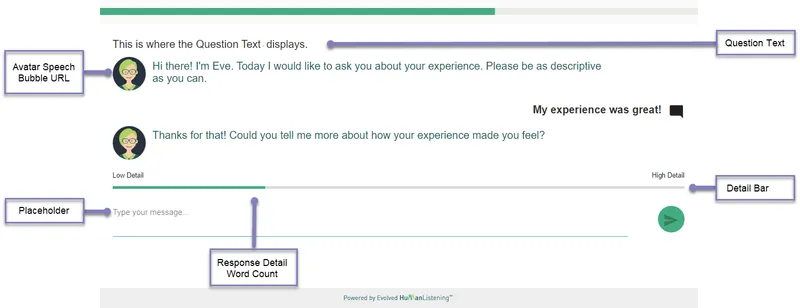
Section titled “Appearance”The EVE conversation appears on a single page. The Question Text displays at the top of the page, and the AI Moderator begins the conversation below it.
The diagram below shows how the Controls settings map to the participant-facing conversation:
You can preview the survey at any stage to see how the conversation appears and behaves in context.