

Share and export
Text Explorer gives you several ways to get your analysis into the hands of your team — from sharing live projects for collaborative viewing and editing, to exporting the underlying dataset for further analysis.
Sharing a project
Section titled “Sharing a project”Sharing gives another user access to a Text Explorer project. Depending on the permission level you assign, they can view results or actively edit the project configuration.
- Open Text Explorer.
- Hover over the row in the content table and click the Share icon.
- In the Share dialog, enter the email address(es) of the people you want to share with.
- Select a permission level from the dropdown.
- (Optional) Check Notify people to send an email notification to the recipients, with an optional personal message.
- Click Save.
Permission levels
Section titled “Permission levels”| Role | What they can do |
|---|---|
| Can view | Open the project and view results, but cannot change any configuration |
| Can edit | Full access to the project — can change analysis configuration, edit report settings, and manage outputs |
| Is owner | Full access plus the ability to manage sharing and delete the project |
Revoking access
Section titled “Revoking access”- Open the Share dialog for the project.
- Find the person whose access you want to remove.
- Click the remove icon next to their name.
- Click Save.
Exporting the data store
Section titled “Exporting the data store”If you need the underlying processed dataset — not just the chart outputs — you can export the data store directly.
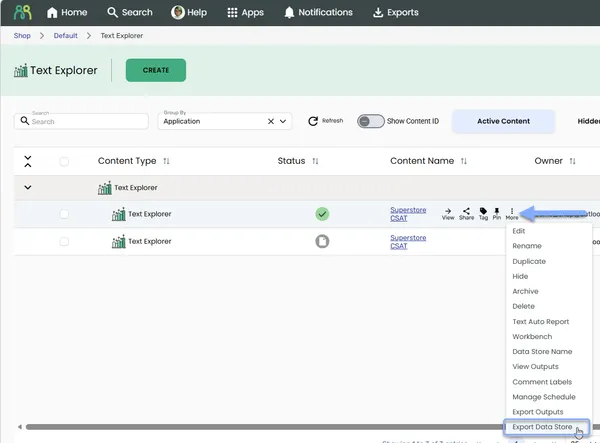
- Go to the Text Explorer content table.
- Hover over the project row and click the more icon (⋮).
- Select Export Data Store - this will open the File Export dialog.
- Choose which variables you want to export, then click Next
- Select your preferred file format, then click Next
- Name your export and click Export.
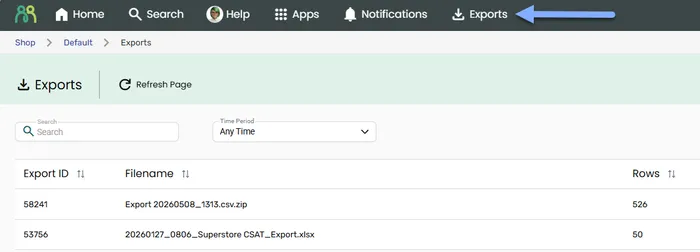
The exported data store will be available on the Exports page. For every format and output option in the File Export dialog, see Export data.
Frequently asked questions
Section titled “Frequently asked questions”Can I share with someone who doesn’t have a HumanListening account?
No. Sharing requires the recipient to have an active HumanListening account. Contact your Account Manager if external access is needed — they can advise on available options.
Will shared users see my project as it updates?
Yes. Shared access is live — anyone with access sees the current state of the project. If you are running preprocessing or making changes, those will be visible to other users immediately.