

Publish and deploy
You’ve configured your conversation — now it’s time to get it in front of participants. Publishing makes your conversation available for deployment, and deploying means adding it to a survey in Survey Shaper. These are two separate steps, and both need to happen before anyone can take part.
Save draft
Section titled “Save draft”At any point during configuration, you can click Save Draft to save your progress without publishing. The conversation remains in Unpublished status and can’t be deployed until you publish it.
Use Save Draft to:
- Save your work and come back to it later
- Hand over an in-progress configuration to a colleague
Preview before you publish
Section titled “Preview before you publish”Before publishing, take the conversation for a spin. The preview lets you interact with EVE as a live participant would — testing the introduction, triggering probes, and checking the outro.
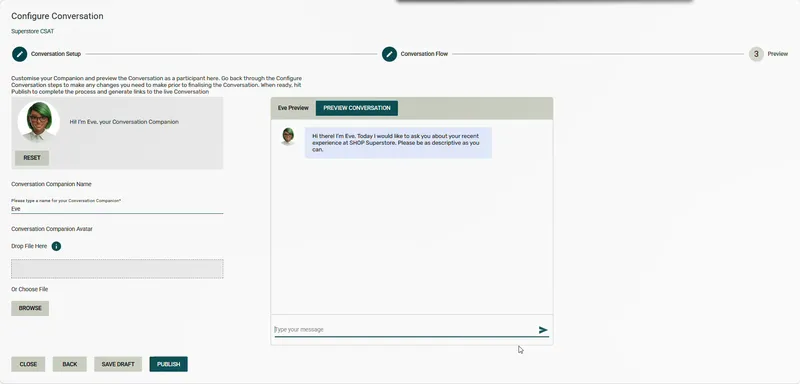
- In the conversation configuration, click Next through each step until you reach the Preview step.
- Interact with the preview — type responses as a participant would and check that EVE’s probes and prompts behave as expected.
- If anything needs adjusting, click Back to return to the relevant configuration step.
- When you’re happy, click Publish.
Publishing a conversation
Section titled “Publishing a conversation”Publishing locks in your current configuration and makes the conversation available to insert into surveys.
- Open the conversation in EVE Builder.
- Click Next until you reach the Preview step.
- Click Publish.
Once published, the conversation is ready to deploy.
Publish status
Section titled “Publish status”The current status of each conversation is shown on its tile in EVE Builder:
| Status | What it means |
|---|---|
| Unpublished | The conversation hasn’t been published yet — it can’t be deployed |
| Published | The conversation is live and ready to insert into a survey |
After making changes
Section titled “After making changes”If you edit a published conversation, you’ll need to republish it for the changes to take effect. Any surveys using the conversation will automatically pick up the most recently published version — no changes needed in Survey Shaper.
The same applies to Discussions: if you update the Discussion settings, republish the Discussion. If you update one of the conversations included in a Discussion, republish that conversation — the Discussion will automatically use the latest published version.
Content links and project ID
Section titled “Content links and project ID”When you publish a conversation, a dialog box displays its Content Links — key identifiers you’ll need for deployment and support. Access these again at any time by hovering over the conversation row and clicking the more icon (⋮).
| Content link | What it’s for |
|---|---|
| EVE Builder Project ID | Enter this into the Eve Source field in a Survey Shaper EVE question to link the conversation |
| Avatar URL | The URL of the conversation companion avatar. Updates automatically in Survey Shaper when you select the Project ID from the Eve Source drop-down |
| EVE Builder GUID | Provide this to the support team if you need technical assistance |
Deploying via Survey Shaper
Section titled “Deploying via Survey Shaper”Published conversations are deployed by inserting them into a survey in Survey Shaper.
-
Open Survey Shaper — from the portal home, click the Survey Shaper card, or use the Apps quick access in the header.
-
Create a new survey or open an existing one.
-
Add an EVE question — in Survey Editor (Legacy), drag and drop an EVE question object from the Toolbox into the desired position in the survey flowchart. In Survey Editor (Beta), drag the Eve card from the Add to survey toolbar.
-
Name and label the question — in the Quick Update Box, enter a Variable Name, Variable Label, and any question text to display above the EVE conversation. Click OK.
-
Connect the conversation — in Survey Editor (Legacy), click Edit next to the Controls property in the Properties Pane, then select the EVE Builder project containing your conversation in the Eve Source control. The Project ID populates automatically. In Survey Editor (Beta), click Browse conversations in the Controls section, choose the conversation and click Use this. See EVE question type.
-
Configure any additional controls as required. In Survey Editor (Legacy), click OK to close the Controls dialog.
-
Save, preview, and publish your survey when you’re ready.
Editing a published survey
Section titled “Editing a published survey”Changes made to a published survey aren’t visible to participants until the survey is republished in Survey Shaper.
If you’ve updated the conversation itself in EVE Builder, the survey will automatically pick up the latest published version — you don’t need to republish the survey.
Deploying on other survey platforms
Section titled “Deploying on other survey platforms”EVE conversations can also be deployed in survey platforms outside of HumanListening. Contact our Customer Centre for support.
Frequently asked questions
Section titled “Frequently asked questions”Do I need to republish a survey when I update the conversation?
No. The survey automatically picks up the most recently published version of the conversation. You only need to republish the survey if you’ve changed the survey structure itself (question order, routing, etc.).
What’s the EVE Builder Project ID and where do I find it?
The Project ID is the unique identifier that links your EVE conversation to a Survey Shaper question. It appears in the Publish Success dialog immediately after publishing. You can also find it in the content table at any time by enabling the Show Content ID toggle — the Project ID (GUID) appears alongside each conversation row and can be copied directly.
Can I insert the same conversation into multiple surveys?
Yes. A published conversation can be used in as many surveys as you like. All of them will always reference the most recently published version.
Can I give someone the Project ID instead of sharing the conversation?
Yes — if another user only needs to build the survey (not edit the conversation), share the Project ID directly. They can paste it into the Eve Source field in Survey Shaper without needing access to the EVE Builder project.
What happens if I delete a conversation that’s in a live survey?
The survey question will break. Always check whether a conversation is actively deployed before deleting it. If you need to retire a conversation, consider renaming it with a prefix like “ARCHIVED –” and leaving it in place rather than deleting.
My conversation isn’t appearing in the Eve Source drop-down in Survey Shaper. Why?
Only Published conversations appear in the drop-down. Go back to EVE Builder, open the conversation, and publish it. Also check that your EVE question in Survey Shaper uses the Eve Question Format — not the EVE Qual Pro format. The Eve Source control only appears with the correct format selected.
Can I preview the deployed conversation in Survey Shaper before going live?
Yes. After inserting the conversation into the survey, use Survey Shaper’s survey preview to test the full participant experience — including dynamic text that references survey answers. This is the most accurate way to check how participants will experience the conversation.
What is Save Draft and when should I use it?
Save Draft saves your current configuration without publishing. The conversation remains Unpublished and can’t be deployed. Use it to save your progress and return later, or to hand an in-progress configuration to a colleague.