

Create a workspace
Workspaces are special folders that are required to create and store Explorations. Before you start exploring your data, you need to create a workspace to organize your work.
Creating a new workspace
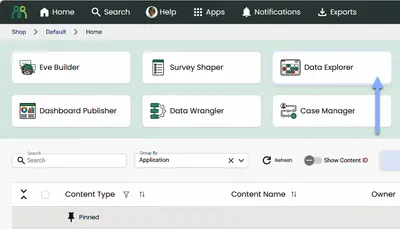
Section titled “Creating a new workspace”- Open the Data Explorer application
- Click the Add New button at the top of the Workspace Navigator
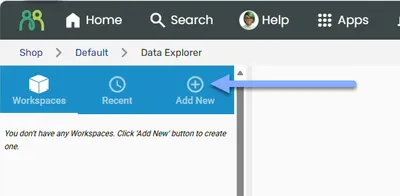
- Enter a name for your new workspace
- Click Save
Once your workspace is created, you can access additional options through the ellipsis menu (three dots) next to the workspace name. From this menu you can:
- Create sub folders to organize your work
- Start a new data exploration
- Run batch tables to generate explorations for multiple variables at once
Working with sub folders
Section titled “Working with sub folders”Sub folders are a useful way to organize your work inside a workspace. To create a sub folder:
- Click the ellipsis menu next to your workspace name
- Select New Folder
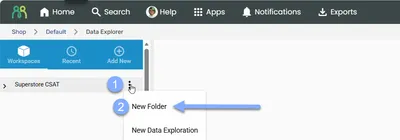
- Enter a name for the folder
- Click Save
Managing workspaces and folders
Section titled “Managing workspaces and folders”Rename
Section titled “Rename”To change the name of a workspace or folder:
- Click the ellipsis menu next to the item you want to rename
- Select Rename
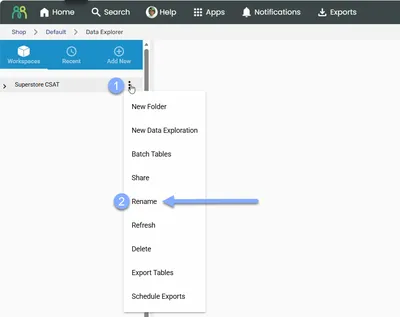
- Enter the new name
- Click Save
Delete
Section titled “Delete”To delete a workspace or folder:
- Click the ellipsis menu next to the item you want to remove
- Select Delete
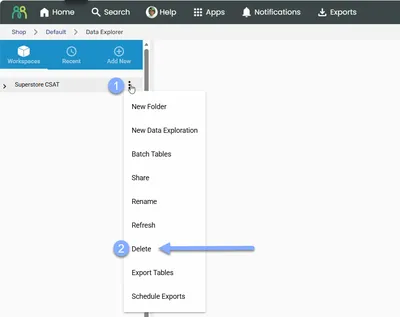
- Confirm the deletion when prompted
Rearrange
Section titled “Rearrange”You can reorganize your folders by dragging and dropping them to a new position within the workspace navigator.
Refresh
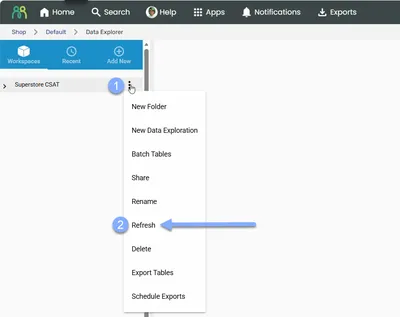
Section titled “Refresh”To update your workspace view and display the latest versions of all items:
- Click the ellipsis menu next to the item you want to remove
- Select Refresh
Frequently asked questions
Section titled “Frequently asked questions”Can I create folders inside folders?
Yes, workspaces support nested folder structures up to 3 levels deep. You can create subfolders within folders to organize your explorations.
What happens to my explorations if I delete a workspace?
Deleting a workspace permanently removes all explorations and subfolders contained within it. This action cannot be undone, so make sure you have exported any data you need before removing a workspace.
Can I move explorations between workspaces?
Explorations are tied to their workspace and cannot be moved between workspaces. However, you can duplicate an exploration and recreate it in a different workspace if needed.
How do I find the owner of a shared workspace?
Click the ellipsis menu next to the workspace name and select Share. The workspace owner’s name is displayed in the sharing dialog.
Can multiple people work on the same workspace?
Yes, workspaces can be shared with other users. The workspace owner can grant either edit or read-only access to colleagues. See Share Explorations for details on permission levels.
Common issues and solutions
Section titled “Common issues and solutions””I can’t find my workspace”
Section titled “”I can’t find my workspace””The page might be cached, or you might be looking in the wrong account.
- Refresh your browser - Click the refresh button in your browser to update the workspace list
- Check your account - Make sure you’re logged into the correct account and sub account
”I can’t find my Explorations”
Section titled “”I can’t find my Explorations””Workspaces may be collapsed in the navigator, or you might be looking in the wrong account.
- Use the refresh button - Click the workspace ellipsis menu and select Refresh to update the workspace list
- Expand all folders - Click the arrow icons to expand collapsed workspaces and folders
- Check your account - Make sure you’re logged into the correct account and sub account