

Data Wrangler
Data Wrangler is where your data lives in HumanListening. Survey responses, imported spreadsheets, Text Explorer outputs: they all end up in a data store, a table of records (rows) described by variables (columns). Data Wrangler is where you build those data stores, look inside them, export them, tidy them up and get them ready for the rest of the platform.
Understanding Data Wrangler
Section titled “Understanding Data Wrangler”A few ideas make everything else in Data Wrangler click.
Data store: A table of data held in the platform. Each row is a record or case, and each column is a variable. Most other apps read their data from data stores.
Wrangle: “The definition of one or more steps used to manipulate data and create a new Data Store.” A wrangle reads data in, transforms it (recoding, joining, weighting, translating and more) and writes the result out to a data store. It has to be published to produce any output.
Draft and Published: A Draft data store can be restructured freely, but other apps can’t use it yet. Publishing makes it available across the platform and locks parts of its structure, such as the primary key and variable types.
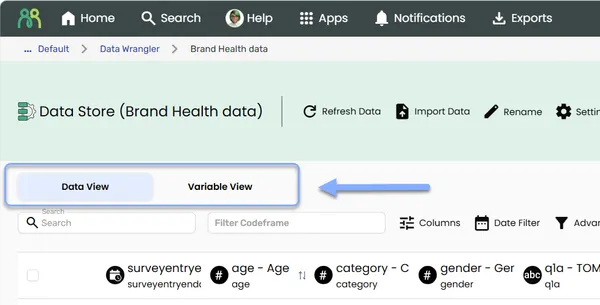
Data View and Variable View: Every data store page has two tabs. Data View shows the records. Variable View shows the variables that describe them: names, labels, types and codeframes.
Who can do what
Section titled “Who can do what”These roles apply to data stores you create or import in Data Wrangler. Survey data stores work differently: see Survey data stores below.
| Role | What it means in Data Wrangler |
|---|---|
| Licensed user | Anyone with a HumanListening license. You can create data stores. |
| Reader | Anyone a data store is shared with. You can open it, browse its data and export it. |
| Editor | The data store’s Owner, or anyone with Can Edit. You can do everything a reader can, and change the data and its structure. |
| Owner | The person who owns the data store. Some actions, like deleting it, are owner only. |
Survey data stores
Section titled “Survey data stores”A survey’s data store isn’t shared on its own: sharing it shares the survey, and sharing the survey shares its data store. You can share it from either place. In Data Wrangler, click Share on the data store’s row in Survey Data Stores. The survey’s Owner and anyone with Can Edit can share it.
What you can do with a survey’s data store depends on your role on the survey:
| Survey role | What it means for the survey’s data store |
|---|---|
| Owner | You can do everything an editor can. |
| Can Edit | You’re an editor: you can do everything a reader can, add your own variables, handle personal information, and switch responses between Live and Test. The survey’s own variables are locked. |
| Can Read | You’re a reader: you can open the data store, browse its data and export it from the Data Wrangler home. |
See Survey data stores for what you can and can’t change.
Opening Data Wrangler
Section titled “Opening Data Wrangler”There are three ways in:
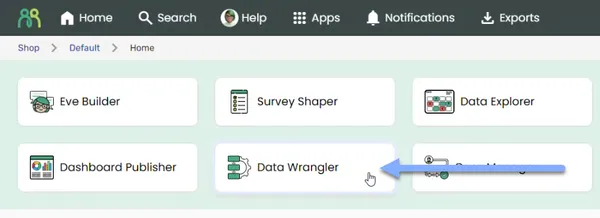
- Application grid: on Portal home, click the Data Wrangler card.
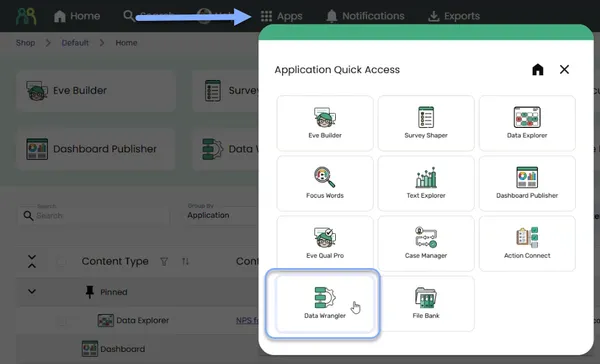
- Application quick access: click Apps in the header bar, then choose Data Wrangler in the Application Quick Access dialog.
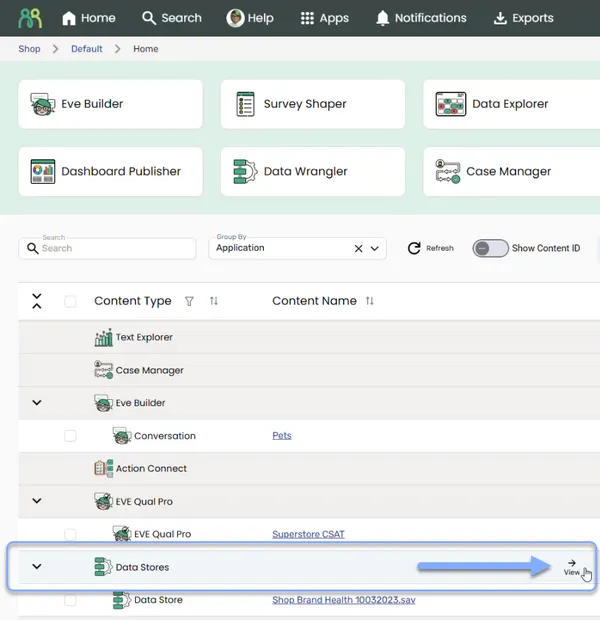
- Content table: on Portal home, hover over the Data Stores row in the content table and click View.
The Data Wrangler home
Section titled “The Data Wrangler home”Data Wrangler opens on a list of everything you’ve created or had shared with you: your data stores, your wrangles, and the data stores other apps have created for you.
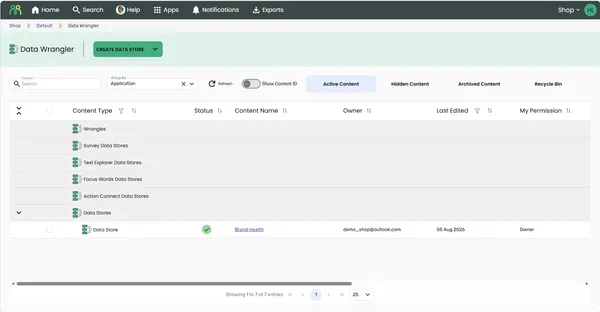
The list is grouped by Application, so you can see at a glance where each data store came from:
| Group | What’s in it |
|---|---|
| Wrangles | Your wrangles |
| Survey Data Stores | One data store per Survey Shaper survey, created automatically once the first survey has been completed |
| Text Explorer Data Stores | Processed datasets from Text Explorer projects |
| Focus Words Data Stores | Data stores created by Focus Words |
| Action Connect Data Stores | Data stores created by Action Connect projects |
| Data Stores | Everything else: data stores you’ve created or imported, wrangle outputs, and data stores created by File Bank transcriptions and Case Manager |
Searching, grouping, filtering, tagging and pinning work the same way as everywhere else in the Portal. See Find & organize content.
Status
Section titled “Status”The Status column shows an icon. Hover over it to see the status.
| Icon | Item | Status | What it means |
|---|---|---|---|
 | Data store | Published | Available to other apps |
 | Data store | Draft | Not published yet, so other apps can’t use it |
| Wrangle | Success | The last run finished |
 | Wrangle | Pending | Waiting to run |
| Wrangle | Processing | Running now |
 | Wrangle | Failed | The last run failed or was stopped |
| Wrangle | Draft | Not published yet, or on hold |
Pending and Processing share the same icon. Hover over it to tell them apart.
Row actions
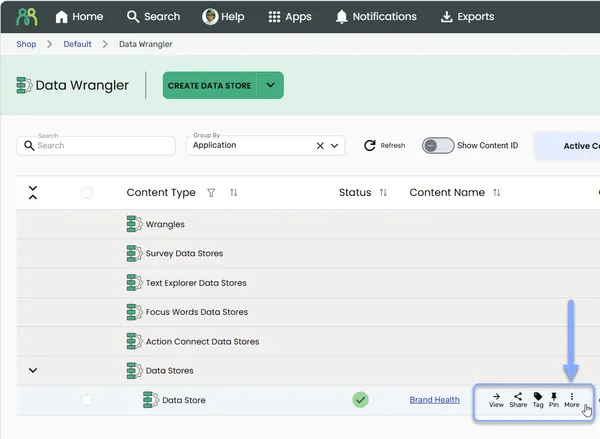
Section titled “Row actions”Hover over a row to see View, Share, Tag, Pin and More.
Most of the More menu (Hide, Archive, Delete, Subscribe, Notification preferences and so on) works the same way it does on Portal home. See Find & organize content and Share content. The one thing to know: Delete and Permanently Delete are owner only, even if you can edit the data store.
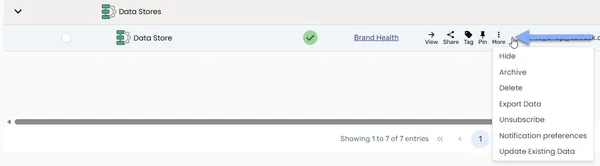
Data Wrangler adds a few options of its own:
| Option | Where you’ll see it | What it does |
|---|---|---|
| Export Data | Data stores, including survey data stores | Exports the data to a file. See Export data. |
| Update Existing Data | Data stores with the type Data Store or File: ones created in Data Wrangler, ones uploaded as a file, and most wrangle outputs. Not survey data stores, data stores from other apps, or weighting outputs. | Adds or updates data from a new file. See Update data. |
| Rename | Wrangles you can edit | Renames the wrangle. Data stores are renamed from the data store page. |
Creating a data store or wrangle
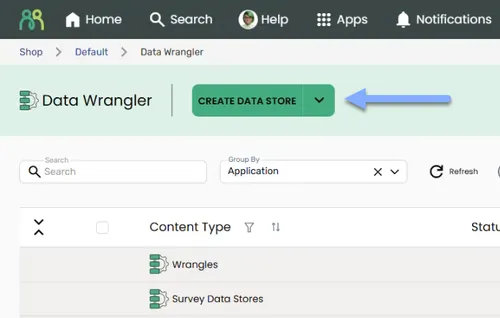
Section titled “Creating a data store or wrangle”The Create Data Store button at the top of the home page is a split button. Click the main part to create a data store, or click the arrow to choose between Create Data Store and Create Wrangle.
The main part remembers your last choice. Once you’ve chosen Create Wrangle from the arrow, the button reads Create Wrangle, and clicking it creates another wrangle, until you choose differently or reload the page.
Create a data store
Section titled “Create a data store”- Click Create Data Store - The New Data Store dialog opens.
- Enter a name - Type a name in the Name field and click OK. You’ll see “Creating data store…” for a moment.
- Fill it - Your new, empty data store opens with two options: Import Data to bring in a file, or Add Variable to build the structure column by column. See Create a data store.
Create a wrangle
Section titled “Create a wrangle”- Open the menu - Click the arrow on the Create Data Store button and choose Create Wrangle.
- Name it - Type a name in the New Wrangle dialog and click OK.
- Build it - The wrangle editor opens, ready for you to add steps. See Build a wrangle.
Opening a data store
Section titled “Opening a data store”Click View on any data store row to open its data store page. Survey data stores open the same way, from the Survey Data Stores group. See Survey data stores.
The page has two tabs:
| Tab | What it’s for | Learn more |
|---|---|---|
| Data View | Browse, search and filter the records. Editors can also edit and delete records. | Browse & filter records |
| Variable View | See and manage the variables: labels, types, codeframes and personal-information handling. | Manage variables |
The header holds the actions for the whole data store, such as Import Data, Publish, Rename, Settings and Ask EVE. Which ones you see depends on your access and on whether the data store is published. See Publish & manage a data store and Ask EVE.
If a data store isn’t published yet, you’ll see this banner at the top: “This data store is not published. It will not be usable in other parts of the platform (such as Text Explorer and Data Explorer) until it is published.”
Finding your exports
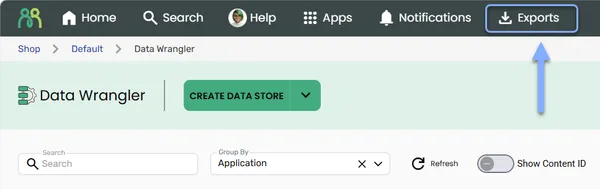
Section titled “Finding your exports”Exports run in the background. To check on them and download finished files, click Exports in the header bar. See Export data.
Frequently asked questions
Section titled “Frequently asked questions”I can’t see my data store in the table on the home page. What’s going on?
Check that you are in the correct sub account and that there is no search term filtering the content table.
Why can’t Text Explorer or Data Explorer see my data store?
It probably isn’t published yet. Open the data store and look for the “This data store is not published” banner. Publishing makes it available to the rest of the platform. See Publish & manage a data store.
Why don’t I see Update Existing Data on my data store?
Update Existing Data only appears for data stores with the type Data Store or File: ones created in Data Wrangler, ones uploaded as a file, and most wrangle outputs. Survey data stores, data stores created by other apps, and weighting outputs don’t have it.
How do I rename a data store?
Open the data store and click Rename in its header. You can’t rename a data store from the home list (only wrangles have Rename in the More menu), and survey data stores can’t be renamed in Data Wrangler at all.
Why can’t I delete a data store I can edit?
Delete and Permanently Delete are owner only. Ask the data store’s owner to delete it, or to transfer ownership to you. See Share content.
My wrangle says Failed. Does that mean it crashed?
Not necessarily. Failed covers both runs that failed and runs that were stopped. Open the wrangle to check its status. See Run & schedule a wrangle.