

Guided AI
A Guided AI conversation is structured by a predefined model — a framework of topics, sub-topics, and keywords — with the AI acting as a safety net. When a participant mentions a model keyword, EVE probes on that sub-topic. When a participant goes off-script or hasn’t mentioned a topic, the AI steps in to keep the conversation on track.
Advantages:
- Structured probing — predefined keywords ensure EVE focuses on the things that matter to your research
- Efficient analysis — responses are automatically coded against the model, saving significant time at scale
- Reusable models — build a model once and apply it across multiple projects and sub-accounts
- AI flexibility — the safety net means unexpected participant responses are handled gracefully, not ignored
Setting up a Guided AI conversation
Section titled “Setting up a Guided AI conversation”-
Create or open a conversation — Create a new conversation or open an existing one.
-
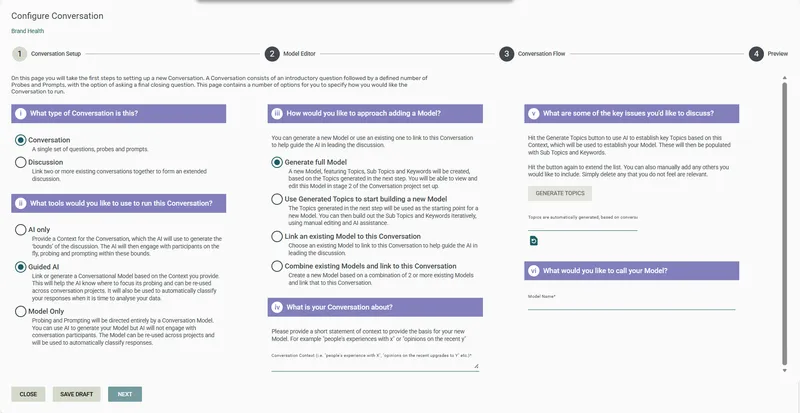
Select Conversation, then Guided AI
-
Choose a model connection method:
- Generate full Model — AI generates a complete model (Topics, Sub Topics, Keywords) based on the context you provide. Enter a Model Name when prompted. You can review and edit the model in the model editor
- Use Generated Topics to start building a new Model — AI generates Topics only. Enter a Model Name when prompted, then build out the Sub Topics and Keywords yourself in the model editor
- Link an existing Model — connect a model you already own or that has been shared with you
- Combine existing Models — merge two or more existing models into a new combined model. Requires at least 2 models. You’ll set their priority order — when there are conflicts, the higher-priority model wins
-
Enter a context statement — describe what the conversation is about. EVE uses this to generate conversation topics that act as the AI safety net, keeping EVE on track when participants go off-script. There is a maximum word limit on this field.
-
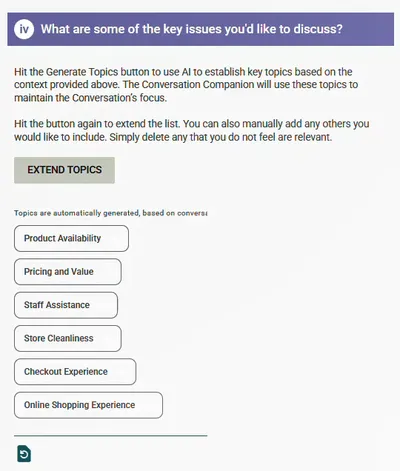
Click Generate Topics — EVE generates topics from your context. Once generated, the button changes to Extend Topics — click again to add more.
-
Review and refine the topics:
- Type directly into the field to add your own topics
- Click the remove icon (×) on a topic chip to delete it
- Click the restore icon (Clear selection) to remove all and start again
-
Click Next to open the Model Editor.
-
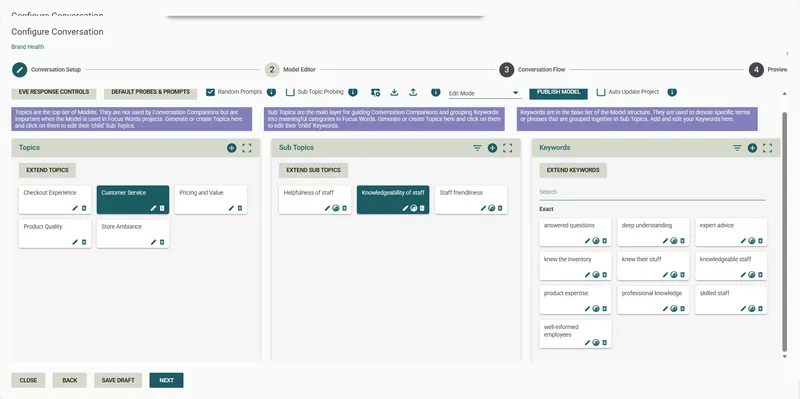
Review and edit the Model — check topics, sub-topics, keywords, and the probe and prompt wording for each sub-topic. See Models for a full guide to the model editor.
-
Click Next to move to the Conversation Flow step.
-
Enter the Conversation Introduction — the opening message EVE shows each participant. See Conversation settings.
-
Configure the final question and Outro — see Conversation settings.
-
Configure conversation flow:
- Probe on terms in initial response only — when checked, EVE only probes on sub-topics the participant mentions in their first response. Uncheck to allow probing on anything mentioned across all responses
- Maximum number of follow-up questions to ask — total cap on all questions EVE asks (default: 2). The static final question doesn’t count toward this limit
- Maximum number of AI Probes — cap on AI-generated probes (default: 1)
- Maximum number of Model Probes — cap on keyword-triggered probes from the model (default: 1)
- Maximum number of Random Prompts — cap on prompts for unmentioned topics (default: 1). Set to 0 to disable random prompting
-
(Optional) Enable Danger Words — see Conversation settings.
-
Click Next to move to the Preview step.
-
(Optional) Set a Conversation Companion Name and Avatar — see Conversation settings.
-
Click Preview Conversation to interact with EVE as a participant would. Click Back to return and adjust.
-
Click Publish to finalise, or Save Draft to save without publishing.
Frequently asked questions
Section titled “Frequently asked questions”What’s the difference between AI Probes and Model Probes?
Model Probes are triggered when a participant’s response contains a keyword defined in your linked model — these are structured and targeted. AI Probes are generated by the AI when the participant says something relevant but not covered by a model keyword — these are more flexible. You can set a limit on each type separately in the conversation flow settings.
When does the AI safety net kick in?
The AI steps in when a participant’s response doesn’t match any keyword in the linked model. Rather than leaving a gap in the conversation, the AI probes or prompts within the context you defined — keeping things on topic without going off-script. You control how often this happens via the Maximum number of AI Probes and Maximum number of Random Prompts settings.
Should I generate a full model or just topics?
It depends on how much setup work you want to do upfront. Generate full Model gives you a complete structure (topics, sub-topics, keywords, probe wording) to review and refine — faster to get started but requires careful review. Use Generated Topics gives you a starting framework that you build out yourself — more work, but more control from the start. If you already have a model from a previous project, just link it.
Can I edit the model after the conversation is published?
You can edit the model at any time, but changes won’t take effect in live surveys until you republish the conversation. Any surveys using it will automatically pick up the latest published version.
What is “Probe on terms in initial response only”?
When this is checked, EVE only probes on sub-topics the participant mentions in their very first response to the opening question. If they mention a keyword later in the conversation, EVE won’t probe on it. Unchecking it allows EVE to probe on keywords mentioned at any point — useful when you want to follow the full thread of what participants say.
What happens if I set Maximum Random Prompts to 0?
EVE will not prompt participants on topics they haven’t mentioned. The conversation will only probe on things the participant raises themselves. Useful when you want a purely reactive conversation with no AI-driven topic introduction.
Can I use Danger Words in a Guided AI conversation?
Yes — Danger Words is available in Guided AI (and Model Only) conversations. See Conversation settings for configuration details.
What happens after I publish?
The conversation is ready to be inserted into a Survey Shaper survey. See Publish and deploy for the full deployment steps.