

Getting started with Action Connect
Ever feel like you’re drowning in customer feedback without knowing what to fix first? Action Connect turns that pile of comments, complaints and suggestions into an organized list of feedback categories, each one linked to the people and initiatives that will do something about it.
Think of it as triage for feedback. Action Connect groups similar feedback, shows how often each issue comes up, points to the issues that hurt your ratings most, and links them to initiatives that improve the customer experience. It even drafts a reply for each customer, and its suggestions get better as your team reviews and corrects them.
How it works
Section titled “How it works”- Create a project - Connect your feedback data, choose who owns each piece of feedback, and pick the filters you’ll want later. See Creating a project.
- Let the AI categorize - Action Connect sorts each piece of feedback into a category and sub category, suggests an initiative, and drafts a response.
- Review and respond - Your team approves or corrects the suggestions on the Customer Feedback tab and uses the responses to close the loop with customers.
- Spot the patterns - The Feedback Categories tab shows how often each issue comes up and, if you track ratings, how each one rates.
- Plan the fixes - Set up initiatives with owners, statuses and due dates, and link them to the issues they address.
- Prioritize - If your project has ratings, the Opportunity Score tab ranks the issues where improvement would make the biggest difference.
Action Connect keeps checking your data source for new feedback, so the project stays up to date without you lifting a finger.
Opening Action Connect
Section titled “Opening Action Connect”There are two ways in:
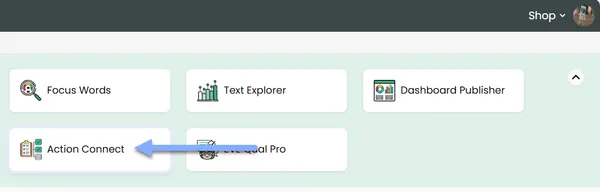
- Application grid: on Portal home, click the Action Connect card. Depending on your screen size, you may need to scroll down to find it.
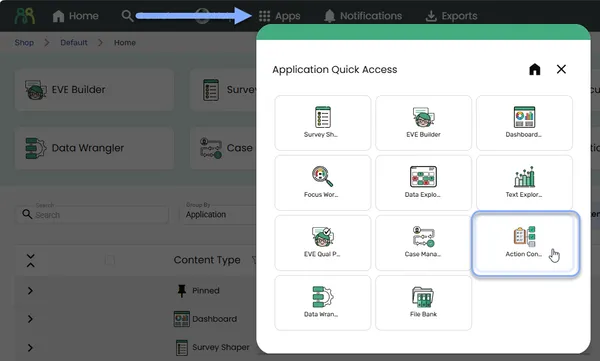
- Application quick access: click Apps in the header bar, then choose Action Connect in the quick access dialog.
The Action Connect home
Section titled “The Action Connect home”Action Connect opens on a list of every project you’ve created or had shared with you.
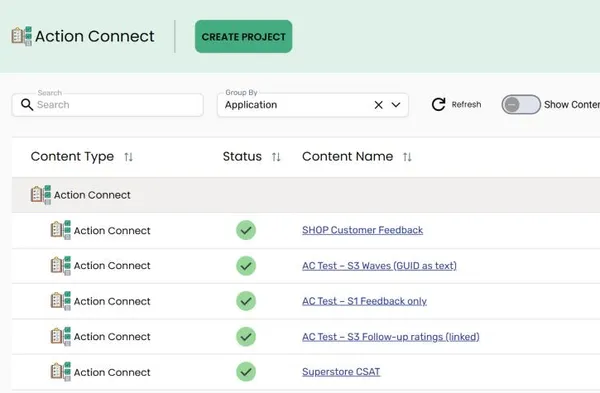
Searching, sorting, filtering, grouping, tagging and pinning work the same way as everywhere else in the Portal. See Find & organize content.
If you don’t have any projects yet, you’ll see an Action Connect card instead. Click Let’s Go! to create your first one.
Status
Section titled “Status”The Status column shows an icon. Hover over it to see the status.
| Icon | Status | What it means |
|---|---|---|
 | Initializing | Action Connect is still setting the project up. Clicking it opens a progress page instead of the project. |
 | Ready | The project is set up and ready to open. |
You don’t need to refresh the page. An Initializing project switches to Ready by itself when it’s done.
Creating a project
Section titled “Creating a project”Click Create Project at the top of the page. You’ll name the project first, then a four-step wizard walks you through the setup. See Creating a project.
Row actions
Section titled “Row actions”Hover over a row to see View, Share, Tag, Pin and More. These work the same way they do on Portal home. See Find & organize content and Share content.
- Rename in the More menu is available to anyone who can edit the project. Renaming a project also renames its Action Connect data store.
- Hide, Archive and Delete move the project to the matching tab. Restore brings it back.
When you share a project, you can also give each person an access filter, so they only see part of the data. See Sharing and access filters.
Who can do what
Section titled “Who can do what”What you can do in a project depends on how it was shared with you.
| Role | What you can do |
|---|---|
| Owner | Everything, including access filters and generating Text Auto Reports. Owners always see all the data. |
| Editor | Review feedback, manage feedback categories and initiatives, and rename the project. |
| Project Lead | Review feedback: approve, change or add classifications. Categories and initiatives are view-only, and you can’t create new ones while reviewing. |
| Viewer | View everything, but change nothing. |
Inside a project
Section titled “Inside a project”When you open a project, the header shows the project name, the tabs and the project tools.

| Tab | What it’s for |
|---|---|
| Customer Feedback | Review each piece of feedback and approve or correct the AI’s suggestions. See Customer Feedback tab. |
| Feedback Categories | See feedback grouped by category and sub category. See Feedback Categories tab. |
| Initiatives | See your initiatives and the feedback linked to them. See Initiatives. |
| Opportunity Score | Rank issues by where improvement matters most. Only shown when the project has ratings. See Opportunity Score. |
The filter bar sits above every tab, and your filters stay in place as you switch between tabs. Export downloads the current tab as a CSV file, with your filters applied.
Project tools
Section titled “Project tools”| Button | What it does | Who sees it |
|---|---|---|
| Settings | Opens the Project Settings dialog. Shows as View Settings if you can’t edit. See Project Settings below. | Everyone |
| View TAR | Opens the project’s Text Auto Report in Text Explorer. Only shown once a report has been generated. See Feedback Categories tab. | Everyone |
| Access Filters | Control which part of the data each shared person sees. See Sharing and access filters. | Owner |
Project Last Discovered shows when Action Connect last checked your data source for new feedback. New feedback is picked up and categorized automatically, so there’s no refresh button.
On smaller screens the buttons show as icons only. Hover over one to see what it does.
Project Settings
Section titled “Project Settings”Click Settings in the project header to manage the project. The Project Settings dialog has three tabs:
| Tab | What it’s for |
|---|---|
| Feedback Categories | Add, rename and reorganize categories and sub categories. See Editing feedback categories. |
| Initiatives | Create and manage initiatives. See Setting up initiatives. |
| Configuration | A read-only summary of how the project was set up: data sources, variables, AI context and date settings. |
The buttons at the bottom of the dialog change with the tab you’re on. If you switch tabs with unsaved changes, you’ll be asked whether to discard them, so save first if you want to keep them.
If you’re a Project Lead or Viewer, the button reads View Settings and opens View Project Settings, where the tabs are View Feedback Categories, View Initiatives and Configuration, all read-only.
Frequently asked questions
Section titled “Frequently asked questions”Why can’t I open my new project?
It’s still Initializing. Clicking it shows a progress page instead. Action Connect is building the project’s data store and categorizing your feedback, which can take a while for large data sets. The status changes to Ready when it’s done.
Why isn’t new feedback showing up?
Check Project Last Discovered in the project header to see when Action Connect last looked for new feedback. Projects that are hidden, archived or deleted stop picking up new feedback. If the project has a Project Start Date, feedback from before that date is ignored.
Why don’t I see the Opportunity Score tab?
The Opportunity Score needs ratings. It only appears for projects set up with My Actions have ratings turned on.
Why can’t I edit categories or initiatives?
Only owners and editors can. If the header shows View Settings rather than Settings, you have a Project Lead or Viewer role. Ask the project owner if you need more access.