

Comment Search (Beta)
The Comment Search tab lets you search every comment behind your report. Use it to find what people said about something specific, read comments in full, and download the ones you need.
Turning on Comment Search
Section titled “Turning on Comment Search”Comment Search is set up in the project set-up wizard. Turn on Comment Search in Pick Your Report Type, then for each page you want it on in Configure Report Pages. See Set up a project. To add it to an existing report, use Edit Report.
How comments are coloured
Section titled “How comments are coloured”When you set up Comment Search, you choose how each comment is coloured, under Color Comments By:
- Overall Sentiment — each comment is coloured by its own sentiment: positive, negative, mixed, or neutral.
- Data Variable — each comment is coloured by a rating from your data, such as NPS. You choose the rating and which values count as positive, neutral, and negative — for example, 9–10 positive, 7–8 neutral, and 0–6 negative.
You can colour by any numeric rating in your data source, not only the variables you added as filters. Any value you don’t assign to a group is left out of Comment Search. See Colouring comments.
Searching comments
Section titled “Searching comments”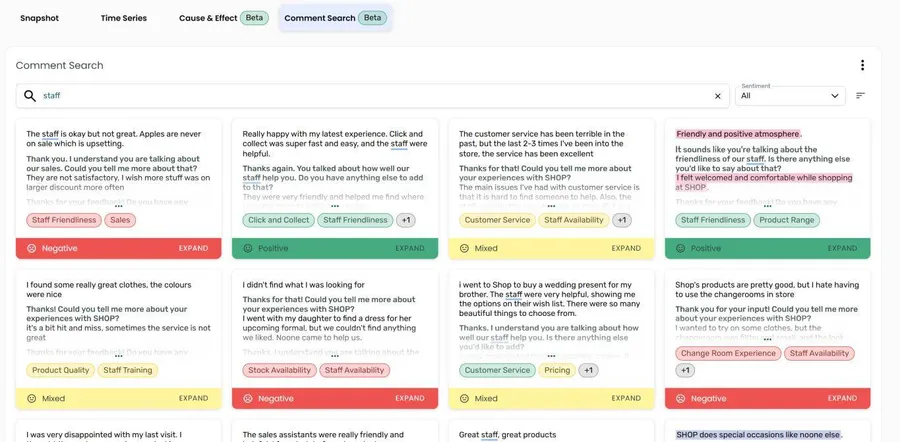
Type in the search box to find comments containing a word or phrase. Results update as you type, and the search term is underlined in each comment. Click the X in the search box to clear it.
Use the other controls to narrow and order the results:
| Control | What it does |
|---|---|
| Sub Topic | Show only comments that mention any of the sub topics you select |
| Sentiment | Show only comments with the sentiments you select — positive, negative, mixed, or neutral. Only shown when comments are coloured by sentiment. |
| Rating | Show only comments in the rating groups you select — positive, neutral, or negative. Only shown when comments are coloured by a rating. |
| Sort comments | Order comments by date — Newest first (the default) or Oldest first. When comments are coloured by a rating, choose from Rating high to low (the default), Rating low to high, Date newest first, or Date oldest first. |
You can select more than one option in each filter. Each option shows how many comments you’d see if you picked it. The search and filters work together: a comment is shown only if it matches the search and every filter you’ve set.
The search covers all comments for the page’s text variable, within the filters set in the report’s filter bar — timeframe, period, and any filter variables.
Reading comments
Section titled “Reading comments”Each comment is shown as a card with:
- The comment text. Long comments are cut short — click … to see the rest.
- Up to two sub topic tags, with +N for any others.
- A coloured band showing the comment’s sentiment, or its rating, such as NPS: 7.
Reading a comment in full
Section titled “Reading a comment in full”Click Expand on a card to open the comment in full, with its prompts, sentiment, and every sub topic tag. Parts of the comment quoted for a sub topic are highlighted in the same colour as that sub topic’s tag — hover over a highlight to see which sub topic it belongs to.
Click Next or Previous to step through the matching comments, in the same order as the tab. They follow your search, filters, and sort.
If your project has Comment Labels, click Details on a card, or the Details tab in the full view, to see the label values for that respondent. Label values are only shown on the Details tab.
Use the controls at the bottom of the tab to move between pages of results, and to show 25, 50, or 100 comments per page.
Downloading comments
Section titled “Downloading comments”Click the menu (⋮) on the Comment Search card and select Download Comments to download the matching comments as a CSV file. The download contains exactly the comments the tab is showing — every comment that matches your search and filters, not just the page you’re looking at. Large result sets can take a little while. When the download is ready, a message tells you how many comments were downloaded and which filters were applied.
Frequently asked questions
Section titled “Frequently asked questions”Why don’t I see a Comment Search tab?
Comment Search wasn’t included for this page. Use Edit Report to turn it on. Comment Search can also be turned off for reports shown in a dashboard.
Why isn’t there a Sentiment filter?
The Sentiment filter is only shown when comments are coloured by their own sentiment. If comments are coloured by a rating from your data, use the Rating filter, or sort by rating, instead.
Can I change how comments are coloured?
Colours are chosen for each page when it’s added in the set-up wizard. To see how a page’s comments are coloured, open Edit Report and click the View (eye) icon on the page in Configure Report Pages. To colour comments differently, add a new page with the colour settings you want.
How is Comment Search different from the comment viewer?
The comment viewer shows the comments behind a chart data point you click. Comment Search lets you search all comments for the page, whatever topic they’re about.