

Publish survey
Once you’ve previewed your survey and everything looks good, it’s time to Publish. Only published surveys can collect real responses. Preview links won’t save data to your data store.
To publish, click the Publish button.
If you’ve got unsaved changes, you’ll be prompted to save before publishing.
Once it’s published, a Published watermark appears in the flowchart.
The Publish Project dialog asks you to confirm. If you have unsaved changes, publishing saves them first. Click Yes.
Once it’s published, the header shows a Published badge and the message “This version is published.” The version can no longer be edited.
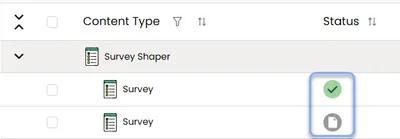
In the Survey Shaper content table, a published survey has a green tick status. The grey draft icon means it’s unpublished.
Edit published survey
Section titled “Edit published survey”After publishing, surveys become read-only. To make changes, you’ll need to create a new version, then publish that version. For step-by-step instructions, see Editing a published survey.
Be careful editing live surveys where respondents are already participating. Small text edits and adding new questions or answers are usually fine, but avoid deleting questions or answers, renumbering answer codes, or changing question types. These can mess with your data quality.
Your changes won’t go live until you publish the new version. Anyone who hasn’t started the survey yet will see the updated version. Those who already started will continue with the original version they began with.
This deliberate publishing approach gives you control over when changes go live. Instead of every edit immediately affecting active respondents, you can batch your changes and publish them strategically.
For more details, see Version control.
Pre-publish checklist
Section titled “Pre-publish checklist”Before hitting publish, run through these quick checks:
- Is there a Finish Action set?
- Are all Action Commands hidden?
- Does the Back button need to be hidden?
- Does the survey need to be set to Invitation Only or Is Panel Survey?
Published survey links
Section titled “Published survey links”Here’s the good news: Published links automatically point to your most recently published version. Update your survey and republish? No need to send a new link: the same URL works.
To grab your live survey link:
- Open Survey Shaper
- In the Survey Shaper section in the content table, click the more icon (⋮) on the survey
- Select Versions & Links > Survey Links
- Copy the Published Live Link