

Select data
Once you have created a workspace, you can start creating explorations. You can add explorations one at a time, or use the Batch Tables feature to generate multiple explorations automatically.
Creating a single exploration
Section titled “Creating a single exploration”- Open the Data Explorer application
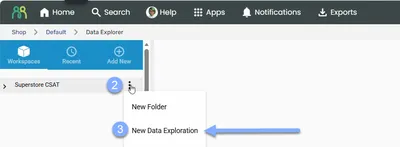
- Click the ellipsis menu (three dots) next to your workspace
- Select New Data Exploration
- Choose your Data Store (this could be a survey or a Data Wrangler upload)
- Enter a descriptive name for your exploration
- Click Save
Once your exploration is created, you can start building your analysis by dragging variables from the Data Fields list into the rows and columns sections.
To filter your results, drag variables into the Filter box to limit which records are included in your analysis.
Finding variables
Section titled “Finding variables”When working with data stores that contain many variables, use these tools to quickly find what you need:
Search
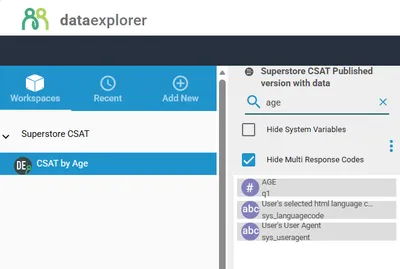
Section titled “Search”Type in the search box above the variable list to filter variables by name. Only variables matching your search text will be displayed.
Sort variables
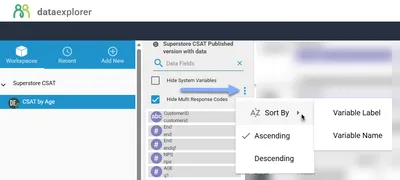
Section titled “Sort variables”Click the ellipsis menu next to the variable list to access sort options:
| Sort By | Description |
|---|---|
| Variable Label | Sort alphabetically by the display label |
| Variable Name | Sort alphabetically by the internal variable name |
You can also choose Ascending or Descending order from the same menu.
Creating batch tables
Section titled “Creating batch tables”The Batch Tables feature lets you generate multiple explorations at once. This is useful when you want to create the same type of analysis across many variables.
- Open Data Explorer
- Click the ellipsis menu next to your target workspace
- Select Batch Tables
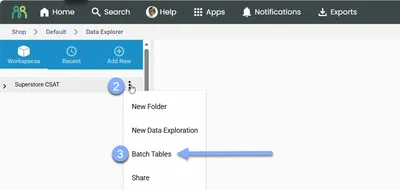
- Choose your Data Store and click Next
- Drag variables into the Rows container (required)
- Optionally drag variables into the Columns container
- Click Next
- Enable weighting if required and select the weight factor variable
- Click Next and select your Format Options
- Click Save
The system will create separate explorations for each combination of row and column variables you selected.
Working with your exploration
Section titled “Working with your exploration”Swap rows and columns
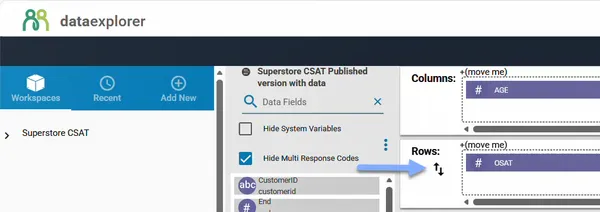
Section titled “Swap rows and columns”Click the Swap icon (two arrows) to transpose your variables, switching what appears in rows versus columns.
Clear all
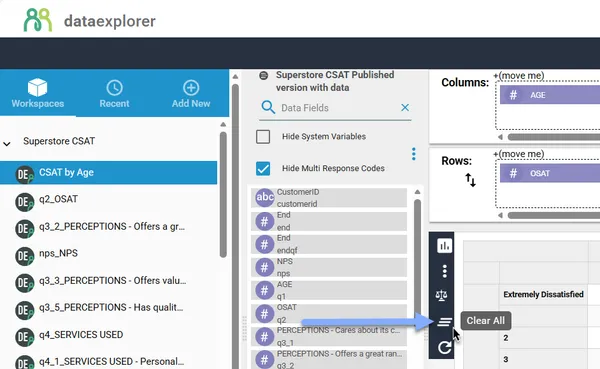
Section titled “Clear all”To remove all variables and start fresh, access the Clear All option from the floating menu. This removes all row, column, and filter variables from your exploration.
Undo and redo
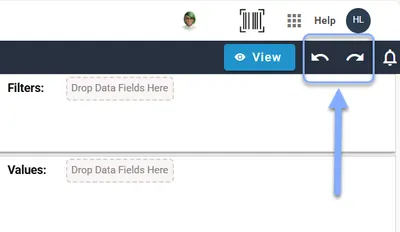
Section titled “Undo and redo”Use the Undo and Redo buttons at the top of the interface to reverse or reapply changes.
Frequently asked questions
Section titled “Frequently asked questions”How many explorations will batch tables create?
Batch tables create one exploration for each combination of row and column variables. For example, if you select 5 row variables and 3 column variables, the system will generate 15 explorations (5 × 3). If you only select row variables without columns, you’ll get one exploration per row variable.
What types of data stores can I use?
You can create explorations from any data store you have access to, including Survey Shaper surveys and data uploaded through Data Wrangler.
Can I use multi-response variables in my exploration?
Yes, but with some restrictions. Multi-response variables can be used in rows or columns, but you can only have one multi-response variable per row or column section. Additionally, multi-response variables cannot be used together with value variables in the same exploration.
What variables can I use in the Values zone?
Only numeric variables (decimal or boolean types) can be placed in the Values zone. You can have a maximum of one value variable per exploration.
Why can’t I access my data store anymore?
If you no longer have access to a data store (for example, if permissions have changed), you won’t be able to view or edit explorations that use that data store. Contact your administrator to restore access.
Why can’t I create an exploration in a workspace that has been shared with me?
You must have access to a data store to create an exploration. Sharing a workspace only gives you access to existing explorations - to add new explorations to that workspace, you must also have the data store shared with you (via Survey Shaper if it’s a survey data store, or Data Wrangler if it’s a non-survey data store).
Can I apply the same format options to all batch table explorations?
Yes, the format options you select during batch table creation are applied to all generated explorations. You can also apply weighting options that will be used across all tables in the batch.
Can batch tables create subfolders automatically?
Yes, when creating batch tables you have the option to organize the generated explorations into subfolders for easier navigation.
Common issues and solutions
Section titled “Common issues and solutions””I can’t find the variable I’m looking for”
Section titled “”I can’t find the variable I’m looking for””Large data stores can contain hundreds of variables, making it difficult to locate specific fields.
- Use the search box - Type part of the variable name or label to filter the list
- Try different sort options - Switch between sorting by Name, Label, or Survey to find grouped variables
- Check for variations - Variable names may differ slightly from how they appear in surveys
”My batch tables are taking a long time to create”
Section titled “”My batch tables are taking a long time to create””Creating many explorations at once can take time, especially with large datasets.
- Reduce the scope - Start with fewer row and column variables to test your setup
- Check your filters - Complex filters applied during batch creation can slow processing
- Wait for completion - Large batches may take several minutes - avoid navigating away until complete
”I dragged a variable but nothing happened”
Section titled “”I dragged a variable but nothing happened””Variables have placement rules that may prevent certain combinations.
- Check variable type - Only numeric variables can go in the Values zone
- Watch for conflicts - Multi-response variables can’t be combined with value variables
- Verify edit mode - Make sure you’re in Edit mode, not View mode