

Edit & Delete Records in Data View
Spotted a typo in a record, or some rows that shouldn’t be there? You can fix values and remove records straight from Data View. Deleted records wait in the data store’s Recycle Bin for 30 days, so you can change your mind.
Every deletion asks for a reason and is recorded in the Deletion Log, so anyone checking later can see who removed what, and why.
Edit values
Section titled “Edit values”- Turn on Enable Editing - It’s in the Data View toolbar. Cells you can edit show a pencil icon.
- Click a cell and change the value - Dates and times open a picker; everything else is a text box. For variables with a codeframe, type the code.
- Press Enter - The change is saved straight away. There’s no save button and no confirmation.
You can’t edit:
- the primary key
- fields using Mask, Mask + retention or Wipe
- survey data stores (Enable Editing isn’t available)
Editing works on published data stores too.
Delete records
Section titled “Delete records”You can delete one record at a time, a selection, or every record that matches your filters.
- Choose what to delete:
- One record: with Enable Editing on, click Delete Row at the start of the row.
- Several records: tick their checkboxes, then click Delete in the action panel.
- Every matching record: filter Data View first, then tick the checkbox in the header row. Without a filter, this selects every record in the data store.
- Check the summary - The Delete Cases dialog (or Delete Case for one record) says what’s about to be deleted, for example “You are about to delete 1 case.” or “You are about to delete all cases matching the current filter”.
- Enter a reason - Reason for deletion (“Enter the reason for this deletion…”) is required, up to 2,000 characters. It’s what people will see later in the Deletion Log and Recycle Bin, so make it specific.
- Type delete - In the confirmation box.
- Decide whether to skip the Recycle Bin - Leave Permanently delete immediately (skip recycle bin and notification emails) unticked, and the dialog confirms: “Deleted cases will be held in the recycle bin for 30 days before permanent removal.”
- Click DELETE - You’ll see “Deletion started for …”, and the deletion runs in the background.
If you tick rows one by one, you can delete up to 1,000 in one go. For more, filter Data View and use the header checkbox instead.
When you delete records matching a filter, the count is an estimate. The filter is checked again when the deletion actually runs, so records added in between can be included.
Track background requests
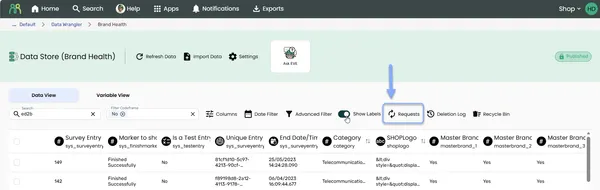
Section titled “Track background requests”Deletions, restores and other bulk changes run in the background. To see how they’re going, click Requests; it shows a count, like Requests (2), while something is running. The Case Requests dialog lists recent requests with their Type, Status and how many records were processed.
| Status | What it means |
|---|---|
| Pending | Waiting to start |
| Processing | Running now |
| Success | Finished |
| Fail | Something went wrong. The Error column says why. |
The list refreshes by itself, and you’ll see a message in Data View when a request finishes. A failed Wipe Variable request can be retried; see Personal information.
See who deleted what
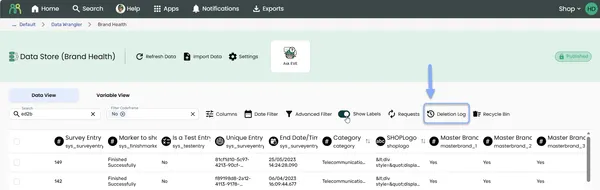
Section titled “See who deleted what”Click Deletion Log to open the Case Deletion Audit Log. It lists each deletion with the Date / Time, User, Cases Deleted, Selection and Reason. Restores and permanent deletions from the Recycle Bin are listed there too.
Restore deleted records from the Recycle Bin
Section titled “Restore deleted records from the Recycle Bin”Deleted records are kept in the data store’s Recycle Bin for 30 days: “Cases deleted from this data store are kept here for 30 days before being permanently removed.” The button can show how many are waiting, like Recycle Bin (25), but the count is only checked when the page loads and when you close the Recycle Bin. Right after a deletion, it may be missing or out of date.
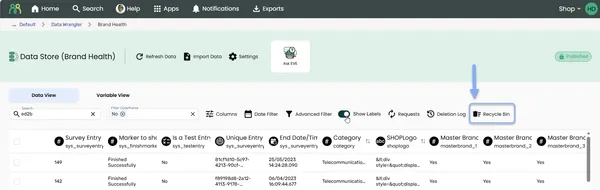
- Click Recycle Bin - Use the Case tab to see individual records, or the Request tab to see them grouped by the deletion that removed them. The Expires column shows when each will be removed for good.
- Select what to bring back - Tick the records or requests.
- Click Restore - The Restore Cases dialog asks, for example, “Restore 1 case back into the data store?” Click OK.
- Wait for it to finish - You’ll see “Restore request submitted. 1 case will be restored shortly.” The restore runs in the background.
The Case tab shows each record’s Deleted, Expires, Request, Deleted By and Reason, but not its ID or values. To find the records from a particular deletion, use the Request tab, which groups them by the deletion that removed them, or match the Reason you entered with the one in the Deletion Log.
You can restore up to 1,000 records at a time on the Case tab.
Restored records follow the data store’s current personal-information settings. If a field has been wiped since the records were deleted, those values come back empty.
This Recycle Bin is only for records in this data store. Deleted data stores, wrangles and other content go to the Recycle Bin on the home page; see Find & organize content.
Remove records from the Recycle Bin for good
Section titled “Remove records from the Recycle Bin for good”- To permanently delete some records, select them and click Delete.
- To clear everything, click Empty Recycle Bin.
When records are removed automatically
Section titled “When records are removed automatically”Records are removed for good 30 days after they’re deleted. If you’re subscribed to the data store, you’ll get an email when records go into the Recycle Bin, a reminder 7 days before they’re removed, and a final notice the day before.
The 7-day reminder is always sent. The final notice, “Final notice: cases will be permanently deleted tomorrow”, is on by default, but the data store’s owner or an editor can turn it off in Data store settings.
Frequently Asked Questions
Section titled “Frequently Asked Questions”Why can’t I edit cells?
You need Can Edit access, and Enable Editing must be on. Survey data stores can’t be edited cell by cell, and the primary key and masked or wiped fields are always locked.
Can I undo a deletion?
Usually. Restore the records from the Recycle Bin within 30 days. You can’t undo a deletion if you ticked Permanently delete immediately, or if the records have been deleted from the Recycle Bin.
How many records can I delete at once?
Up to 1,000 if you tick them one by one. To delete more, filter Data View and tick the checkbox in the header row; that selects every matching record.
Why don’t I see Delete Row?
Turn on Enable Editing first. It isn’t available on survey data stores.
Is this the same Recycle Bin as on the home page?
No. This one holds deleted records from one data store. The home page’s Recycle Bin holds deleted content, such as whole data stores.
Who gets the reminder emails?
People subscribed to the data store. For a survey data store, it’s the survey’s subscribers. Permanent deletions don’t send emails. The owner or an editor can subscribe people in Data store settings.
Why didn’t I get the final notice before records were removed?
The final notice can be turned off for a data store. Check Notification Recipients in Data store settings. The 7-day reminder is always sent.
Why is the deleted count only an estimate?
When you delete everything matching a filter, the filter is checked again when the deletion runs. Records added or changed in between can be included or left out.
Common Issues and Solutions
Section titled “Common Issues and Solutions””Deleting specific rows is limited to 1,000 rows per request.”
Section titled “”Deleting specific rows is limited to 1,000 rows per request.””You’ve ticked more than 1,000 individual rows.
- Filter first - Filter Data View to the records you want to delete.
- Use the header checkbox - Tick it to select every matching record, then click Delete.
”A reason is required and cannot exceed 2000 characters.” or “Please type ‘delete’ to confirm.”
Section titled “”A reason is required and cannot exceed 2000 characters.” or “Please type ‘delete’ to confirm.””The Delete Cases dialog isn’t complete.
- Fill in both boxes - Enter a reason of up to 2,000 characters, and type delete in the confirmation box.
”Failed to update data store cell.”
Section titled “”Failed to update data store cell.””Your change wasn’t saved.
- Refresh - Click Refresh Data to see the stored value.
- Check the field - It may be protected, for example a masked field.
- Try again - Edit the cell again.
”You can restore up to 1000 cases at a time. Please reduce your selection.”
Section titled “”You can restore up to 1000 cases at a time. Please reduce your selection.””You’ve selected more than 1,000 records to restore.
- Restore in batches - Select up to 1,000 at a time.
- Or use the Request tab - Restore a whole deletion at once from the Request tab.
”Failed to restore cases from recycle bin.” or “Failed to empty recycle bin.”
Section titled “”Failed to restore cases from recycle bin.” or “Failed to empty recycle bin.””The request couldn’t be sent.
- Try again - Close the Recycle Bin, click Refresh Data and try again.
- Check Requests - Open Requests to see whether a request failed and why.
- Contact support - If it keeps failing, contact support with the Request ID, and the data store’s name and GUID (copy it from Settings).